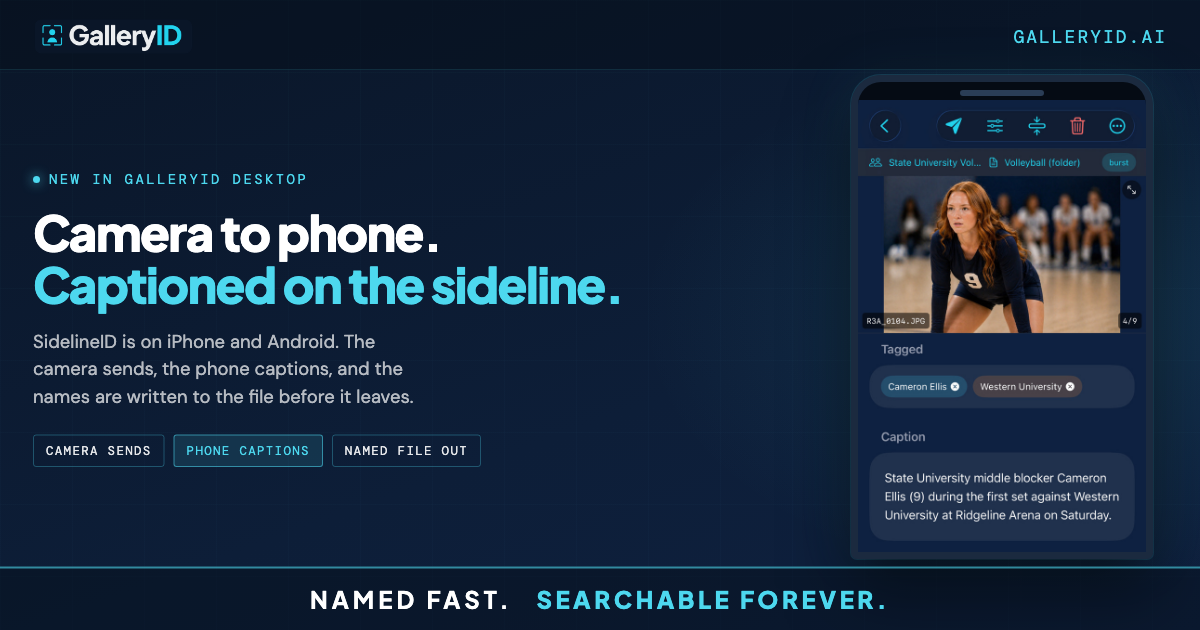
SidelineID: Caption Sports Photos From the Sideline, Between Plays
Real-time delivery means frames go out during the game, not after it. The usual route is a trek to the workroom, a laptop, and whatever minutes you can borrow around halftime.
SidelineID cuts out the trek. It’s the phone half of GalleryID Desktop, now approved on iPhone and Android, and it lets you caption sports photos from the sideline in the gaps the game gives you. The camera sends each frame to your phone as you take it. You name the athlete off the roster between plays. The file goes out named, either straight to the wire or back to your laptop for a look first.
What it takes to caption sports photos from the sideline
Two things: your phone’s hotspot and one transfer target on the camera.
Turn the hotspot on first. On iPhone that’s Personal Hotspot with Maximize Compatibility switched off. On Android it’s the Wi-Fi hotspot, on 5 GHz if the phone offers it. Open the SidelineID tab, tap the camera dot, and the panel shows the address and port the camera should send to. Green means the receiver’s listening. Yellow means the hotspot isn’t up yet.
On the camera, add an FTP transfer target pointed at that address. Port 2121, not 21. Passive mode on, any login, plain FTP rather than FTPS. Set the transfer to send after capture, JPEG. On a Canon EOS R3 that’s under Wireless features, Network settings, Connect, Transfer images to FTP server.
Two limits worth knowing up front. It’s JPEG only, so the camera should send JPEGs rather than raw. And on iPhone the receiver stops when the app goes to the background, so keep it open and use Pocket mode, which dims the screen and keeps receiving. Android runs the receiver as a service, so that phone can sit locked in a pocket. Install and pairing are on the phone apps page.
Naming them between plays
The CaptionID bar sits above the keyboard. Type a name or a jersey number, and matches rise from the bar with number, team and position. Return takes the first one.
A single digit is enough for a number. Bind both rosters and the numbers stay apart, so 9 on the home roster and 9 on the visitors both come up and you pick. Accepting a name tags the person, and the template re-renders each mapped field from that tag: the long form into the caption, the name in the headline, the tag in Persons Shown. Swipe left or right for the next frame and the keyboard stays up. That’s the part that fits between plays.
For a burst of near-identical frames there’s Copy IPTC and Paste IPTC, so one tagged frame carries the rest.
Worth being plain about what this is. It’s CaptionID, not facial recognition. The name comes from a list you already have, which is why a helmet or a turned head doesn’t matter here. MatchID is still the accelerator, and it’s still waiting for you at the laptop.
Sending captioned sports photos from the sideline
Two routes out, and most people use both across a game.
FTP and SFTP destinations sync down from Desktop with their resize, sharpen, watermark and filename pattern already attached, so what leaves the phone matches what leaves the laptop. You can add a destination on the phone too. FTPS with AUTH TLS isn’t supported there, so use SFTP or plain FTP.
The other route is your own machine. Desktop drops captioned copies into its Field inbox and catalogs them, which is what you want when you head to the workroom at half and review a set properly before it goes.
Either way, you can put a quick editorial edit on a frame first. The sliders icon opens Light, Color and Crop. The edit is stored on the frame and applied to the copy that goes out at send, so the camera original on the phone is never touched.
The metadata is written before anything moves. A frame that can’t be stamped isn’t sent, so nothing leaves unnamed.
Work the gaps the game gives you
SidelineID is built for the places a laptop doesn’t go: the bench, the end line, a credential that doesn’t come with a workroom seat. Install the phone app from the apps page, pair it from Catalog, Pair Phone, in GalleryID Desktop, and your rosters, templates and destinations sync down. The next game, the captions happen in the gaps instead of after.