CaptionID
Tag photos in the photo window
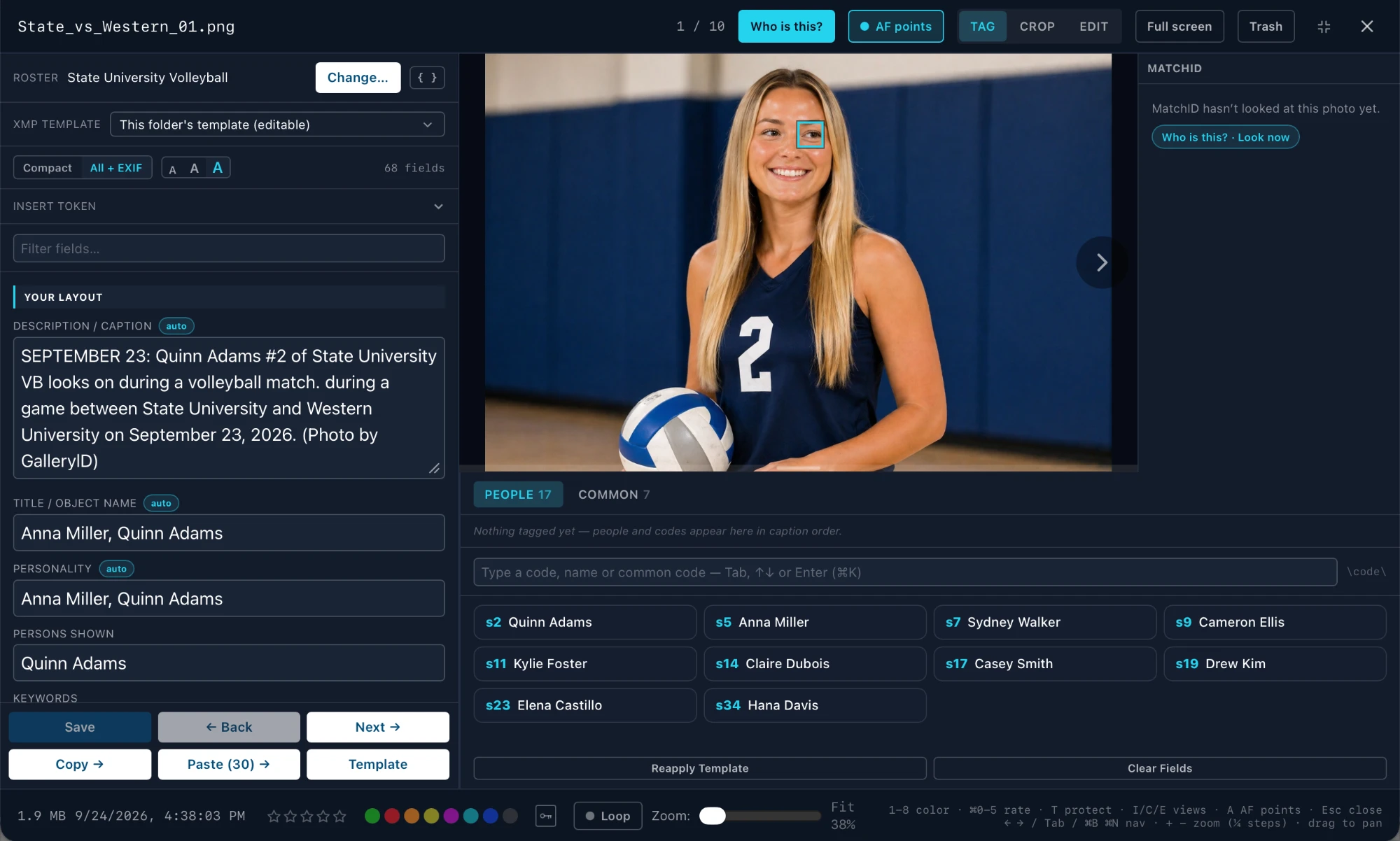
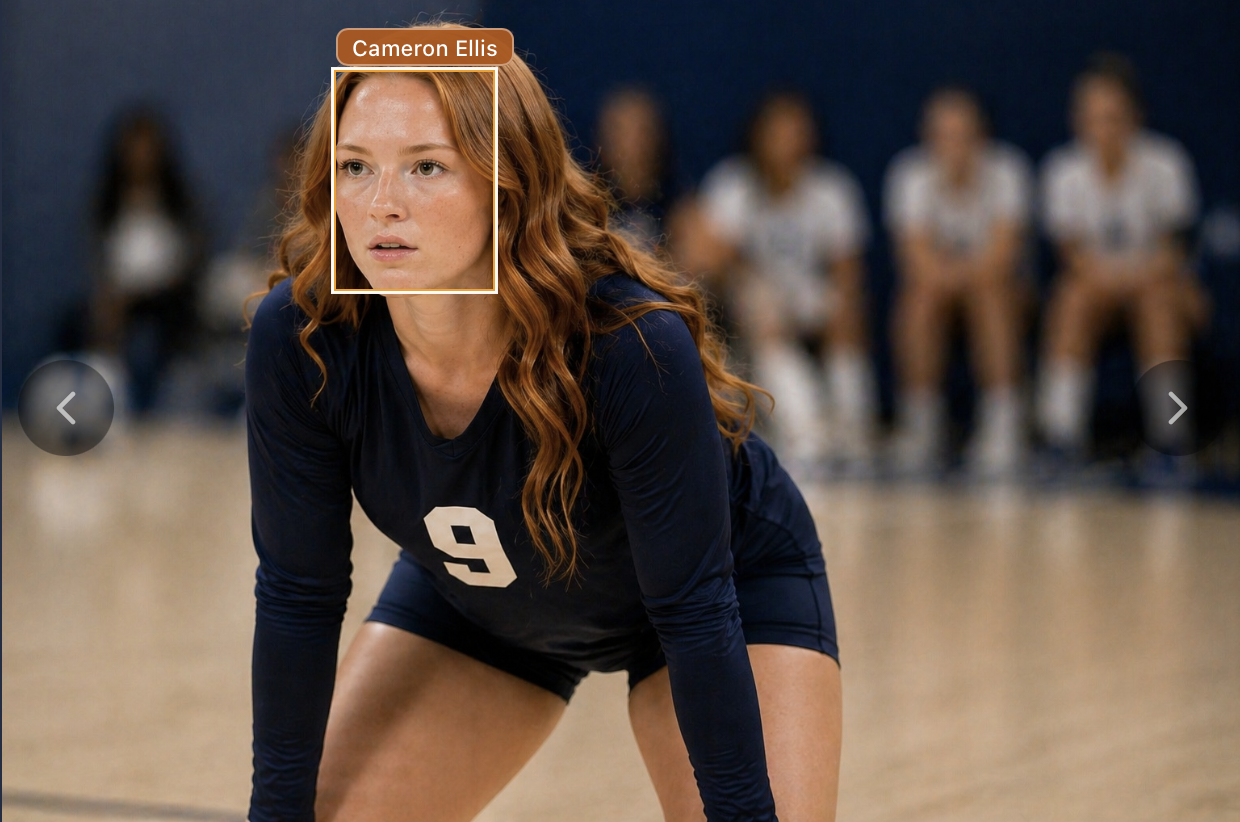
One photo at a time: the fields on the left, the photo in the middle, MatchID on the right, and your roster underneath. Tag someone and the caption writes itself from the folder's template.
Open a photo
- 1
Pick a photo
In Browse, select a photo and press I or Enter. (Space opens the full-screen cull view instead.) - 2
Tag the people in it
From the roster underneath, or with Who is this? on the right. - 3
Save and go to the next one
Next →, or ⌘N without leaving the field you’re typing in.
Top bar

| Control | What it does |
|---|---|
| 1 / 10 | Where you are in the selection. |
| Who is this? | Runs MatchID on this photo. See Who is this? below. |
| AF points | Shows where the camera focused, read from the file. Teal is the point it focused on; dashed white is the rest of the zone it had selected. A turns it on and off here and in the full-screen view. Canon, Sony, Nikon mirrorless, OM System and Olympus cameras for now. It hides on a cropped view. |
| TAG / CROP / EDIT | The three views of the window. I, C and E switch between them. |
| Full screen | This photo in the full-screen cull view (⌘⇧F). |
| Trash | Moves the photo to the Trash (Delete, or ⌘⌫ without asking). |
| ⤡ (compact header) | Icons only; the labels move to tooltips. Click again to bring the labels back. |
| ✕ | Closes the window (Esc). Unsaved edits ask first. |

Roster, template and fields
Roster

| Control | What it does |
|---|---|
| Roster | The roster bound to this photo's folder. |
| Change… | Saves this photo, closes the window and opens the folder's roster setup. |
{ } | Shows each field's template under it, tokens and all, so you can see what fills in where. |
XMP Template

The folder owns its template. Edit it right in the fields, or open the list to:
| Choice | What it does |
|---|---|
| Edit in IPTC editor… | Opens ⌘I on the folder’s template. Save to Folder brings you back. |
| Save current fields as folder template | Makes what's on screen the folder's template. |
| Import: Main editor (current) / a saved template | Copies that template into the folder. The original isn't touched. |
Field view and text size

| Control | What it does |
|---|---|
| Compact | Only the fields you chose in Settings ▸ Browse & Preview. |
| All + EXIF | Every IPTC and EXIF field, grouped, with your own layout at the top. |
| A A A | Field text size: small, medium, large. |
| Insert token | Drops a template token at the cursor. Click into a field first. |
| Filter fields… | Finds a field by name. |
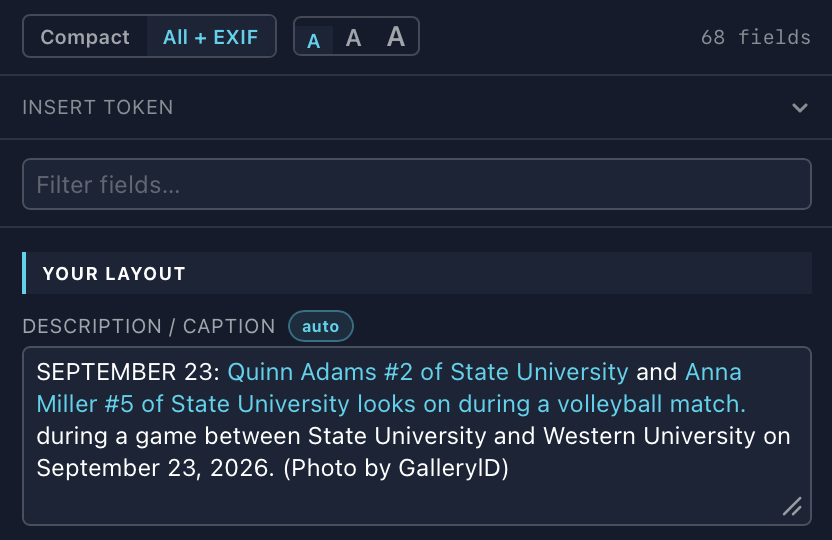
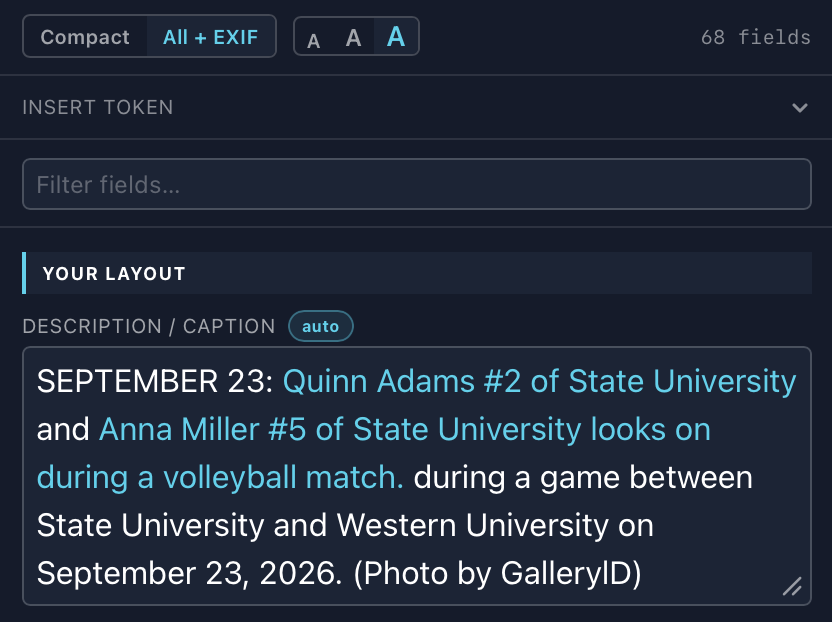
What the fields show
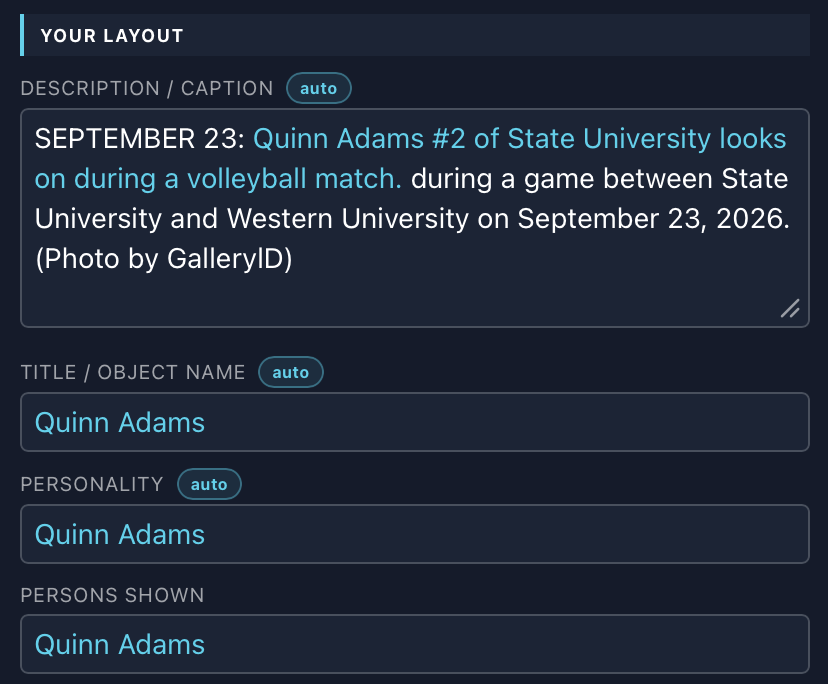
- •An auto chip on a label means the folder’s template fills that field. Hover it to see the template.
- •Text that came from a token is tinted, so you can tell a roster name from one you typed. Edit inside it and the tint drops.
- •A photo opens showing what’s in the file. Tag someone and the templated fields rebuild.
- •A note under a field, such as “leading or trailing space”, flags things a spellchecker wouldn’t: spacing, repeated words, unclosed brackets and IPTC length limits.
Tag with CaptionID

Under the photo are two tabs: People (the roster) and Common (action codes such as “looks on during a volleyball match.”). Click a card to tag it, or type in the tag box.


| Key | What it does |
|---|---|
| ⌘K | Jumps to the tag box, even while typing a caption. |
| Tab / Enter | Tags the highlighted suggestion. |
| ↑ ↓ | Moves through the suggestions. |
Reapply Template and Clear Fields


| Button | What it does |
|---|---|
| Reapply Template | Resets this photo's visible fields to the folder template and untags everyone. |
| Clear Fields | Blanks each visible field on this photo. |
Who is this?

Runs MatchID on this one photo. It compares the faces against the people indexed for the folder’s teams and puts a card in the MatchID column for each face it can name. If the folder has no teams set, it asks for them first.
| Card | Means |
|---|---|
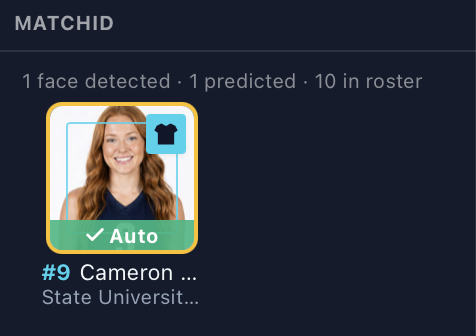 Auto Auto | Predicted, and above your auto-approve line. |
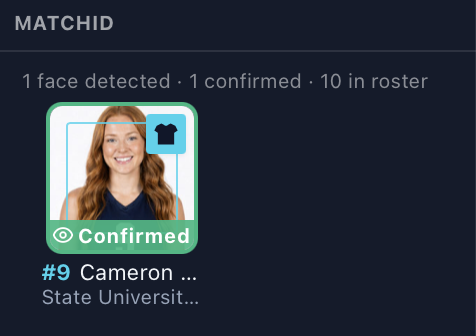 Confirmed Confirmed | Tagged on this photo. |
- •Hover a card: ✓ tags the person, ✕ rejects the match (or removes the tag). A rejected face can be undone.
- •The shirt badge in the corner means the jersey number MatchID read matches that person’s roster number too.
- •The line above the cards counts faces found, predicted or confirmed, and how many people are in the roster.
- •Check again looks again for anyone MatchID missed. Existing tags are kept, and nothing new is written until you confirm it.
{person_name} and the long forms included. If a confirmed card’s name isn’t in the fields, press ✓ on it again.Tagged names
Everything tagged on the photo shows as a row of names, in the order it lands in the caption. Two people join with “and”, three or more with commas.


| Control | What it does |
|---|---|
| < > | Moves the name earlier or later in the caption. |
| + | Adds a position qualifier, such as “right”, AP style: “Brock Purdy, right,”. |
| × | Removes the name from this photo. |
Save and move on

| Button | What it does |
|---|---|
| Save | Writes this photo. Greyed out until something changed. |
| ← Back / Next → | Saves and moves (⌘B / ⌘N, which keep the cursor in the same field). |
| Copy → | Copies the visible filled fields, saves, and moves to the next photo. |
| Paste (28) → | Pastes what you copied (28 fields here), saves, and moves on. |
| Template | Saves this photo's metadata as a named template you can load in the IPTC editor. |
Bottom bar
| What it does | |
|---|---|
 | File size and capture time. |
 | Star rating, colour label and protect. The keys work too: ⌘0–⌘5 rate, 1–8 colour, T protect. |
 | Wraps Back and Next at either end, so a second pass starts again without closing the window. |
 | Zoom in quarter steps (+ −), drag to pan. The slider’s left end is Fit. |

Shortcodes in any field
| You type | You get |
|---|---|
\h1\ | Column B of row h1 on the folder's roster. |
\h1#2\ | Column C instead. #3 is column D, and so on. |
dar | A grey completion, “darius Whitfield”. Tab accepts, Esc dismisses. |
The delimiter is set in Settings ▸ Browse & Preview and defaults to \. Autosuggest works mid-caption too. In Persons shown and Keywords, Space also accepts, unless you’re still narrowing a longer name.