Tag from your roster with one press, or let MatchID do it. Included in all plans. Start your 14-day free trial.Get Started →
GalleryID
GalleryID CloudGalleryID DesktopMatchIDCaptionID
PhotographersTeamAthletic DepartmentsColleges & UniversitiesAthletic ConferencesOrganizations
HelpComparePricingBlogAbout
Book a DemoLog In
GalleryID CloudGalleryID Desktop
Help home

Start here

How GalleryID Desktop works

Getting started and ingest

Set your MatchID settings and metadata templateIngest from a cardBrowse your photos

MatchID

Index reference headshotsTag photos with MatchIDTurn camera voice memos into names

CaptionID

Set a roster on a folderTag photos in the photo window

Metadata

Build an IPTC template with tokensFill fields from the camera with ExifIDFix a wrong value across a folder

Culling and editing

Cull out-of-focus photosCrop and straightenAdjust tone and colour

Files and delivery

Copy, move and rename filesExport, watermark and sharpenSend named files over FTPSend photos to GalleryID Cloud

Camera and phone

Caption on your phone as the camera sends, with SidelineID

Archive and backup

Browse an unplugged drive with CatalogBack up and restore

Reference

Keyboard shortcutsActivate a computer and manage devicesTeams: personal keys and sharing

More

TutorialsContact supportYour Desktop account
Desktop help›Getting started and ingest›Browse your photos

Getting started and ingest

Browse your photos

Browse is where a folder lives once it's on your drive: cull it, tag it, and send it on. Most of it is one bar of actions and one row of filters.

Action barLayout and sortFiltersFind

Action bar

The action bar: Review 9/10, Codes, FTP (3), ZIP (3), Trash (3), MatchID and Help
The numbers in brackets are how many photos are selected.
ButtonWhat it does
Review 9/10Opens this folder's MatchID results. 9/10 means 9 of the 10 photos have a match. It shows once the folder has been through MatchID.
CodesSets this folder's roster: pick a saved one, build one from the GalleryID Roster Feed, or upload a file.
FTP (3)Sends the selected photos to a saved FTP destination (⌘U).
ZIP (3)Bundles the selected photos into a ZIP (⌘⇧U).
Trash (3)Moves the selected photos to the Trash (⌘⌫).
MatchIDSets the folder's teams and codes, then runs MatchID on it.
?Opens this Help.

Layout and sort

Detail or Compact

Detail and Compact
OptionWhat it does
DetailEach control shows its label.
CompactIcons only, with the labels in the tooltips. More room for photos.

Columns

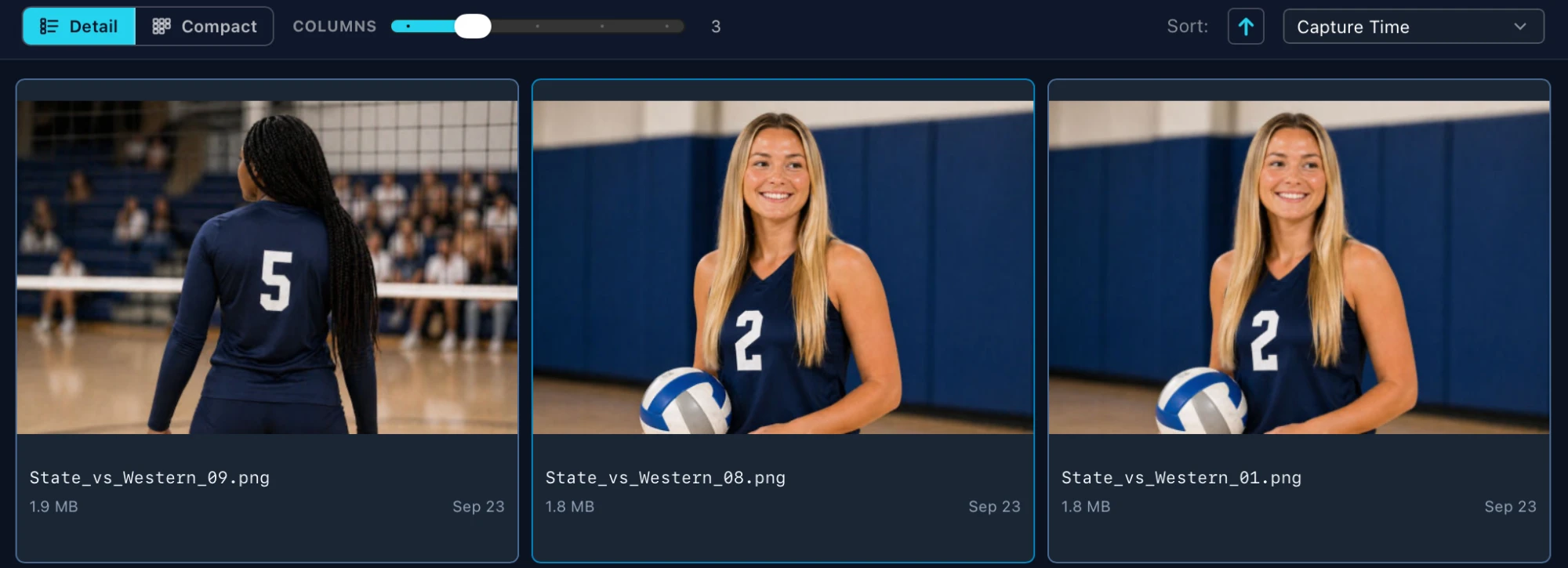
Drag the slider for 2 to 6 photos per row.
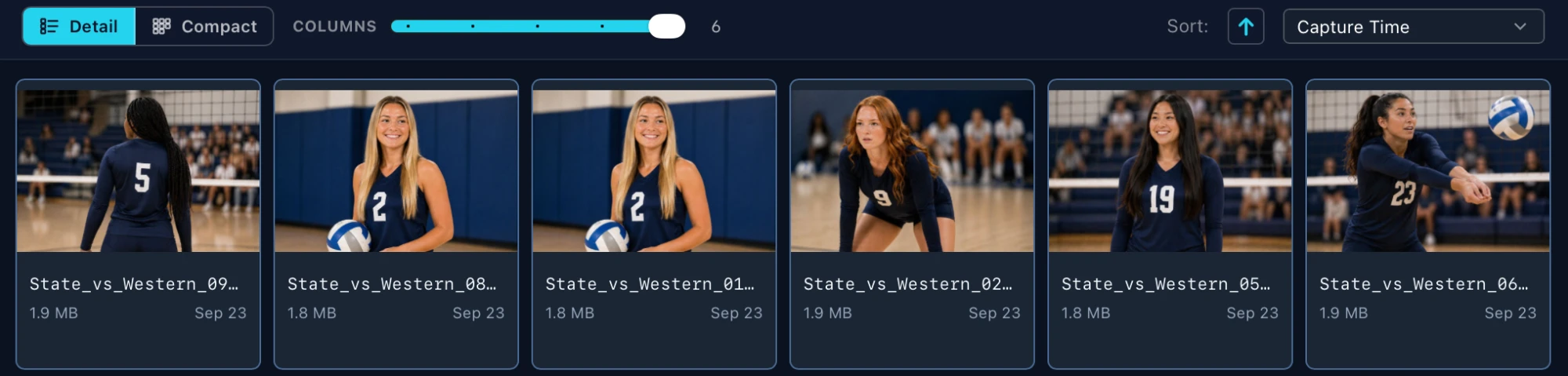
Six columns of photos
Six columns: more at a glance.
Three columns of photos
Three columns: bigger thumbnails for checking focus and faces.

Sort

Sort: ascending, Capture Time

The arrow flips ascending and descending. The list sorts by Capture Time, Modification Time, Filename, File Size, Rating or Color Class.

Filters

Filters stack, and each shows its count. A plain click shows only those photos. ⌥-click selects them instead, ready to rate, tag or send. F1 clears every filter.

FilterShows
SubfoldersSubfolders: this folder and each folder inside it as one grid. Off shows only the photos directly in this folder.
All 10, Selected 0All, or only the photos you've selected.
Non-RAW and RAWOnly the JPEG, HEIC, PNG and TIFF files, or only the RAW files.
Protected 0, unprotected 10Protected photos (marked in-camera or tagged in Photo Mechanic), or unprotected ones. F3 and F4.
Soft 0, Sharp 10Soft: out of focus or a soft face, for review. Sharp: photos the focus check passed.
Star rating and colour label filters sit in the same row: ⌥⇧0–⌥⇧5 for stars, ⌥1–⌥8 for colours.

Find

The Find button
  • •Finds in this folder by filename or any metadata field (⌥⌘F). The grid narrows as you type.
  • •It works with the filters above, so “RAW, Sharp, and Quinn Adams” is one view.
  • •To search every folder by person, use ⌘F.
  • •To fix a value you found, see the Find & replace tab.

Related

Ingest from a card →Tag photos in the photo window →Tag photos with MatchID →Fix a wrong value across a folder →Keyboard shortcuts →
GalleryID

Athlete naming for sports photographers and athletic departments. GalleryID Desktop ingests, culls and captions on your own computer, and nothing is uploaded; SidelineID is Desktop on your phone at the game. GalleryID Cloud is the hosted archive you search by athlete name. The built-in Roster Library covers NCAA Division I, II and III and the major US pro leagues.

Find photos by athlete, not by filename.

iPhone and Android apps for both products →

Product

GalleryID DesktopGalleryID CloudMatchIDCaptionIDPhone appsFeaturesPricingCompare

Solutions

Sports PhotographersTeamAthletic DepartmentsColleges & UniversitiesAthletic ConferencesOrganizations

Company

Book a 30-Min DemoAboutContactPrivacyTermsDPA

Resources

HelpCloud Getting StartedDesktop Getting StartedCaptioning SoftwareRoster LibraryAfter Photo Mechanic PlusBlog
© 2026 GalleryID. All rights reserved.Built by working sports photographers, on the same deadline you are.macOS, Windows and the web.

Photo Mechanic and Photo Mechanic Plus are trademarks of Camera Bits, Inc. Lightroom, Photoshop and Adobe are trademarks of Adobe Inc. Capture One is a trademark of Capture One A/S. Sideline Captions, Caption Pro, PhotoShelter, SmugMug, Zenfolio, Pixieset, Pic-Time and all other product and company names referenced on this site are trademarks of their respective owners. GalleryID is not affiliated with, sponsored by, or endorsed by any of them. Those names are used here only to identify the products being described or compared, and any comparison reflects each vendor’s published documentation at the time of writing.