CaptionID
Set a roster on a folder
A roster is the list your shortcodes type against. It binds to a folder, so a game, a weekend or a season is set up once.
What a roster is
Each row is a person (or an action code) with a shortcode in column A. Type the shortcode in a caption and CaptionID writes the name, or the full caption line, from that row.
The Rosters screen

| Control | What it does |
|---|---|
| Import roster… | Brings in a spreadsheet. See Import a spreadsheet below. |
| Refresh list | Reloads the library. |
| + New Roster | Builds a roster from the GalleryID Roster Feed. |
| Edit | Opens the roster's settings and rows. |
| Export… | Saves the roster as a TSV, TXT or XLSX code-replacement file, such as for Photo Mechanic. |
| Delete | Removes the roster. Folders bound to it are left without one; names already written stay. |
Build a roster from the Roster Feed
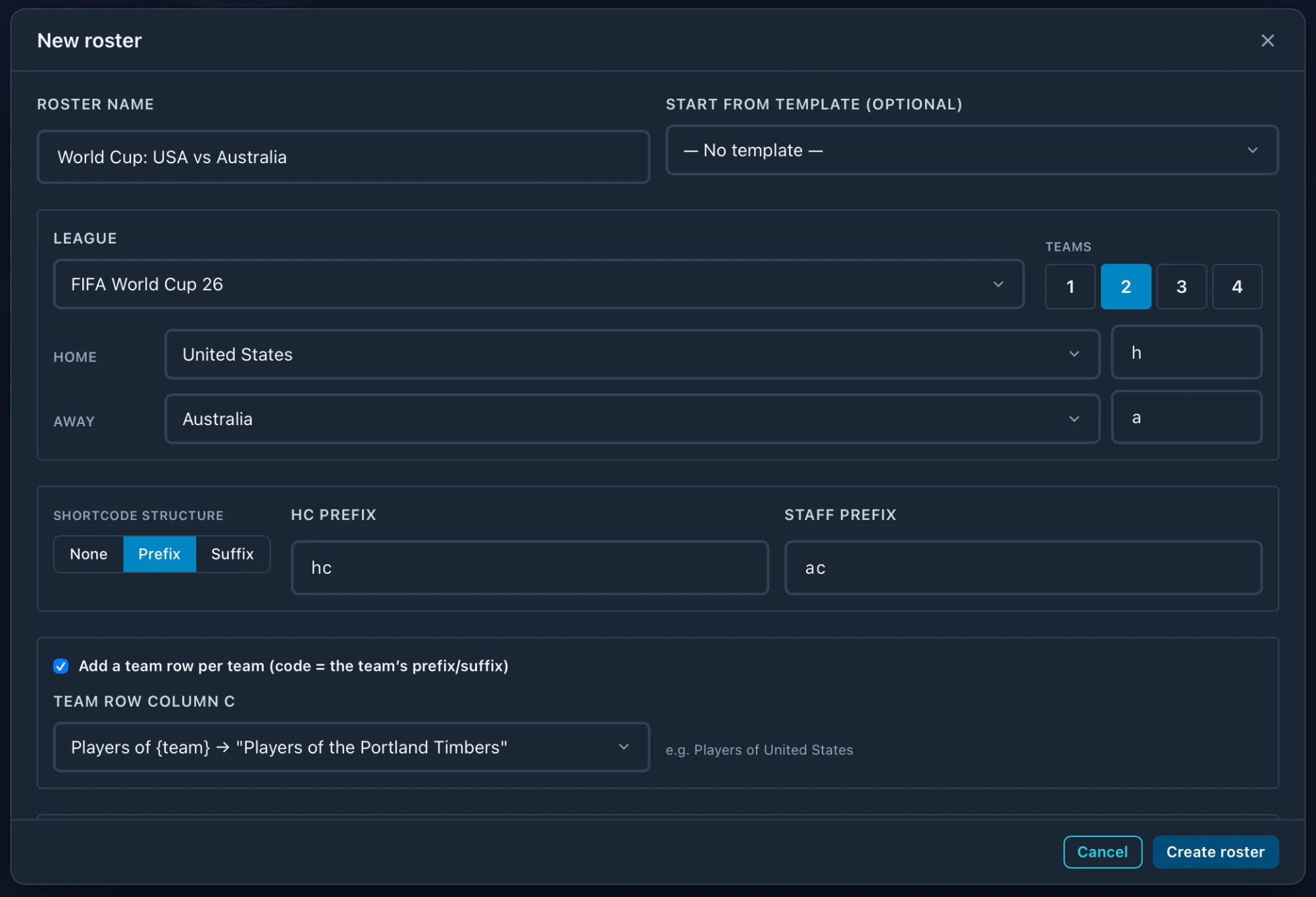
- 1
Name it
Name the roster, for example after the game. - 2
Pick the league and teams
Choose the league, how many teams, and each team with its code. - 3
Set how shortcodes are built
Prefix, suffix or none, plus the head coach and staff codes. - 4
Choose the caption style
How a tagged player reads in the long form. - 5
Create roster
The rows are pulled from the feed and saved to your library.
Roster name and template


Start from template fills the form from a saved roster template: league, your team, structure and columns. Change anything before you create it.
League and teams
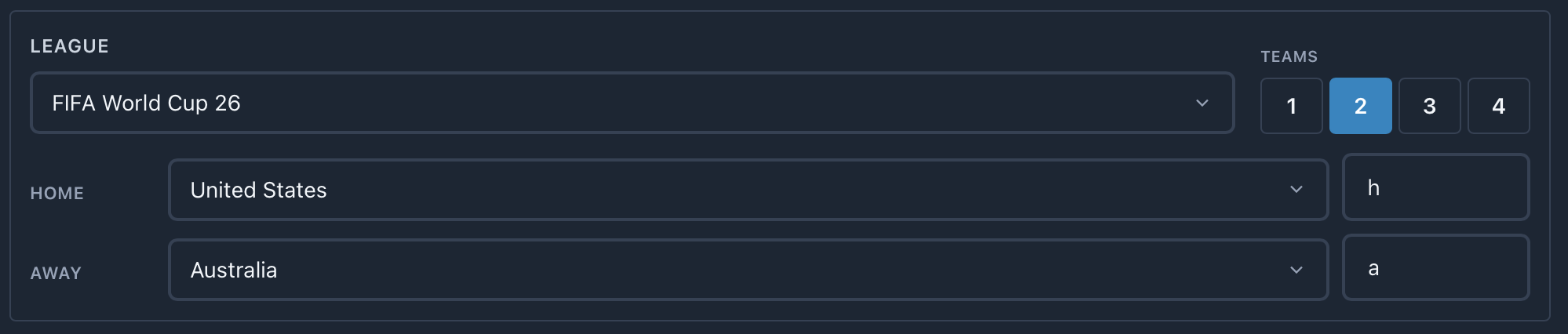
| Control | What it does |
|---|---|
| League | The Roster Feed league the squads come from. |
| Teams: 1 to 4 | How many teams this roster holds. |
| Team + code | Each team and the letter its shortcodes carry, such as h for home and a for away. |
Shortcode structure

| Option | Number 7 on the home team (h) | Use it when |
|---|---|---|
| None | 7 | One team. Two teams would clash. |
| Prefix | h7 | The usual choice. The team letter comes first. |
| Suffix | 7h | You type the number first. |
HC prefix and Staff prefix are the codes for the head coach and staff, which have no number. With Prefix on, the home head coach is hhc.
h1 and a1 apart.Team rows

Adds one row per team whose code is the team’s letter, so \h\ tags the team as a whole, for a group shot or a huddle. Team row column C picks how that row reads, such as “Players of United States”.
Caption style and coaches
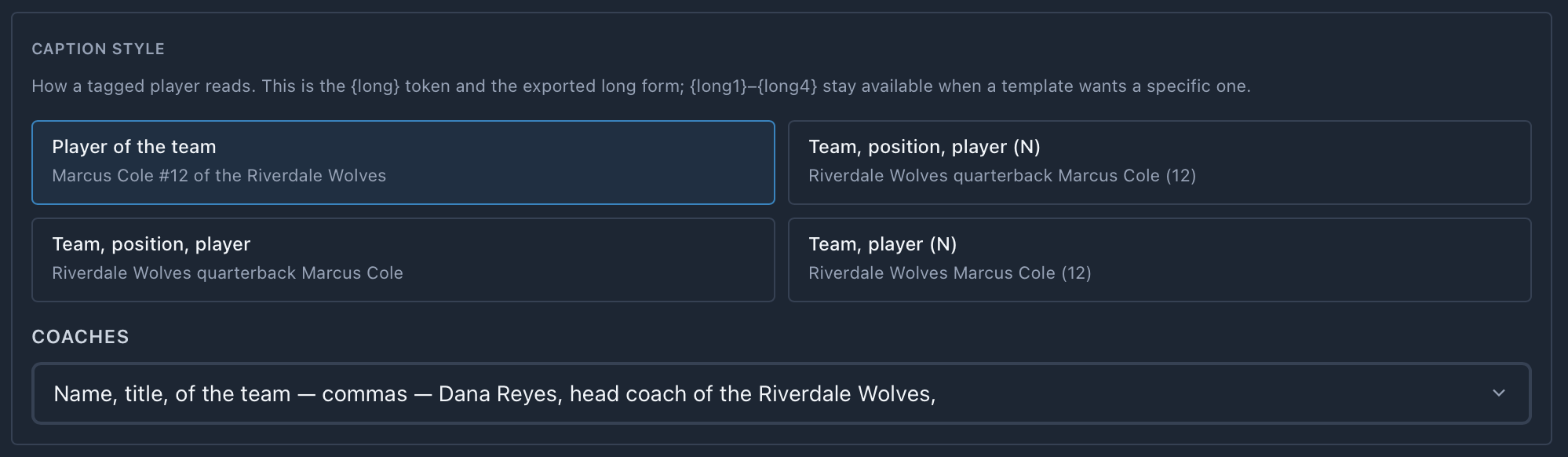
How a tagged player reads. This is the {long} token and the exported long form. {long1} to {long4} stay available when a template wants a specific one.
| Style | Reads |
|---|---|
| Player of the team | Marcus Cole #12 of the Riverdale Wolves |
| Team, position, player (N) | Riverdale Wolves quarterback Marcus Cole (12) |
| Team, position, player | Riverdale Wolves quarterback Marcus Cole |
| Team, player (N) | Riverdale Wolves Marcus Cole (12) |
Custom code sets
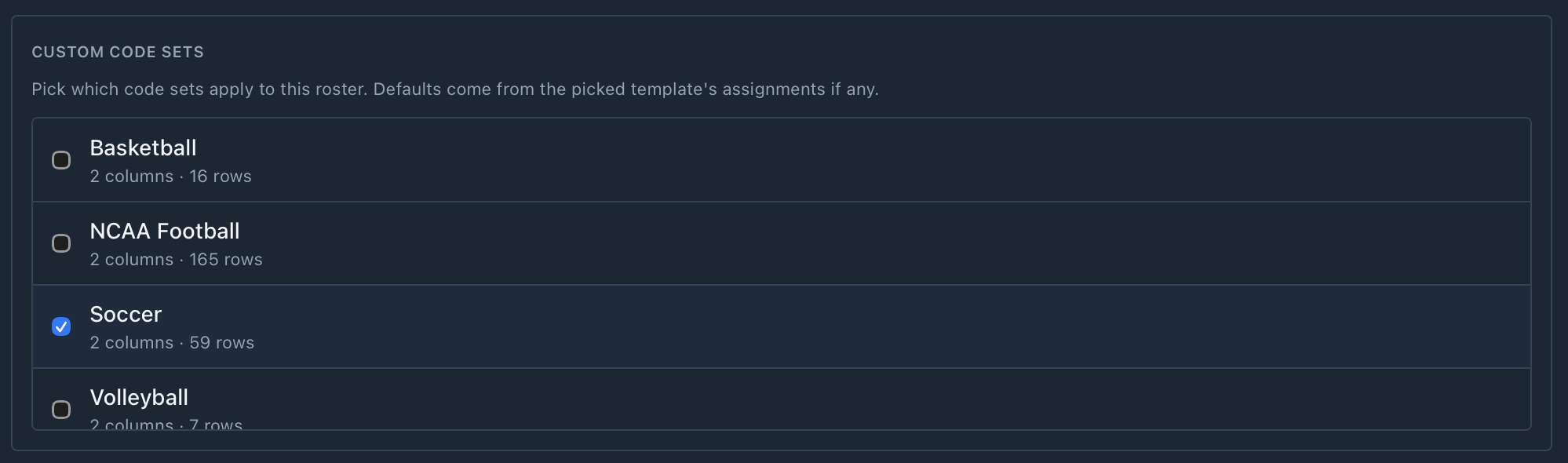
Code sets are action phrases, such as “celebrates a goal”, that go in with {common_code}. Tick the ones this roster uses. A template’s own picks are ticked for you.
MLB coach handling

| Option | What it does |
|---|---|
| Position-based shortcodes | The coach's position code is the shortcode, and the full title goes in the long form. |
| Number-based shortcodes | Adds a second line with the jersey number in the long-form column. |
Only shown for rosters built from the feed.
Export columns
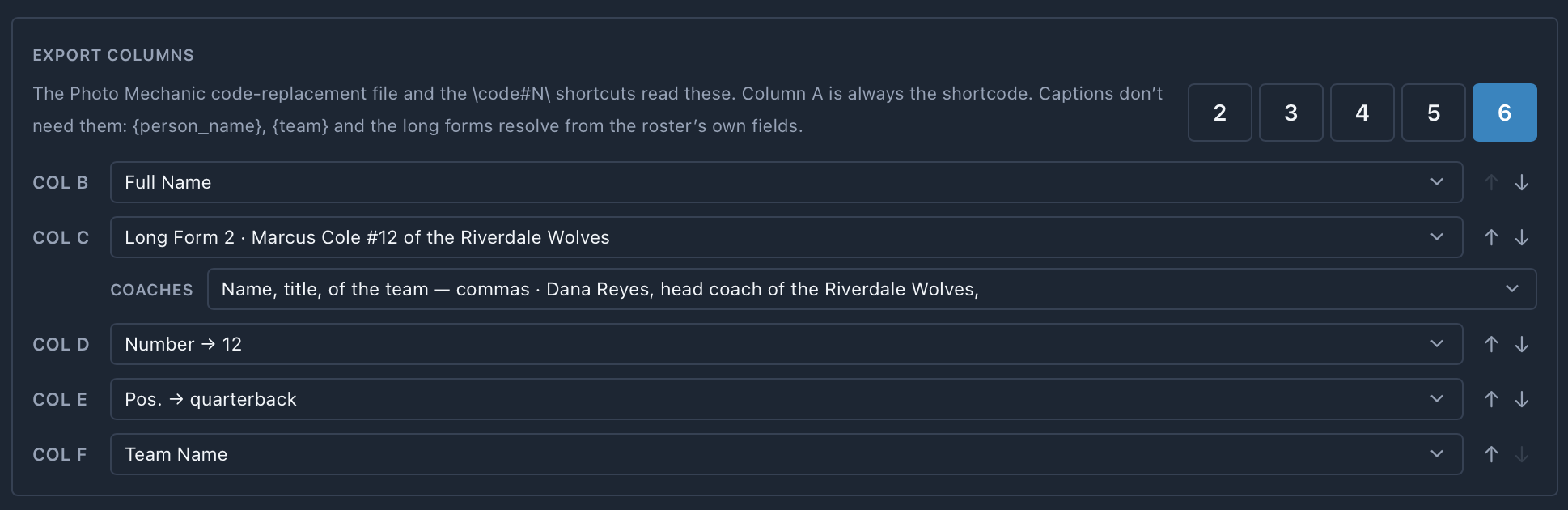
Only for the exported file. Off, the Photo Mechanic file is shortcode, name, your caption style, number. Captions don’t need these: {person_name}, {team} and the long forms come from the roster’s own fields.
| Control | What it does |
|---|---|
| 2 to 6 | How many columns the file has. Column A is always the shortcode. |
| Col B to F | What each column holds. A long-form column also gets its own Coaches wording. |
| ↑ ↓ | Moves a column. |
\code#N\ shortcut reads, so \h7#2\ writes column C for number 7.Import a spreadsheet
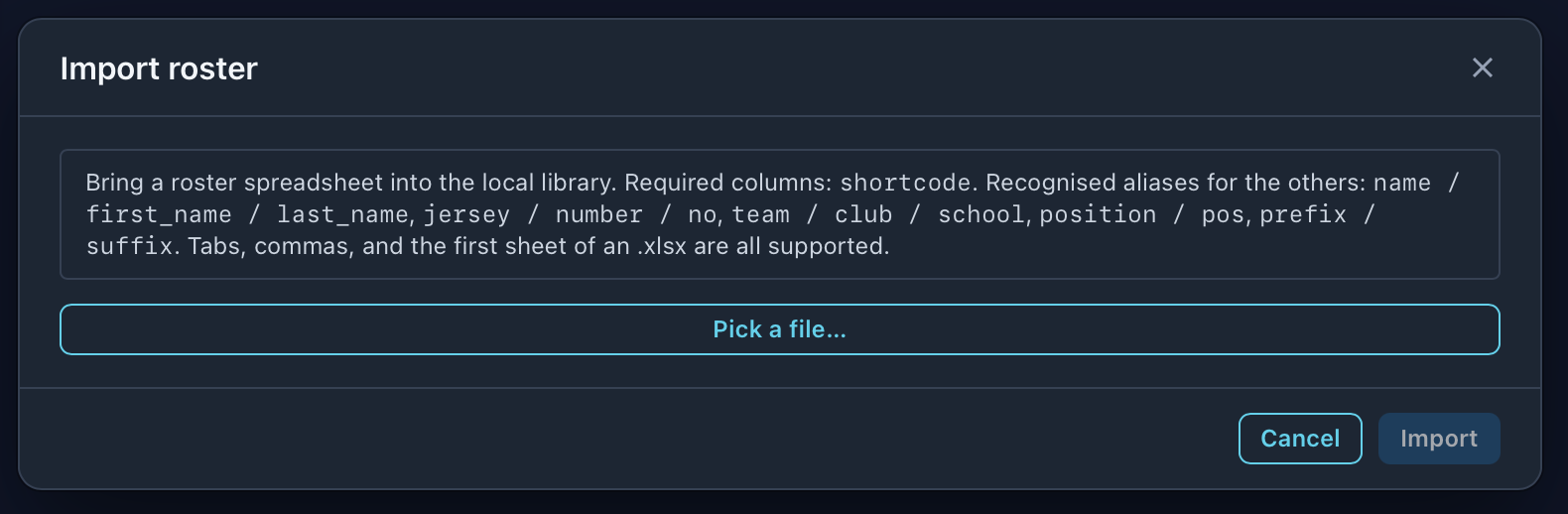
| Column | Header names it recognises |
|---|---|
| Shortcode (required) | shortcode |
| Name | name / first_name / last_name |
| Number | jersey / number / no |
| Team | team / club / school |
| Position | position / pos |
| Prefix and suffix | prefix / suffix |
Tabs, commas, and the first sheet of an .xlsx all work.
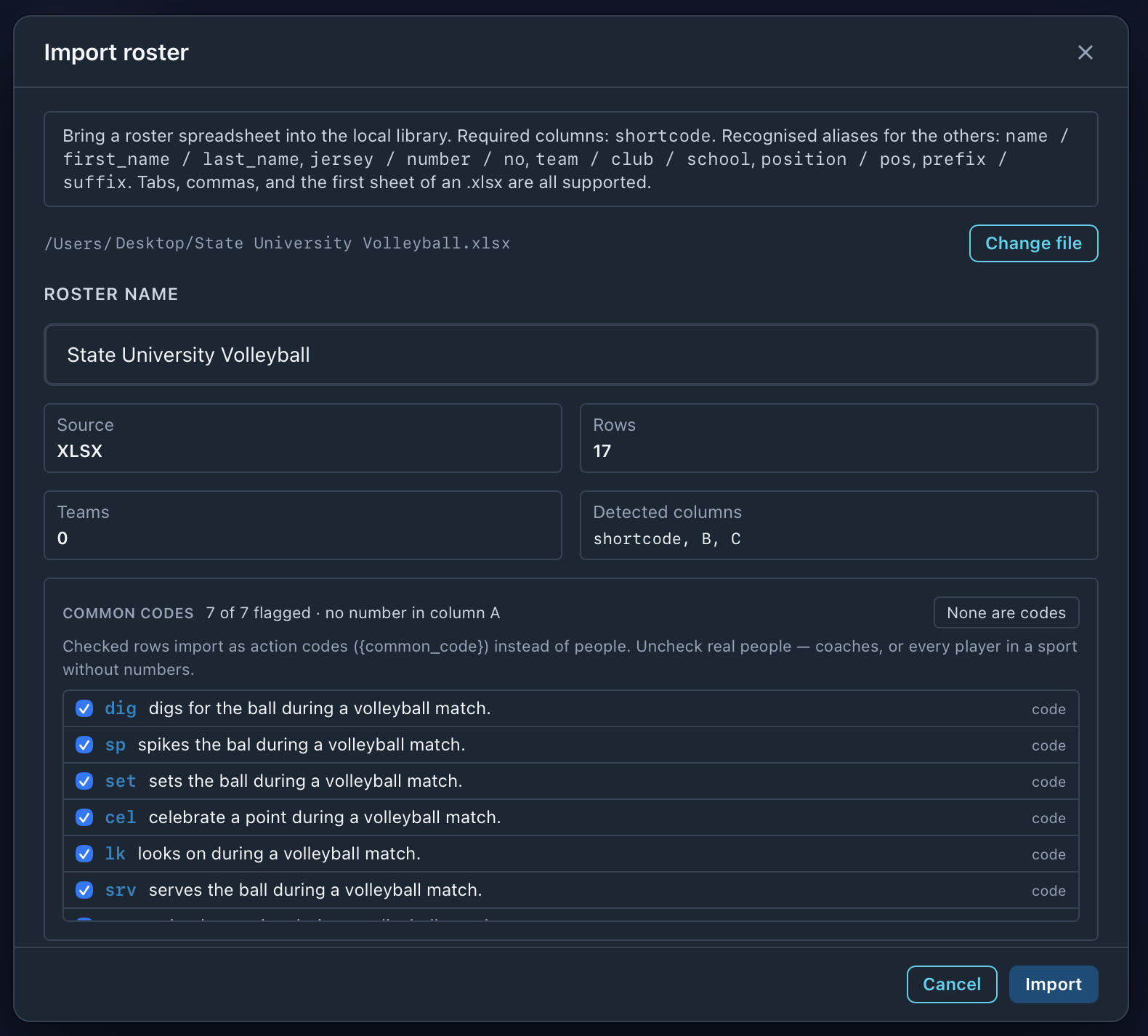
Common codes
Rows with no number in column A are flagged as common codes: action phrases that go in with {common_code}, not people.
p1 becomes hp1 and vp1.Set a roster on a folder
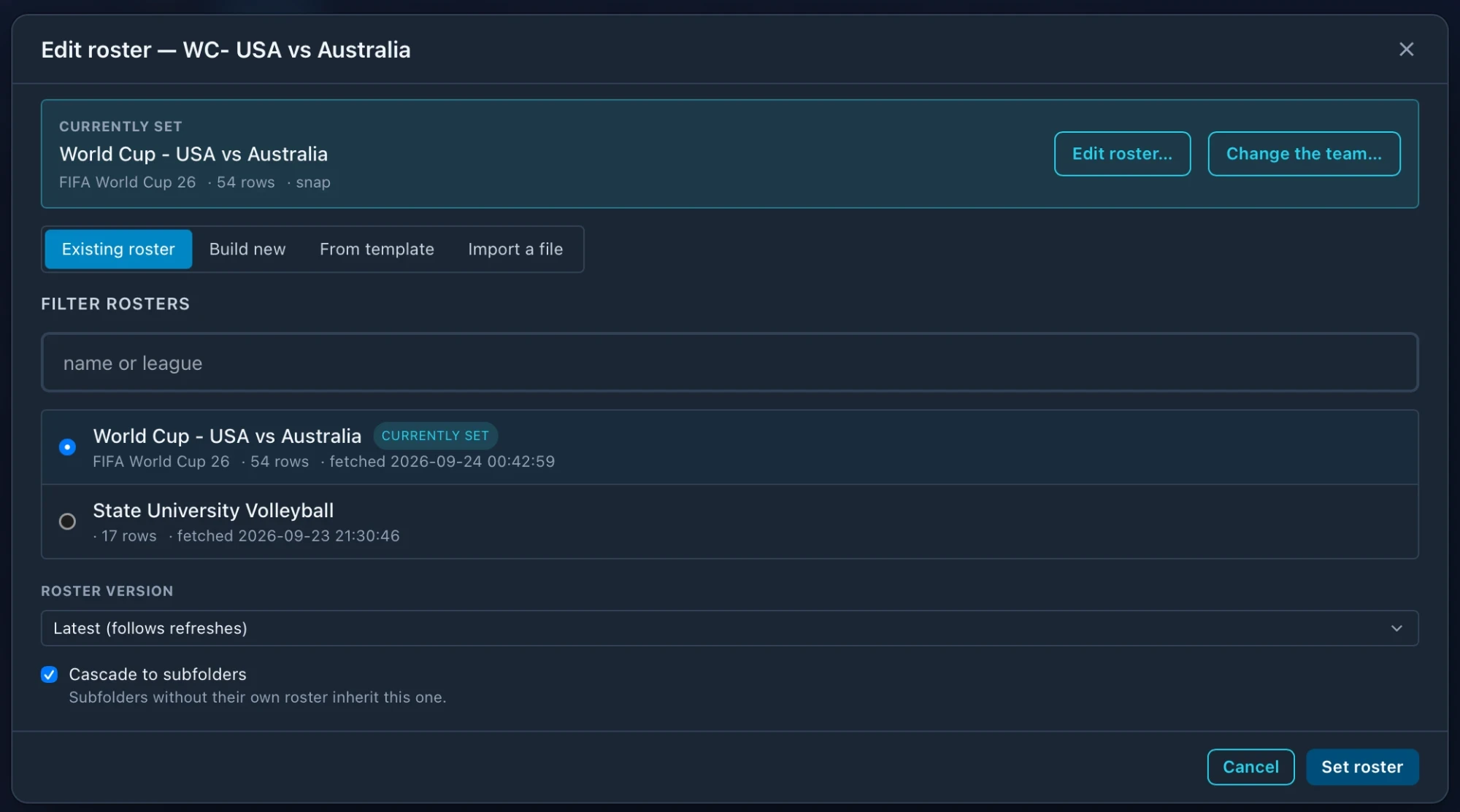
| Tab | What it does |
|---|---|
| Existing roster | Pick one from your library. The folder's current roster sorts to the top, marked Currently set. |
| Build new | Build from the Roster Feed, as above. |
| From template | Start from a saved roster template. |
| Import a file | Import a spreadsheet, as above. |
Options
| Option | What it does |
|---|---|
| Cascade to subfolders (on) | Subfolders without their own roster use this one, including folders you add later. |
| Cascade off | Blocks it through this folder, so its subfolders stop seeing a roster from higher up too. Browse marks the folder vetoed. |
| Auto-update from Roster Feed | Refreshes the rows when the roster is opened. Turns off when you edit a row. |
| Save template | Keeps this setup as a roster template for next time. |
One dropdown per game
A roster template that names your club shrinks the form to one Opponent picker.
- •Both squads load straight away, and the right-hand panel shows what each column writes.
- •Teams stay in place:
{team1}is your club,{team2}whoever you’re playing. - •Change the team… on the banner reopens this once a roster is set.
Change the teams on a folder
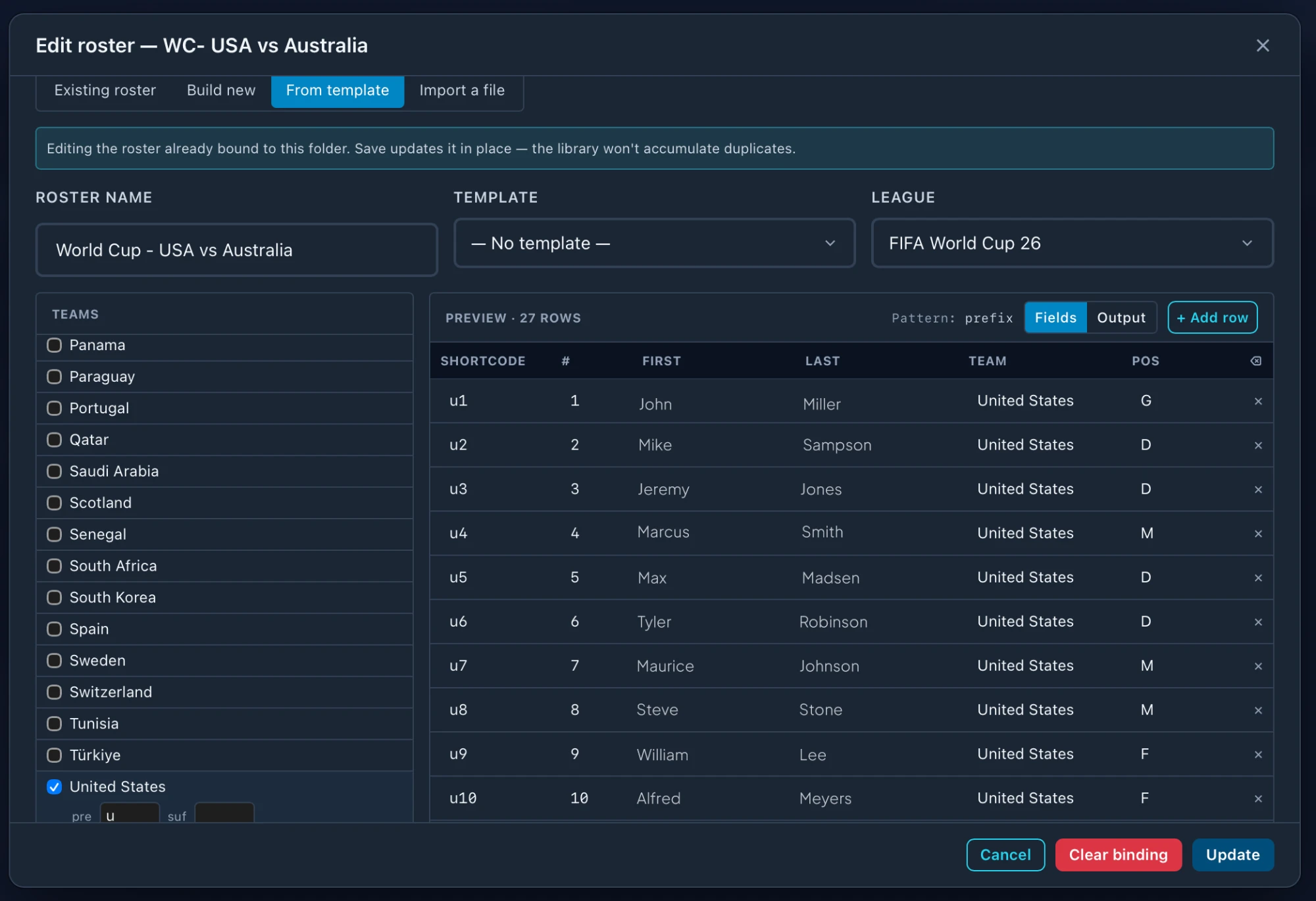
Tick the teams you want and give each a prefix or suffix. The preview updates as you go. Update saves the roster in place, so the library doesn’t fill up with copies.
Edit and refresh
| In the editor | What it does |
|---|---|
| The grid | Each cell (shortcode, name, number, team, position) edits in place. + Add row covers anyone the feed missed. |
| Person / Code pill | Says what a row is. Click to flip it. all Person / all Code in the header sets every row, or just the selected ones. |
| Fields / Output | Fields is the editable grid. Output shows the exported file exactly as it'll be written, so it's read-only. |
| Order | Sets the order the exported file comes out in. Clicking a column header only sorts the view. |
| Pos | Free text. For a league we know the codes for, it drives the long form: SP reads “starting pitcher” where P reads “pitcher”. |
p1o, p1d, p1s). Other sports add letters (p1a, p1b). A code you type yourself is never renamed.Refresh keeps your corrections
- •Refresh Roster pulls the squads again. Names, numbers, positions and teams you corrected by hand are held.
- •Held fields carry an amber mark and a count in the Held column. Click the count to release one.
- •A correction releases itself once the feed catches up, and the toast names the fields that went back to the feed.
Leaving the editor with unsaved edits, even with a shortcut like ⌘F, asks first.
Versions, unbinding and deleting
| Action | What happens |
|---|---|
| Refresh after a trade | Each refresh makes a new version, and a tag remembers the version it was made against. Last season's photo still names who wore that number then. |
| Roster version (Existing roster tab) | Defaults to Latest, which follows refreshes. Pin it to a dated squad instead. A pin doesn't cascade. |
| Clear binding | Unbinds this folder, which falls back to whatever a parent cascades. The roster and the photos are untouched. |
| Delete a roster | Folders bound to it are left without one. Names already written stay. |