Archive and backup
Browse an unplugged drive with Catalog
The Catalog is an index of the photos on your drives. Catalog a drive once and you can browse and search it with the drive unplugged. Your originals are only ever read.
Catalog a drive
- 1
Catalog a Folder…
Pick a folder or a whole drive. - 2
Check the estimate
The confirmation shows the preview size and how much disk the previews will take, before anything runs. - 3
Start Cataloging
It runs in the background, in the tasks tray. Running it again skips photos already cataloged. - 4
Browse it
Browse ▸ the Catalog tab. It works with the drive plugged in or not.
Drives and folders
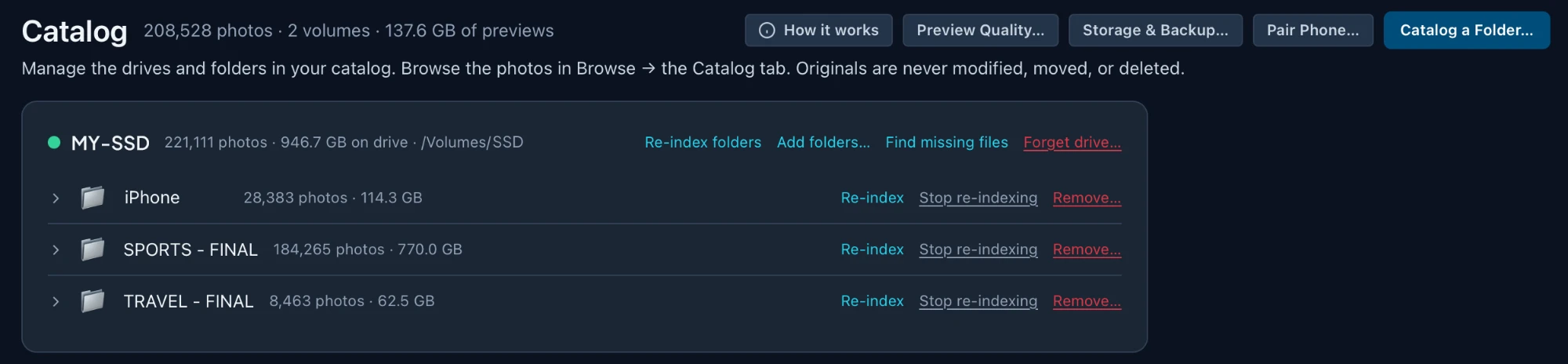
| Control | What it does |
|---|---|
| Re-index folders | Re-scans the folders you chose on that drive, and nothing else. Unchanged photos are skipped, and photos that have left a folder are forgotten. |
| Add folders… | Adds more folders on the same drive. |
| Find missing files | Counts the photos that are gone without a full re-index, shows you the number, and waits for you to confirm. |
| Forget drive… | Drops the whole drive from the catalog: its entries and cached previews. |
| Re-index (a folder) | Re-scans that one folder. |
| Stop re-indexing | Takes the folder off the list but keeps its photos. It shows below, marked not re-indexed, and Re-index + keep puts it back. |
| Remove… | Drops that folder's photos from the catalog. |
Preview size and quality
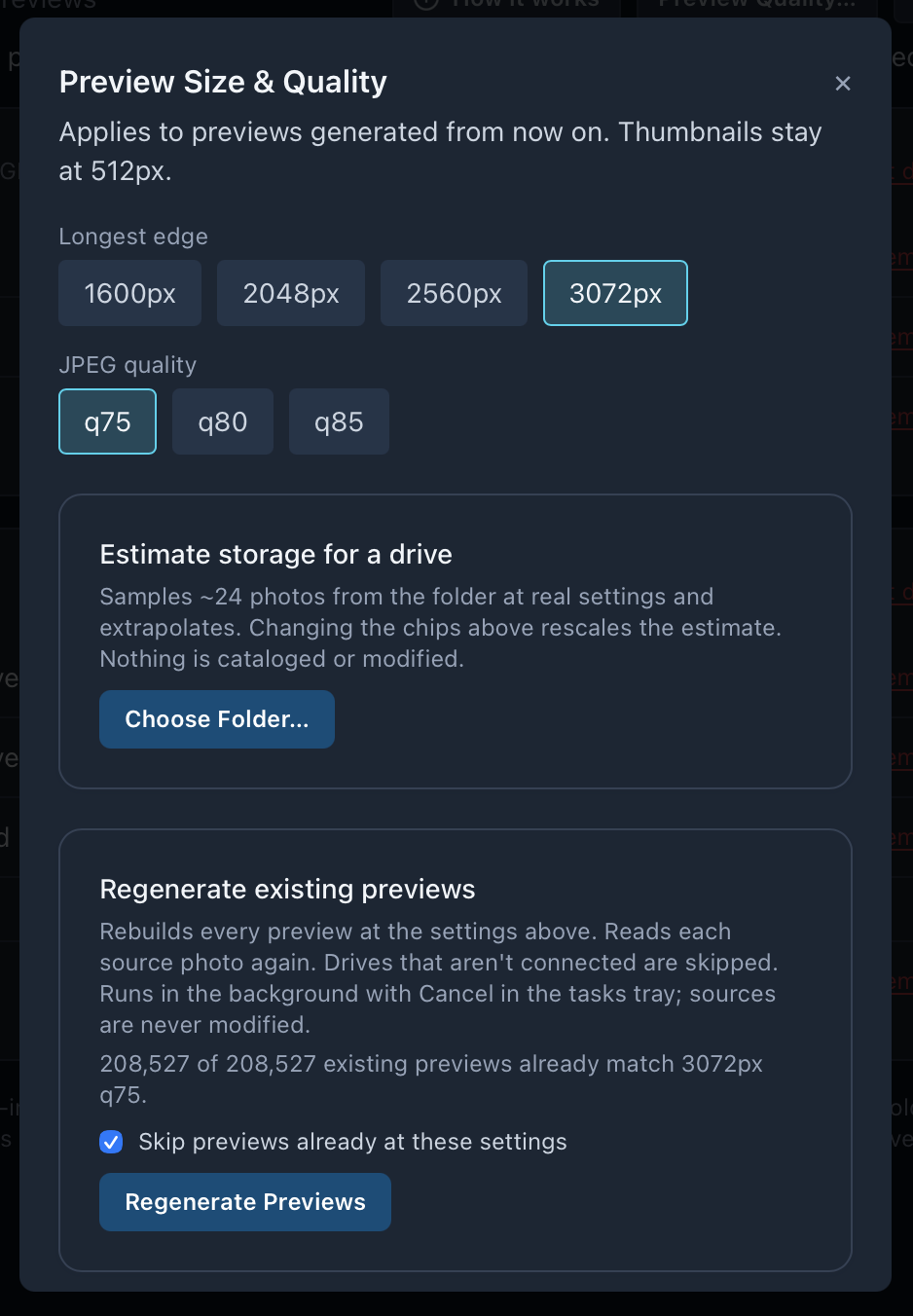
| Part | What it does |
|---|---|
| Longest edge | 1600, 2048, 2560 or 3072px. Bigger looks sharper zoomed in and uses more disk. |
| JPEG quality | q75, q80 or q85. |
| Estimate storage for a drive | Samples about 24 photos from a folder at these settings and works out the total. Nothing is cataloged. |
| Regenerate existing previews | Rebuilds previews at the new settings. Previews already at these settings are skipped, so a stopped run resumes cheaply. Drives that aren't connected are skipped. |
New settings apply to previews made from now on. Thumbnails stay at 512px.
Storage and backup
The catalog has two parts: the database (the index, saved searches, rosters, jobs and settings) and the preview store (the cached previews, usually the bigger of the two). Storage & Backup… handles both.
Move the preview store
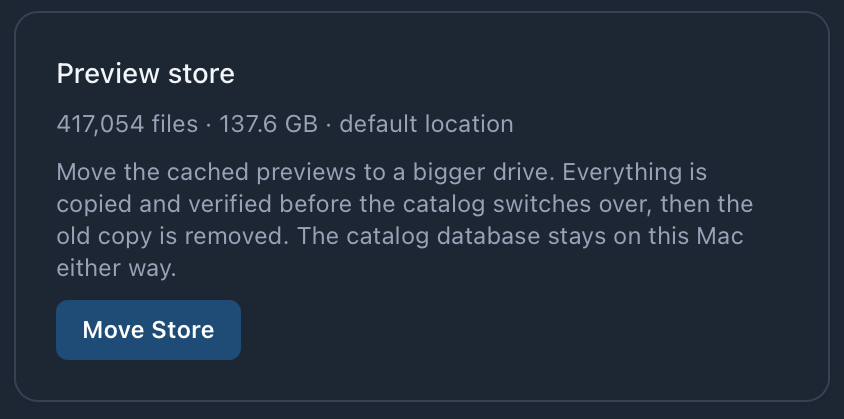
Moves the previews to a bigger drive. Everything is copied and checked before the switch, then the old copy is removed. A cancelled move leaves the current store as it was. The database stays on this Mac.
Back up GalleryID
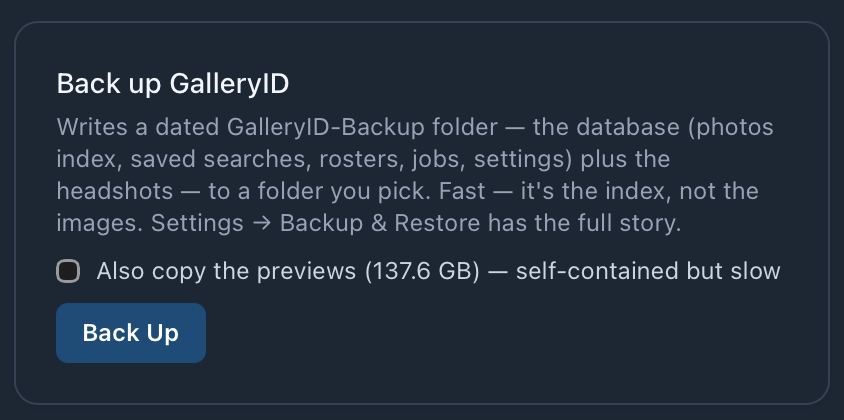
- •Writes a dated GalleryID-Backup folder: the database plus the headshots. It’s the index, not the images, so it’s fast.
- •Also copy the previews makes it self-contained, so it restores without your source drives. Slower the first time; later backups only copy new previews.
- •Settings ▸ Backup & Restore can back up to one external drive by itself whenever it’s connected.
Restore from backup
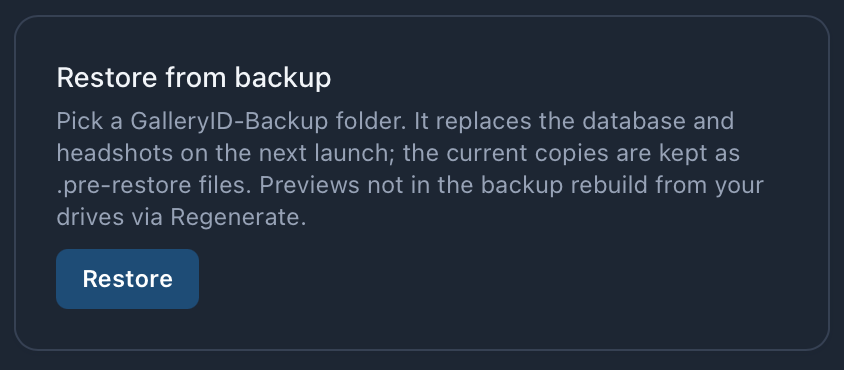
- •Pick a GalleryID-Backup folder. It’s applied on the next launch, and works on a different computer too.
- •Your current database and headshots are kept as .pre-restore files, so a restore can be undone.
- •Not carried across: the license (activate the new computer), FTP passwords and the Cloud sign-in.
Pair a phone
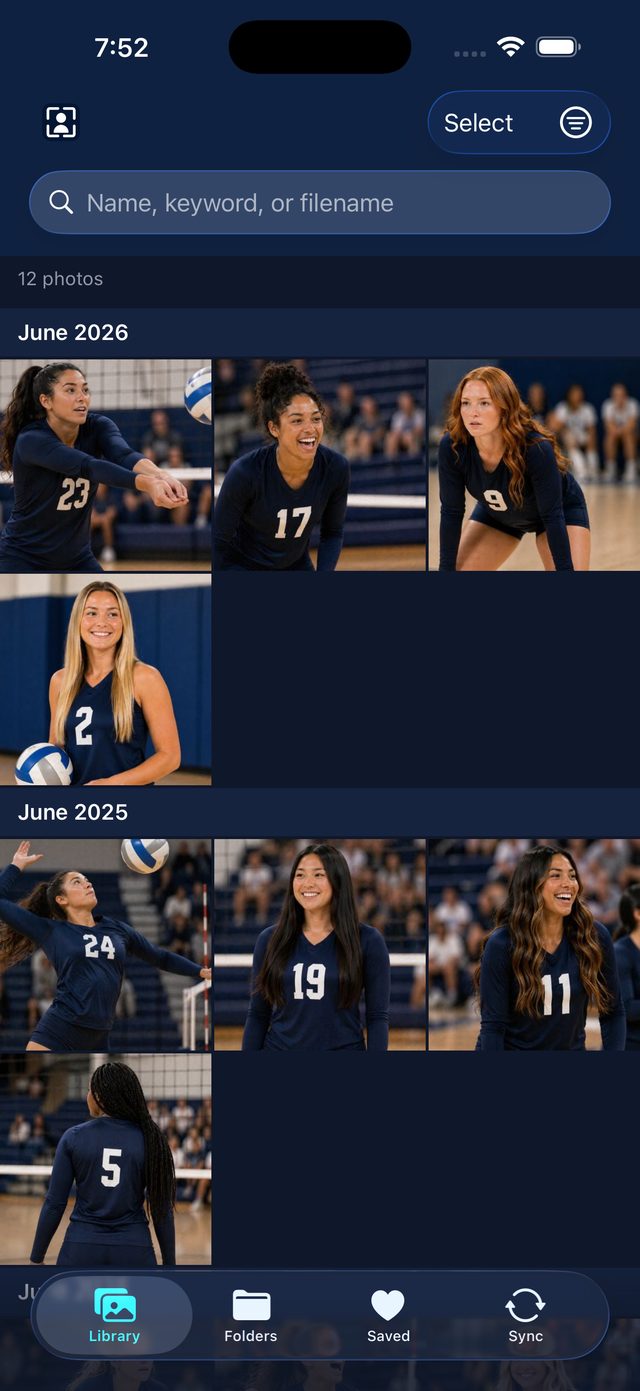
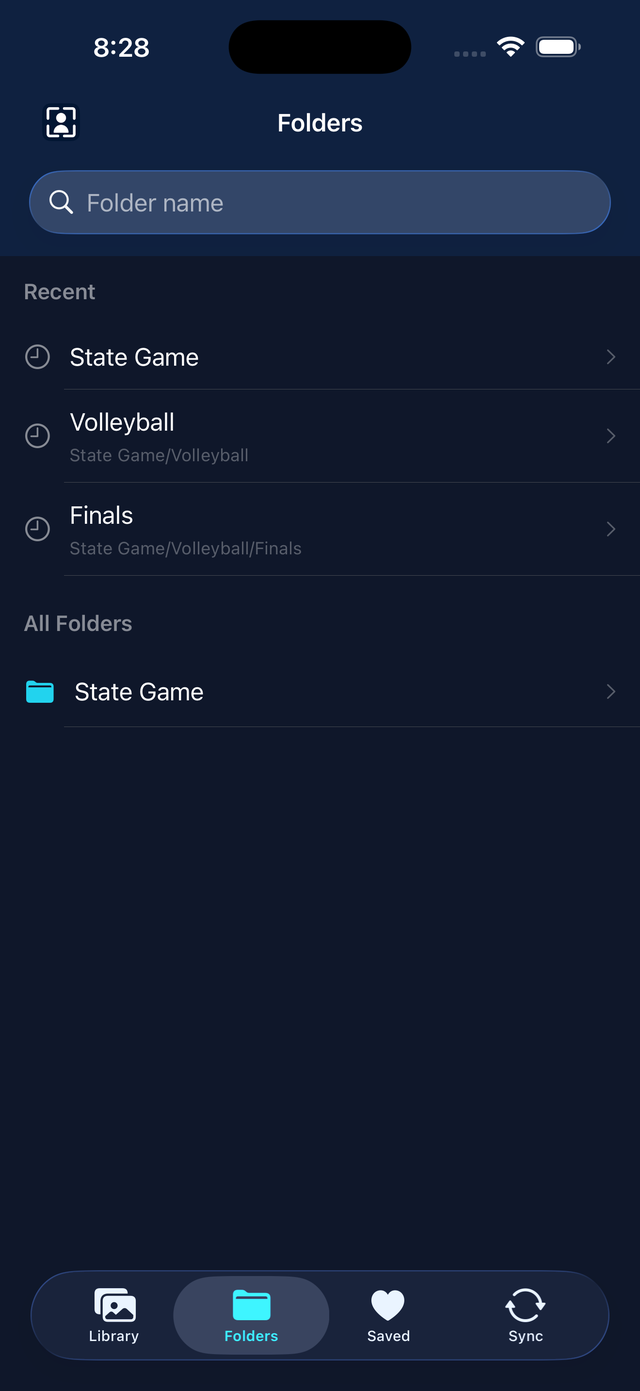
GalleryID Desktop for iPhone and Android puts the catalog on your phone: browse and search it with the drives unplugged and the computer at home. The phone talks straight to this computer over your wifi. Nothing goes through the cloud.
- 1
Install the app
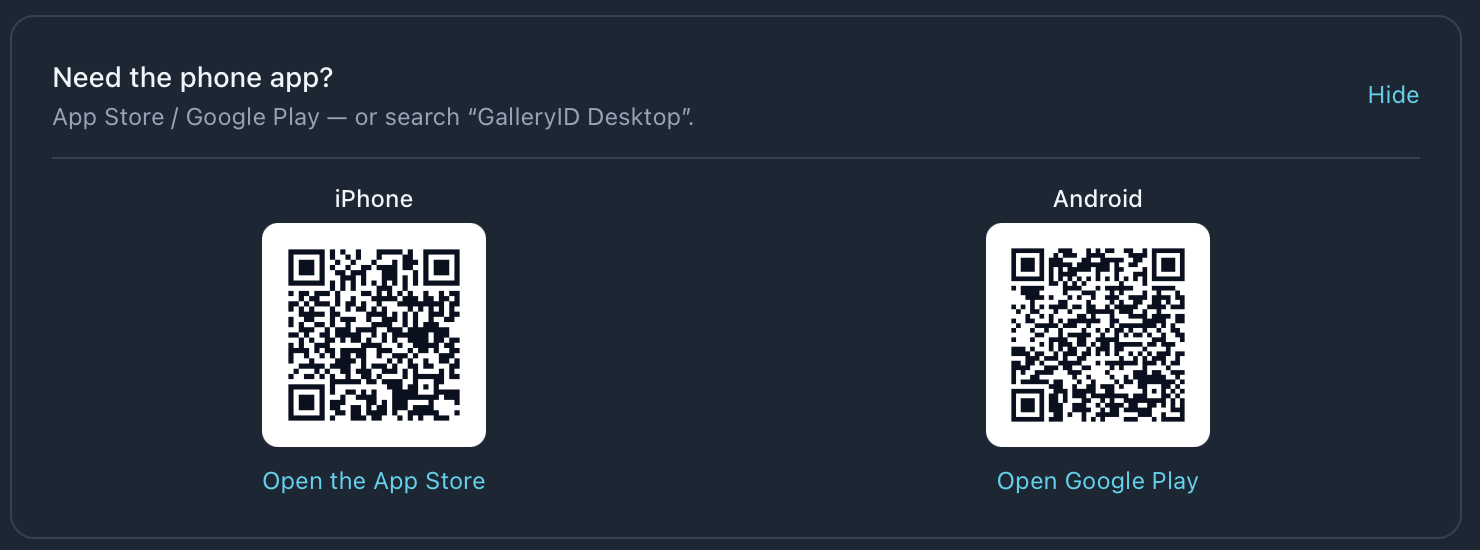
Scan a code under Need the phone app?, or search your store for GalleryID Desktop. - 2
Turn on the sync server
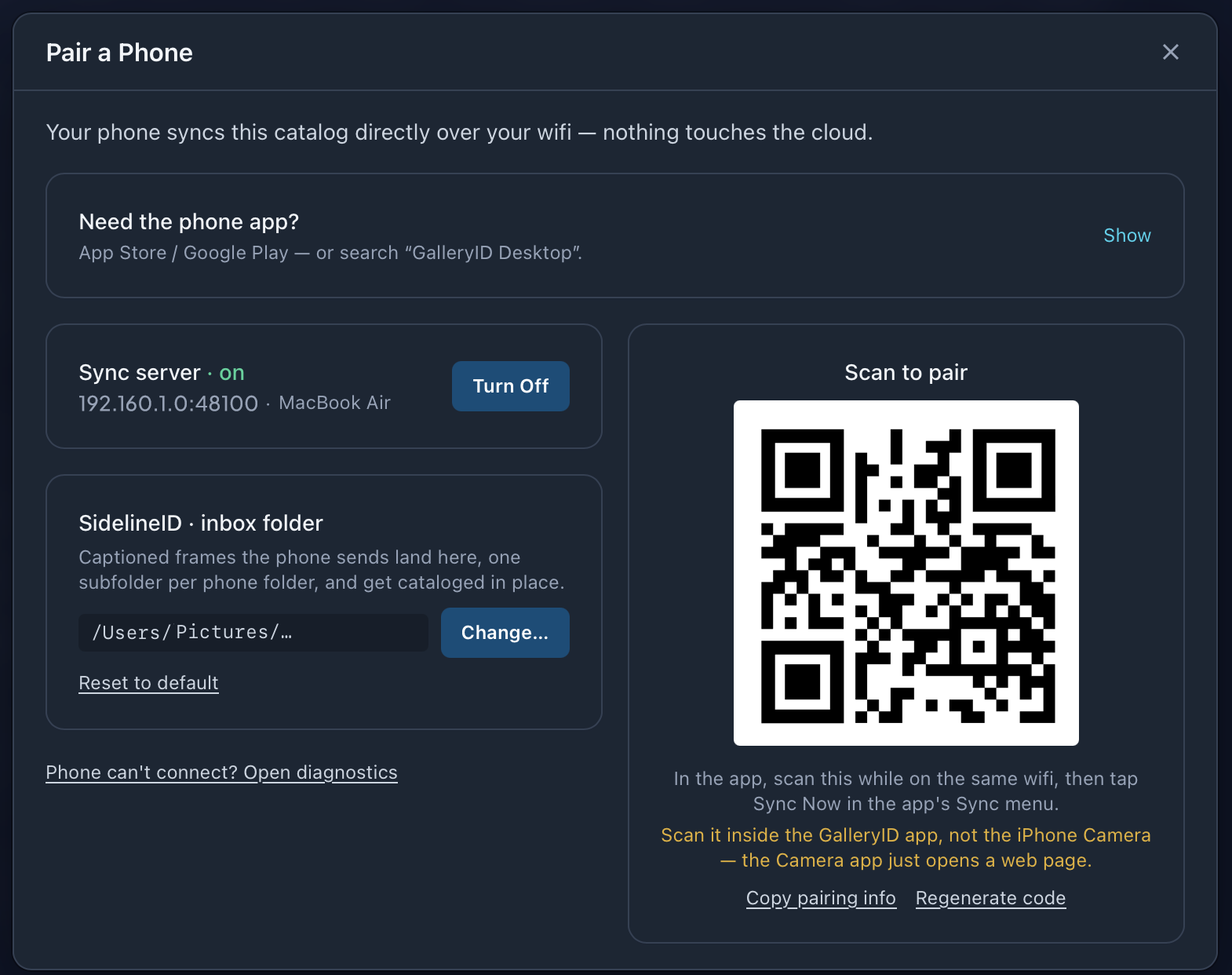
Catalog ▸ Pair Phone… ▸ Turn On. A pairing code appears. - 3
Scan from inside the app
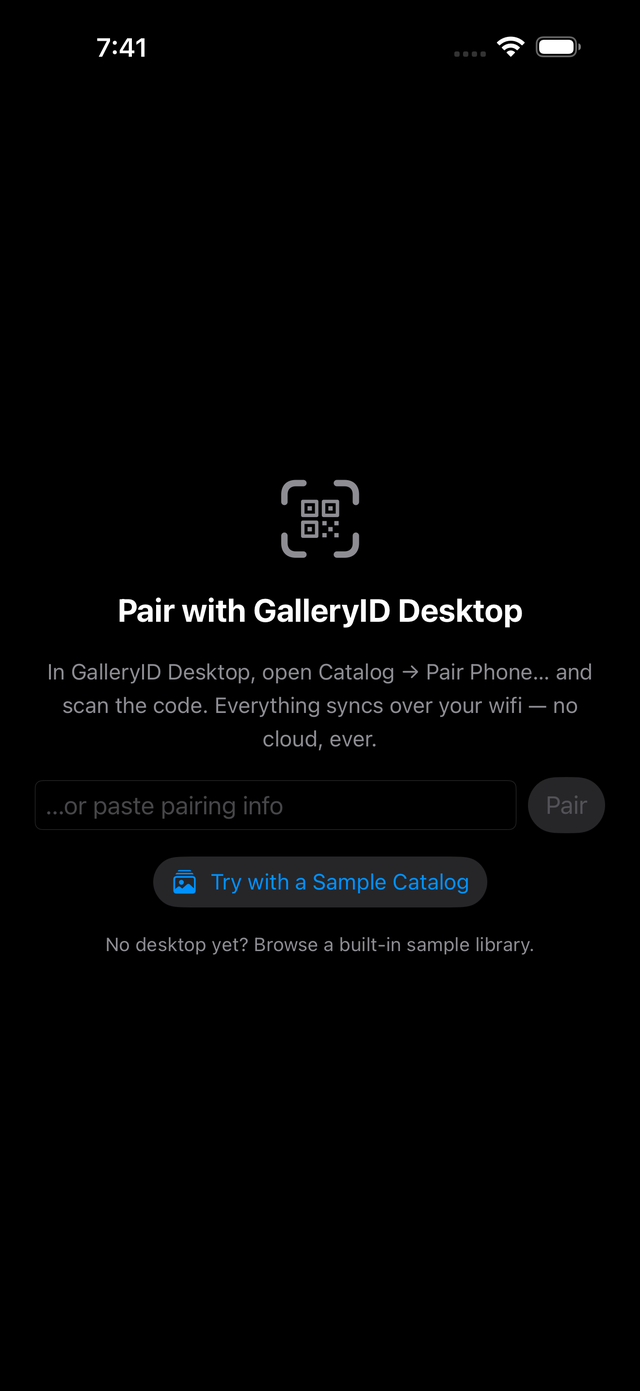
Use the GalleryID app, not the phone's camera. The camera app only opens a web page. - 4
Let the first sync run
The catalog first, then the thumbnails, then HD previews for the last 12 months. Keep both devices on and plugged in. It resumes if it's interrupted.
| Part | What it does |
|---|---|
| Sync server | On while the phone should reach this computer. Shows the address and computer name. |
| SidelineID inbox folder | Where captioned frames sent from the phone land, one subfolder per phone folder, cataloged in place. |
| Copy pairing info / Regenerate code | Copy the pairing details, or make a new pairing code. |
| Phone can't connect? | Opens diagnostics. |
Questions
| Question | Answer |
|---|---|
| I edited metadata in Photo Mechanic or Lightroom. Does the catalog see it? | Yes. When the drive connects, a quick sync picks up changed files. Tools that keep file dates unchanged can slip past it; the re-read option covers that. |
| Can I edit metadata with the drive unplugged? | Yes. The edit shows in the catalog straight away and writes to the file when the drive connects. If the file changed in the meantime, Pending Edits asks which version wins. |
| RAW+JPEG pairs and duplicates? | A RAW and JPEG with the same name in one folder count as one photo. The same file on two drives is one photo with two locations. |
| I renamed a drive. | Drives are tracked by their hardware identity, so it re-links the next time it's connected. |
| I reorganised the folders on my drive. | Re-index it, or use Find missing files. The old entries go once the files aren't there. |
| Will it forget photos that are still there? | It's built not to. A photo is forgotten only when a connected drive, with the same hardware identity, says the file isn't there. A read error or a sleeping share leaves it alone. |