MatchID
Index reference headshots
Index once. MatchID names those athletes in your photos from then on. This is who MatchID compares faces against; it's separate from the roster CaptionID types from.
The People screen
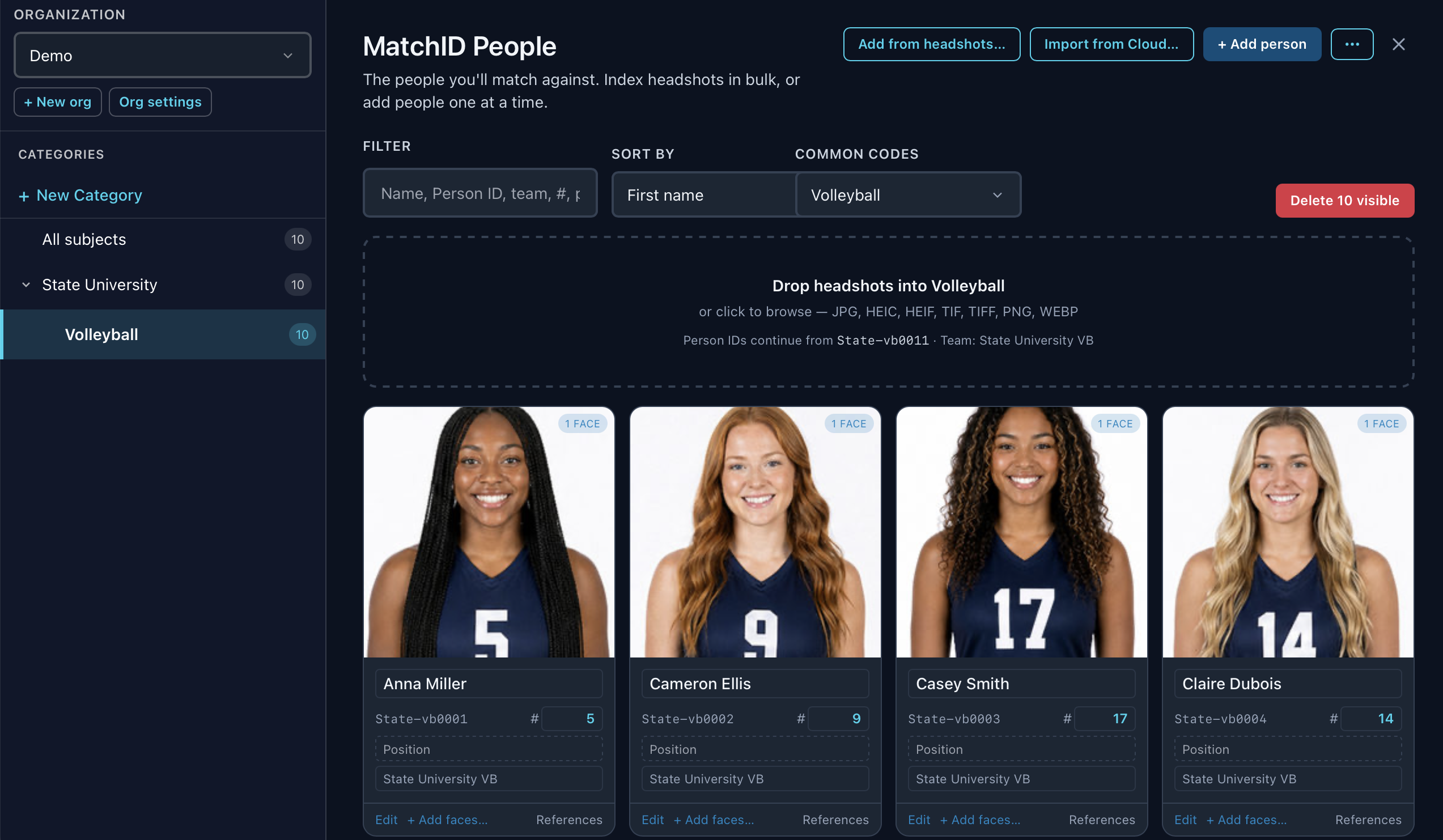

| Control | What it does |
|---|---|
| Add from headshots… | Indexes headshots into the selected subcategory. |
| Import from Cloud… | Pulls a roster from GalleryID Cloud and indexes it here, for when a team is already indexed in Cloud. |
| + Add person | Adds one person by hand. |
| ⋯ | More actions. See More actions below. |
| Filter | Narrows the cards by name, Person ID, team, number or position. |
| Sort by | Orders the cards. |
| Common codes | The common-code set for this team. Set it once and MatchID review offers it for this team in any folder. |
| Delete N visible | Deletes each person the filter is showing. It asks first. |
Organization and teams

An organization holds everything: a school, a club, or a client. + New org adds one, Org settings renames it and keeps its type and notes. Inside it, people sit in a category (the school) and a subcategory (the team or season).
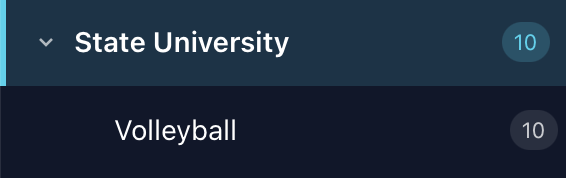
New category
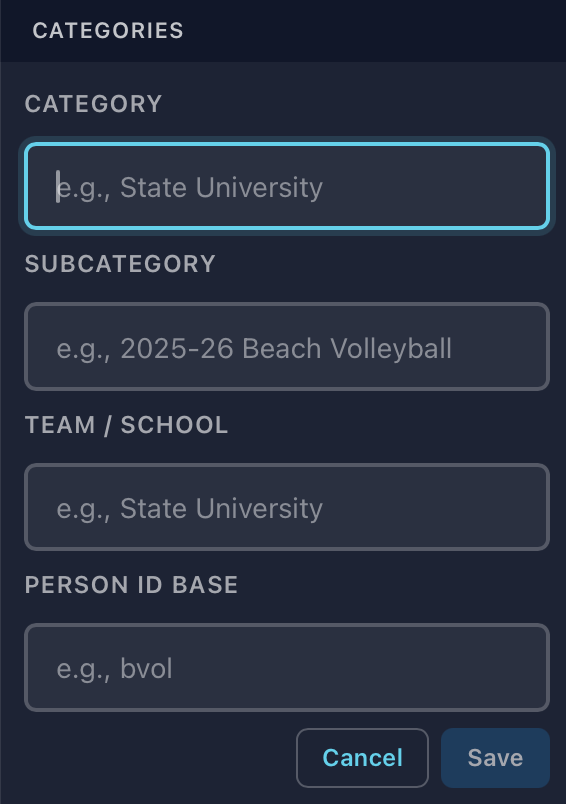
| Field | What it's for |
|---|---|
| Category | The school or club, such as State University. |
| Subcategory | The team or season, such as 2025-26 Beach Volleyball. |
| Team / School | What long captions use: “Cameron Ellis #9 of State University”. |
| Person ID base | Optional. Numbers the Person IDs for you, such as bvol0001, bvol0002. Leave it blank and Desktop makes one from the subcategory name, so Women's Volleyball numbers wv0001, wv0002. |
Team / School is written into your captions as typed. Use the name you want in print, “State University” rather than “State University VB”, so a MatchID tag reads the same as a roster tag. To fix an existing team, edit the subcategory (the pencil beside it).
Index headshots
- 1
Select the subcategory
The drop zone appears above the cards, showing the next Person ID and the team. - 2
Drop in headshots
Drag them in, or click to browse. JPG, HEIC, HEIF, TIF, TIFF, PNG and WEBP. - 3
Check each card
Names fill in from XMP Persons shown, and jersey numbers are read from the photo. Everything stays editable before it's created. - 4
Index
The people appear as cards, ready for MatchID.
No studio portraits needed: one person, in focus, well lit. A media day headshot is ideal.
Some jersey fonts are hard to read. Check the numbers before you index.
People cards
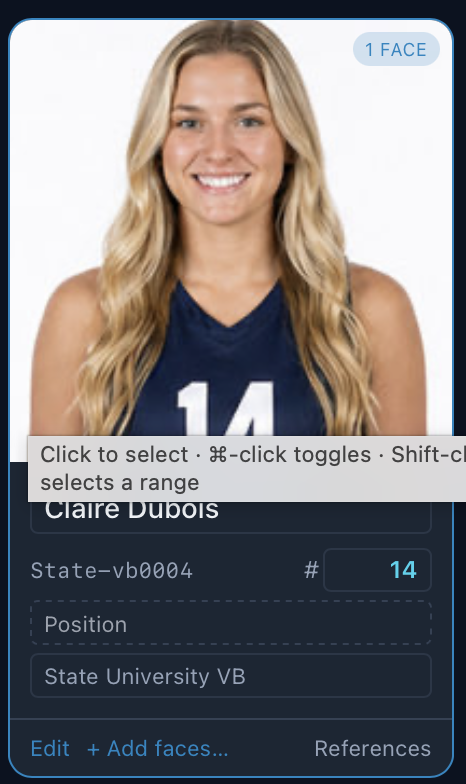
| On the card | What it does |
|---|---|
| N FACE | How many reference photos this person has. |
| Name, #, position, team | Edit them right on the card. |
| Edit | Opens the full edit window. |
| + Add faces… | Adds more headshots. More angles improve matching. |
| References | Shows and prunes the reference photos used to match this person. |
| Click the photo | Selects the card. ⌘-click adds or removes one, Shift-click selects a range. Selected people can be moved to another organization, category or team. |
Edit a person
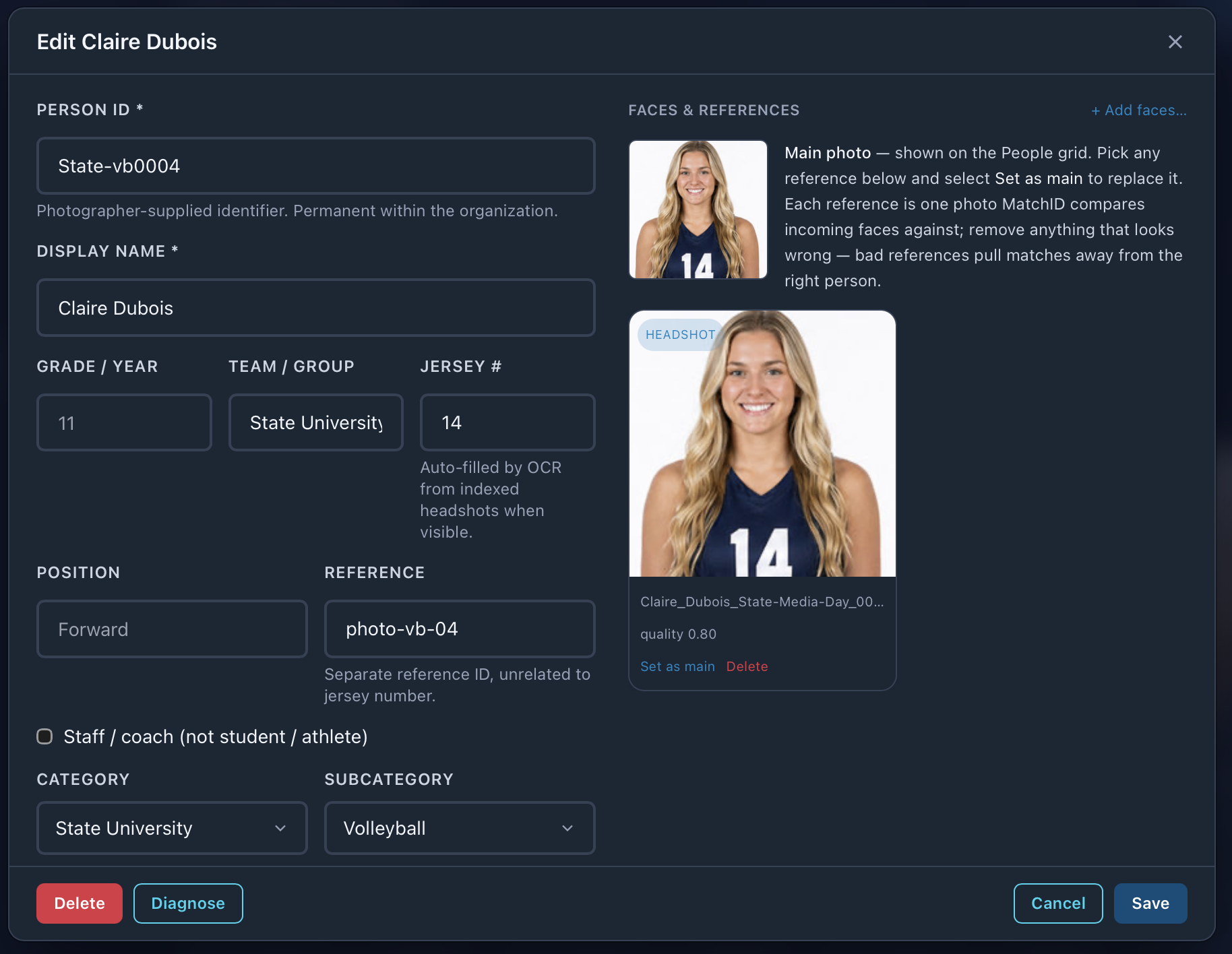
| Field | What it's for |
|---|---|
| Person ID | Your identifier. Permanent within the organization. |
| Display name | The name written to captions. |
| Grade / Year, Team / Group, Jersey #, Position | Fill the matching tokens. The jersey number is read from indexed headshots when it's visible. |
| Reference | A separate reference ID of your own, unrelated to the jersey number. |
| Staff / coach | Marks a staff member rather than an athlete. |
| Category / Subcategory | Moves the person to another team. |
| Faces & references | The main photo shown on the grid, and each reference MatchID compares against. Set as main or Delete one. |
| Diagnose | Re-reads each of this person's headshots and checks it against the stored face. A healthy person scores 0.95 or higher. |
Remove any reference that looks wrong. A bad reference pulls matches away from the right person.
More actions
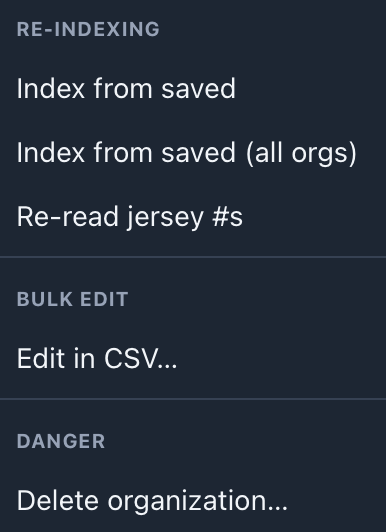
| Action | What it does |
|---|---|
| Index from saved | Indexes people in this organization who have a saved headshot but no face index yet. |
| Index from saved (all orgs) | The same, across each organization. |
| Re-read jersey #s | Reads the jersey numbers from the headshots again. |
| Edit in CSV… | Edits the people you're looking at as a spreadsheet. |
| Delete organization… | Deletes the organization and everyone in it. It asks first. |