Metadata
Fix a wrong value across a folder
A wrong number never stays on one photo. Find it, replace it, and the correction is written to each file.
Fix a mistake
- 1
Find the photos
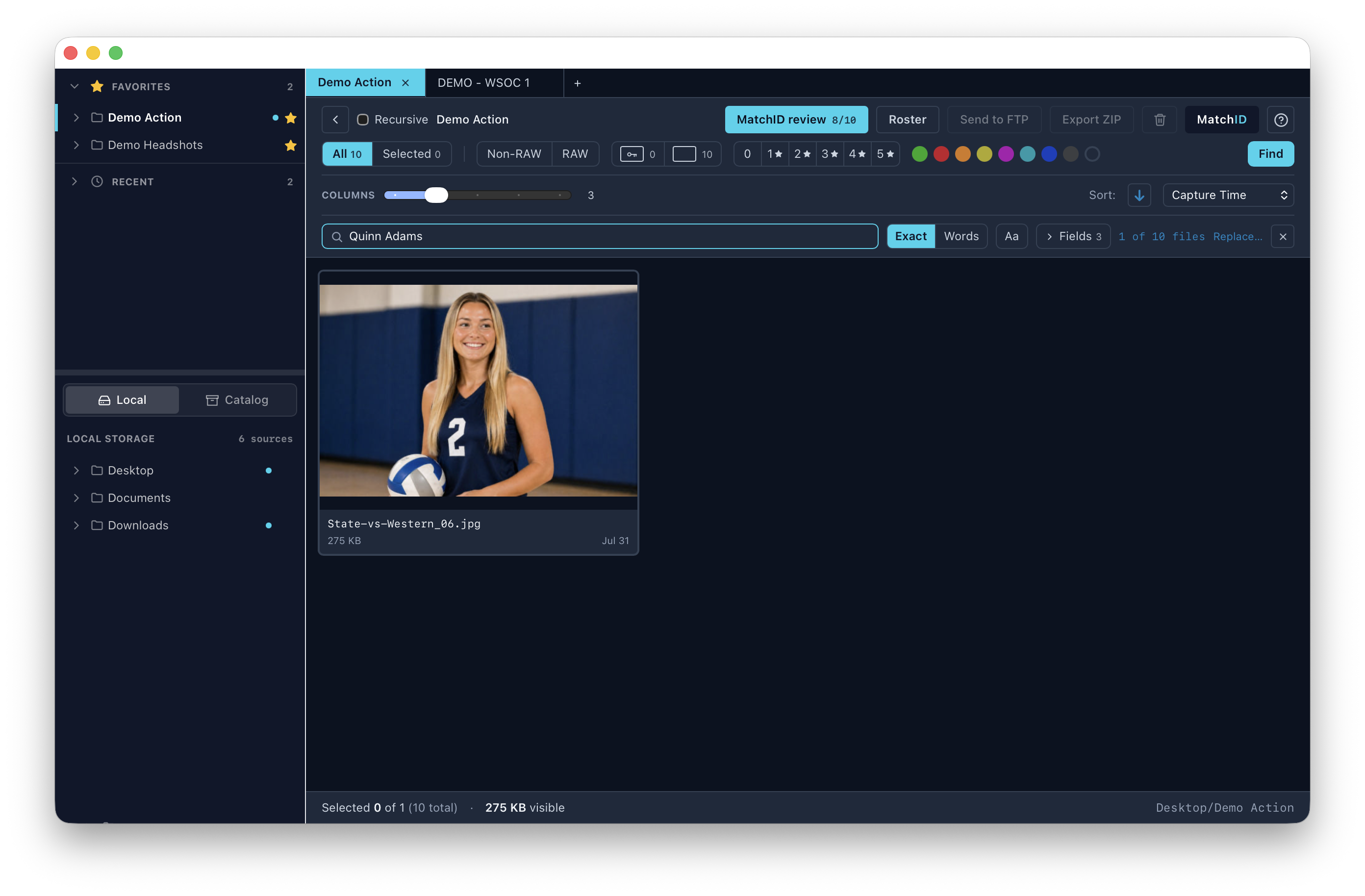
Press ⌥⌘F, or Find in the filter bar, and the grid narrows to the photos that match. - 2
Spot the mistake
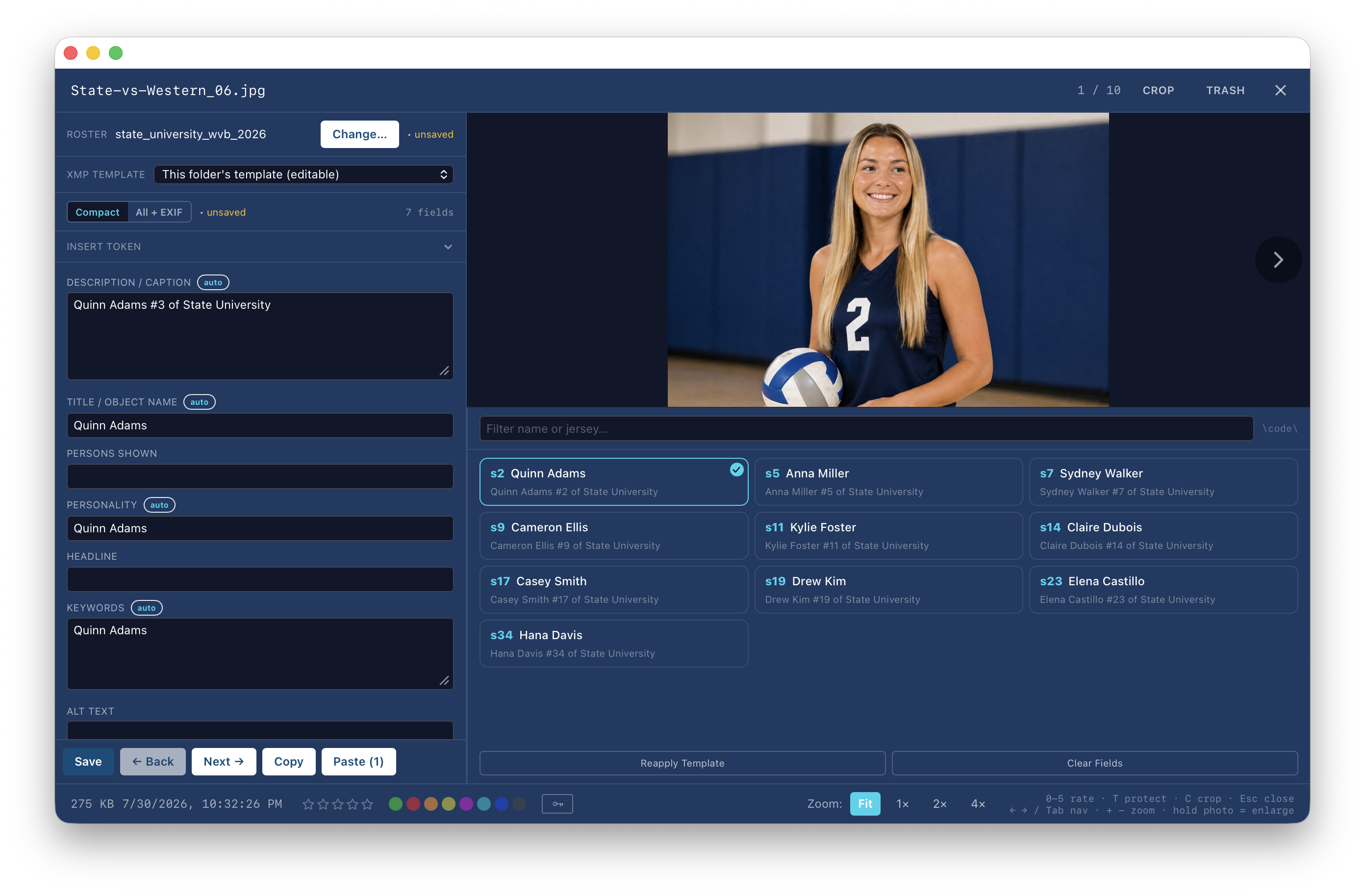
Here the caption says Quinn Adams #3, but the roster and the photo say #2. - 3
Run the replace
Right-click ▸ Find & replace in metadata…, or ⌥⌘R. Pick the scope and fields, and the match count updates as you type. - 4
Check the result
The caption now reads Quinn Adams #2, in the file itself.
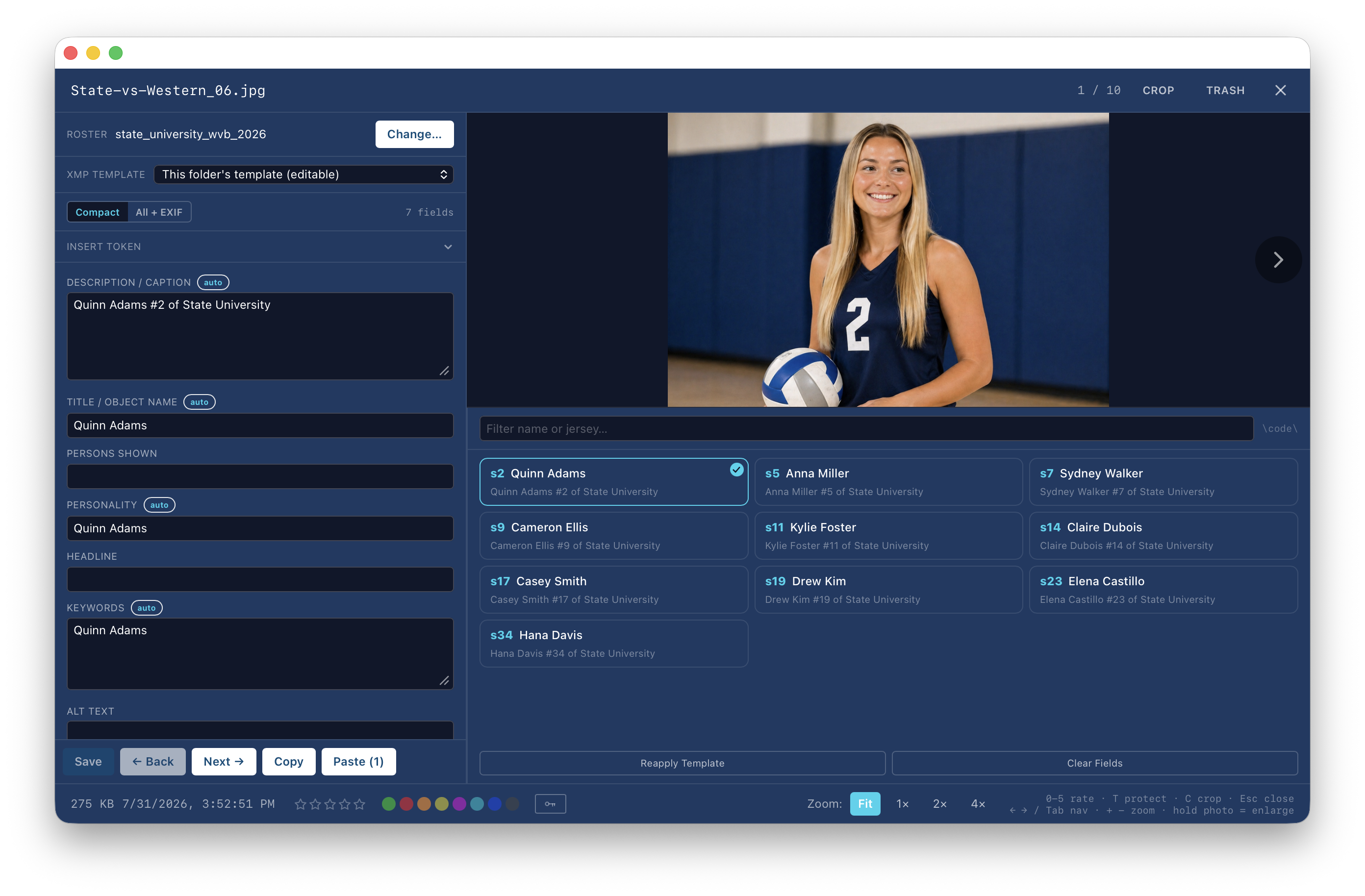
The fix is written to the file, with a sidecar for RAW, so a RAW+JPEG pair stays in step and a search finds it straight away.
The dialog
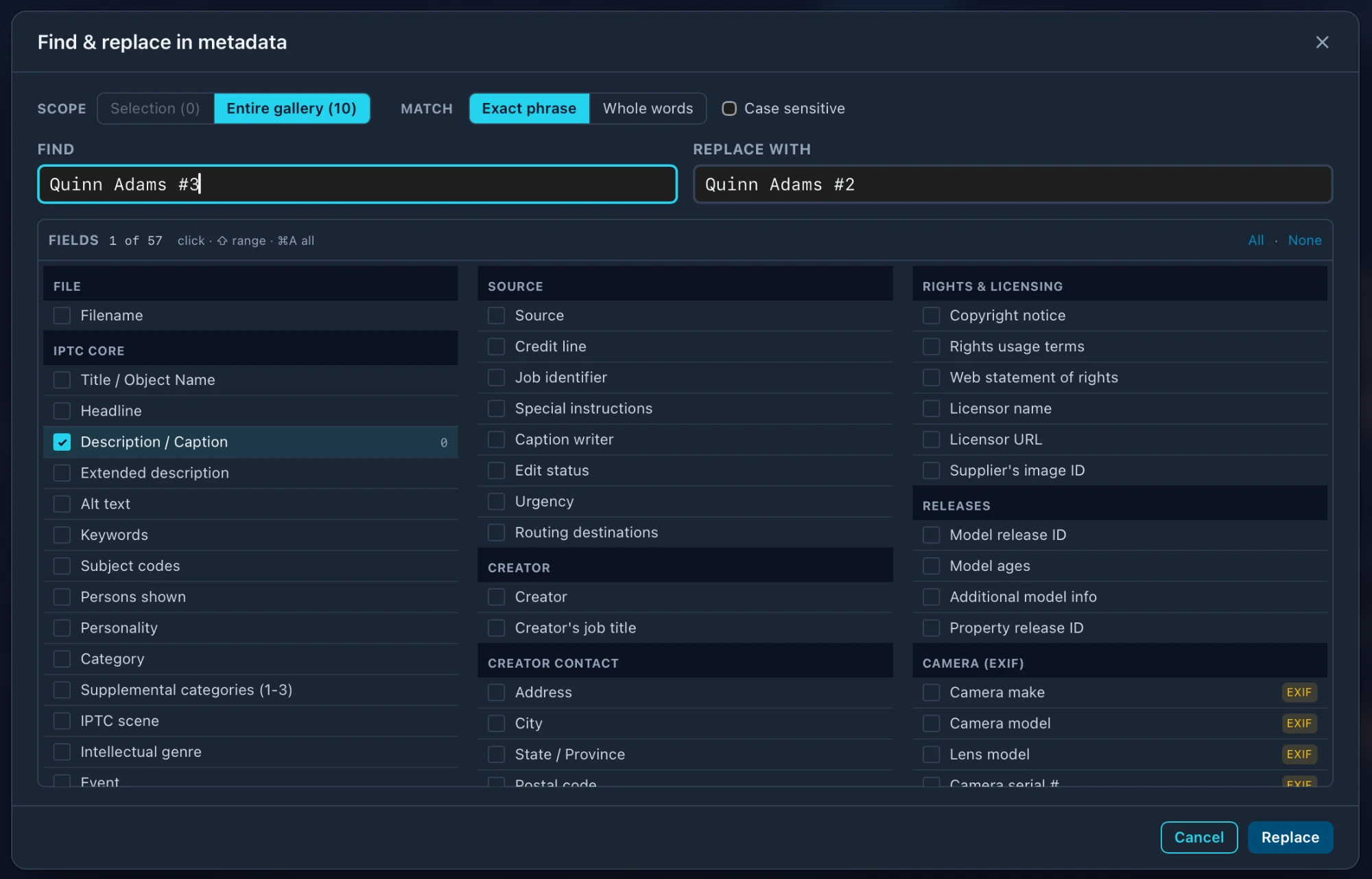
Scope

| Scope | Changes |
|---|---|
| Selection | Only the photos selected in Browse. The count shows how many. |
| Entire gallery | Each photo in the folder. |
Find and replace with

Type what’s wrong and what it should be. Nothing is written until you press Replace.
Match modes

| Option | What it does |
|---|---|
| Exact phrase | Matches the text anywhere, even inside a longer word. |
| Whole words | Matches complete words only, so replacing Cal never touches Calvin. |
| Case sensitive | Off, cal matches Cal. On, it doesn’t. |
Use Whole words for short names and numbers. With Exact phrase,
#1 also matches inside #12.Fields
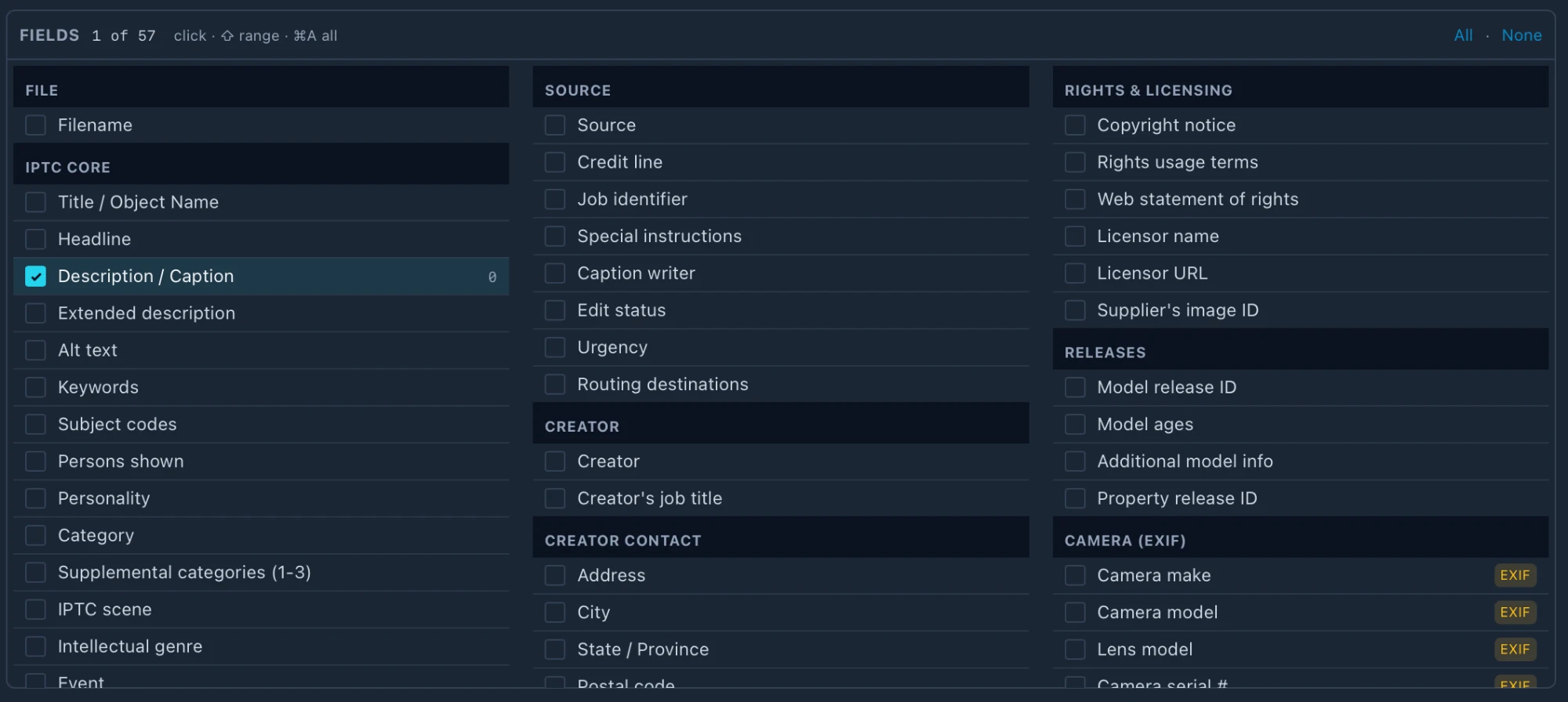
| Control | What it does |
|---|---|
| Click a field | Ticks it. |
| ⇧-click | Ticks a range. |
| ⌘A | Ticks each field. |
| All · None | Ticks or clears the whole list. |
- •Filename is in the list too, to fix a name across a folder.
- •List fields, Keywords and Persons shown, are changed entry by entry, so you can remove one keyword without disturbing the rest.
- •Fields marked EXIF are what the camera wrote. Only tick them on purpose.