Getting started and ingest
Set your MatchID settings and metadata template
Set these once. They decide which people MatchID compares against, how sure it has to be before it writes a name, and which fields the name goes to.
Where the settings are
- 1
Open Settings
Press ⌘,. - 2
MatchID Settings
Scope, tuning, blurry faces and face size. Everything on this page except the template. - 3
MatchID Metadata
The Default template: which fields a name is written to when someone is tagged.
Scope
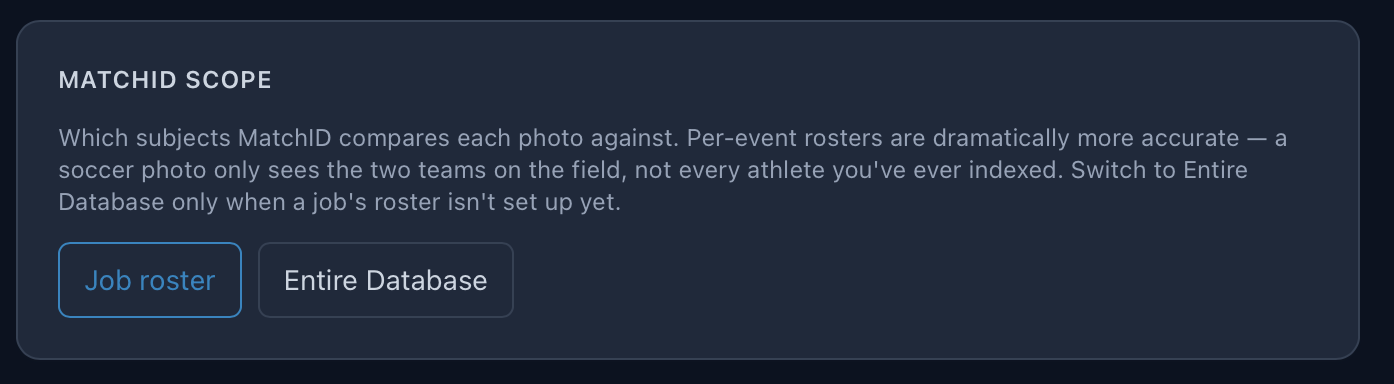
Which indexed people MatchID compares each photo against.
| Option | What it does |
|---|---|
| Job roster (default) | Only the teams set for the folder. A match photo only sees the two teams on the field. |
| Entire Database | Each person you've ever indexed. Slower, and more look-alikes to pick from. |
Tuning
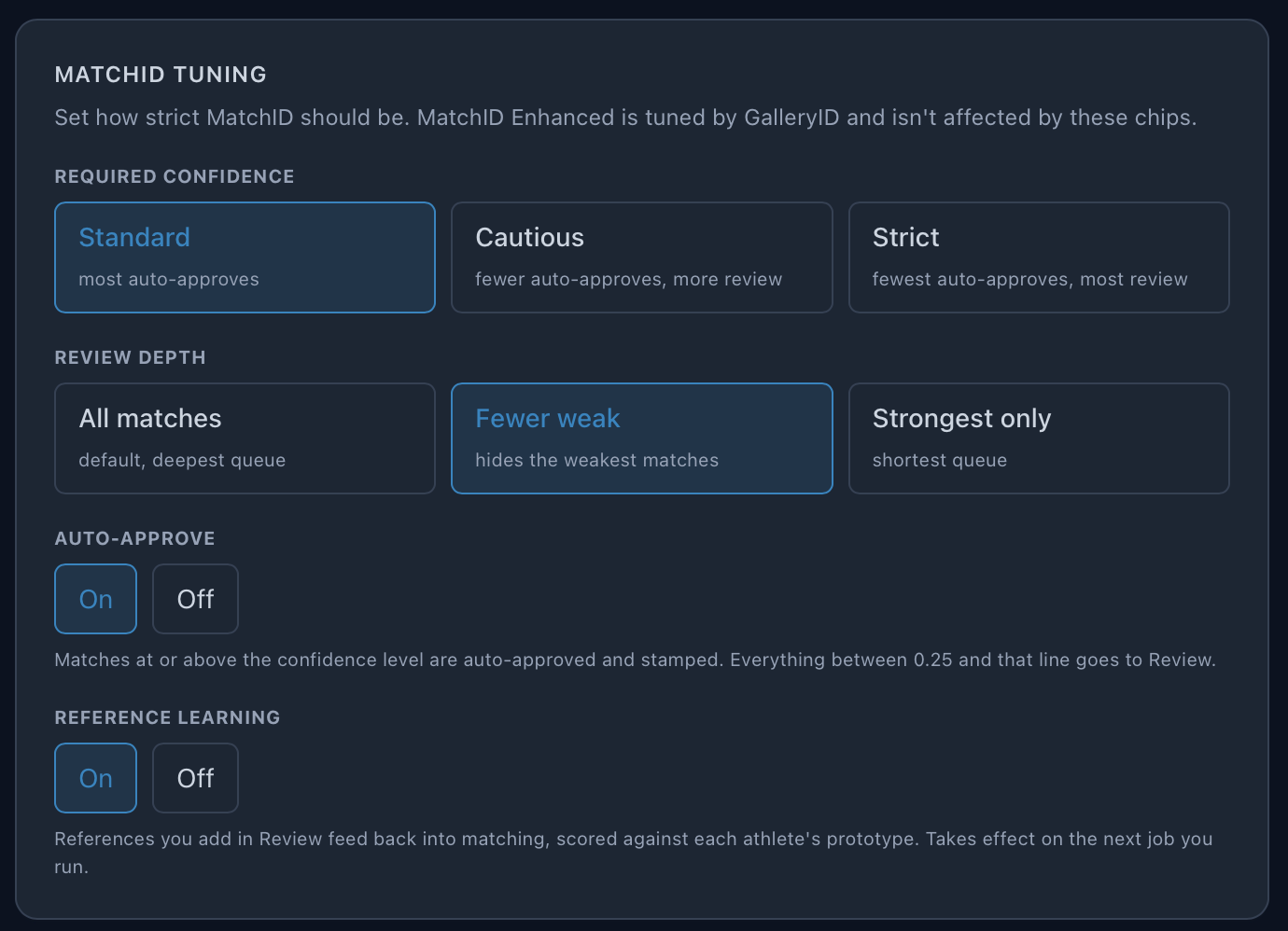
Required confidence
Where auto-approve starts.
| Option | What it does |
|---|---|
| Standard (default) | Most auto-approves. |
| Cautious | Fewer auto-approves, more in Review. |
| Strict | Fewest auto-approves, most in Review. |
Review depth
Where the Review queue stops, separate from where auto-approve starts.
| Option | What it does |
|---|---|
| All matches (default) | The deepest queue. |
| Fewer weak | Hides the weakest matches. |
| Strongest only | The shortest queue. |
Auto-approve and Reference learning
| Setting | On | Off |
|---|---|---|
| Auto-approve | Matches at or above the confidence level are approved and written straight away. The rest go to Review. | Each match goes to Review. Nothing is written until you confirm it. |
| Reference learning | Faces you add as references in Review improve later matching. Takes effect on the next job. | References are kept but not used for matching. |
Skip blurry faces
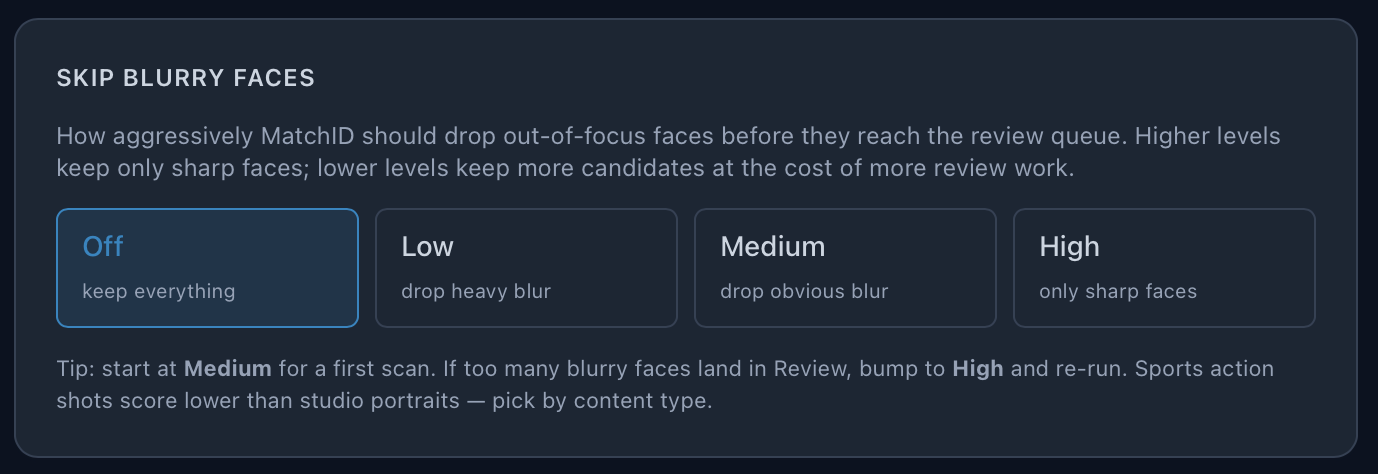
How hard MatchID drops out-of-focus faces before they reach Review. Motion blur strips the detail recognition depends on, so a blurry match is more likely wrong than right.
| Option | What it does |
|---|---|
| Off | Keeps everything. |
| Low | Drops heavy blur. |
| Medium | Drops obvious blur. |
| High | Keeps only sharp faces. |
Face size
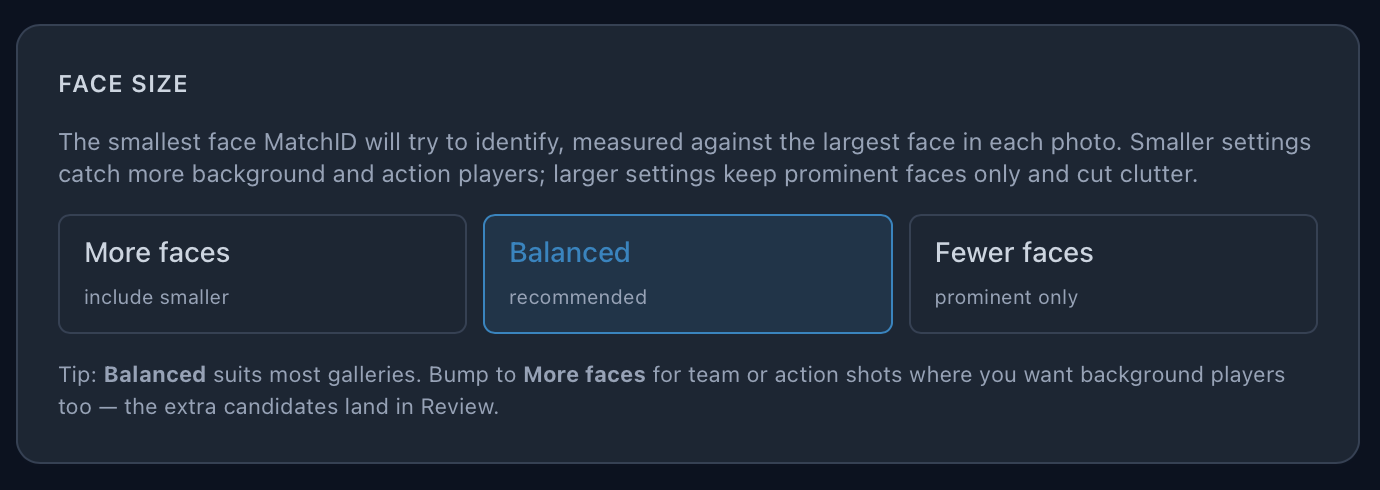
The smallest face MatchID tries to identify, measured against the largest face in each photo.
| Option | What it does |
|---|---|
| More faces | Includes smaller faces, background and action players. |
| Balanced (recommended) | The middle ground. |
| Fewer faces | Prominent faces only. Keeps spectators and the far bench out of Review. |
The Default template
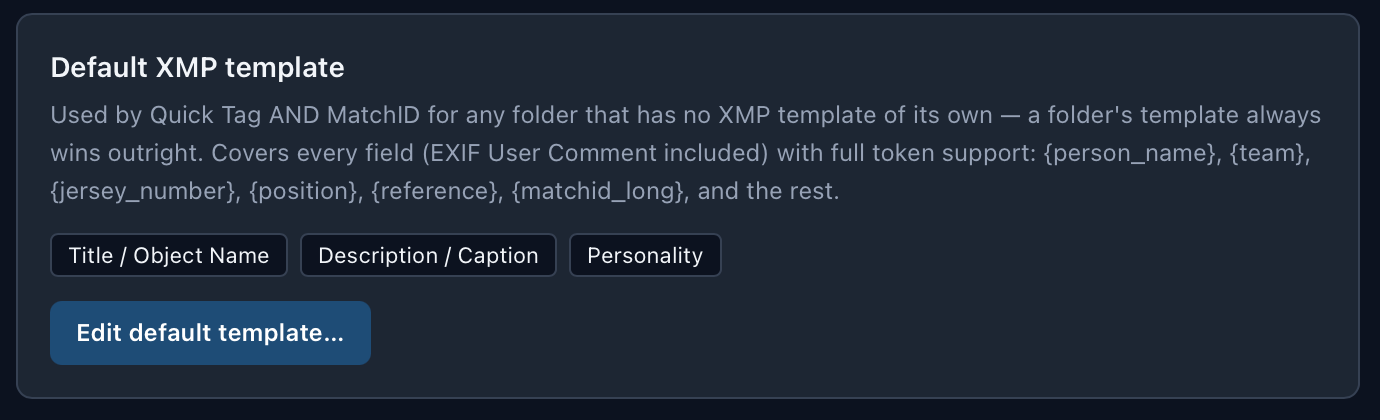
The Default template decides which fields get a name when someone is tagged, by MatchID or from a roster with CaptionID. Any folder without a template of its own uses it.
- 1
Open it
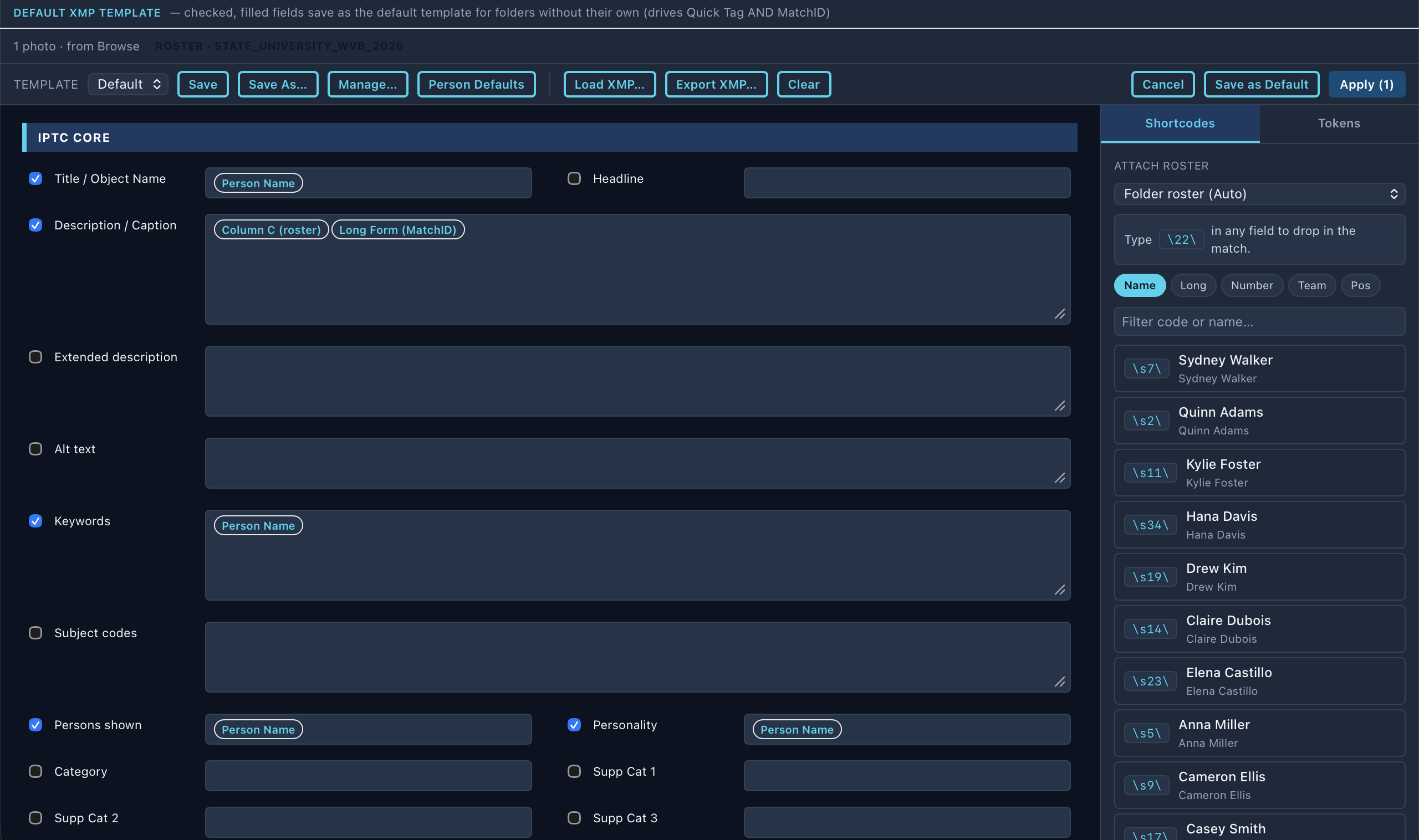
Settings ▸ MatchID Metadata ▸ Edit default template… opens the ⌘I editor in Default template mode. - 2
Place the tokens
Put{person_name},{jersey_number}or a long form such as{matchid_long2}in the fields you want written. - 3
Save as Default
New folders start from it. The Person Defaults button in the editor copies its token placement into any other template.
Good to know
- •⌘I is also the one-off editor. Type a roster code between delimiters, such as
\h1\, in any field to expand it. - •Names write to the file in XMP and IPTC metadata, with a sidecar for RAW. Photo Mechanic, Lightroom and Capture One read them, and the names go wherever the file goes.
- •Nothing is locked in the app.