Files and delivery
Send named files over FTP
Set a destination up once, then send from Browse. The names are already in each file, so they go wherever the file goes.
Send from BrowseDestinationsNew destinationRemote path and renameResize, sharpen, watermarkWatch a folder
Send from Browse
- 1
Select the photos
In Browse. - 2
Send
FTP in the action bar (⌘U) sends them to a saved destination. ZIP (⌘⇧U) bundles them instead. - 3
Check what gets sent
Before you press Send, the window says whether the destination resizes, at what quality, which watermark and how much sharpening.
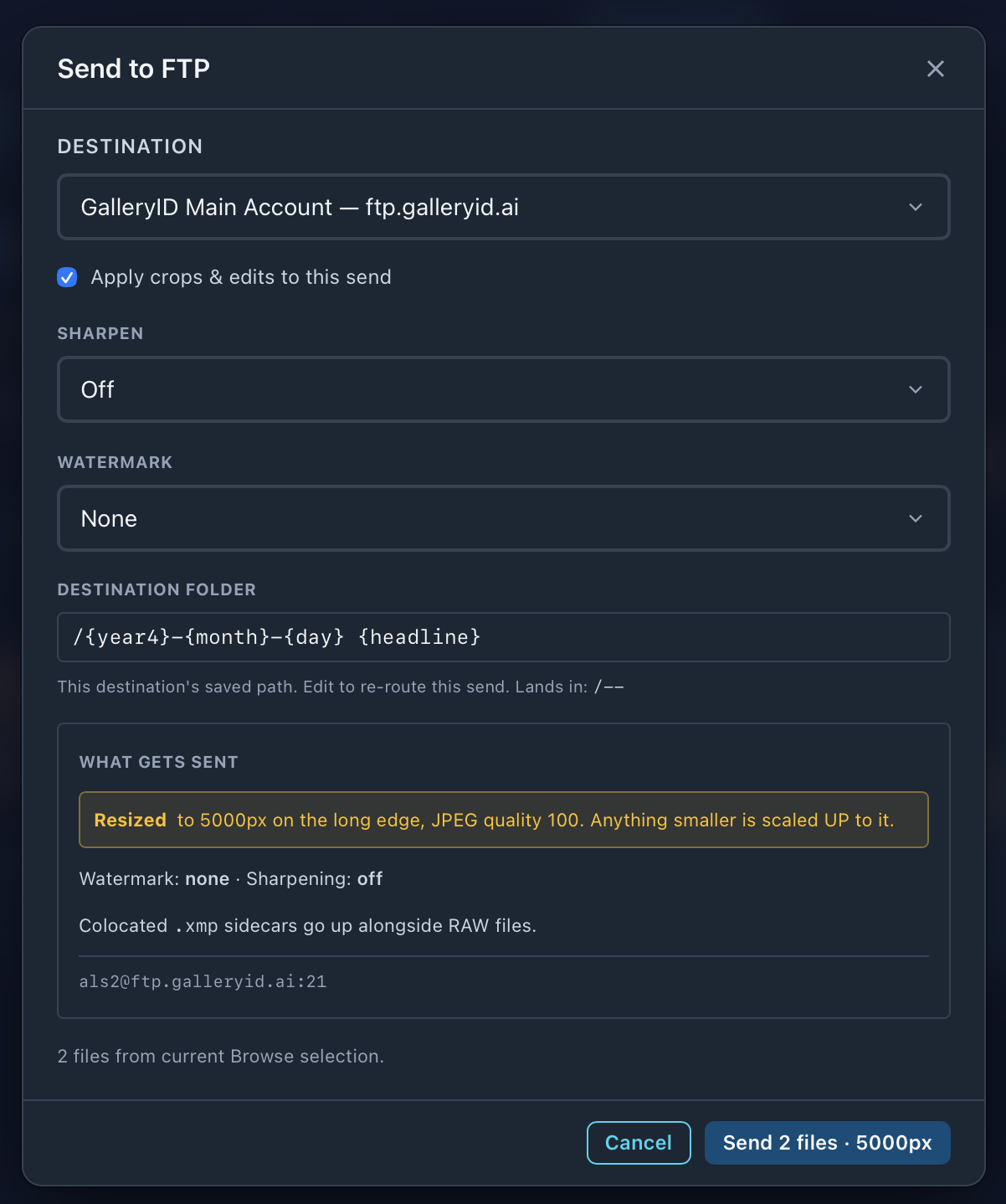
| Part | What it does |
|---|---|
| Destination | Which saved destination to use. |
| Apply crops & edits to this send | On: photos with a saved crop or edits go out with them applied. Off: the untouched originals go. |
| Sharpen / Watermark | Start from the destination's settings. Change them for this send only. |
| Destination folder | The destination's saved path. Edit it to re-route this send. |
| What gets sent | The size, quality, watermark and sharpening this send will use. |
A resized send is called out in amber, and again on the Send button. A wire delivery at the wrong size can’t be recalled.
Destinations
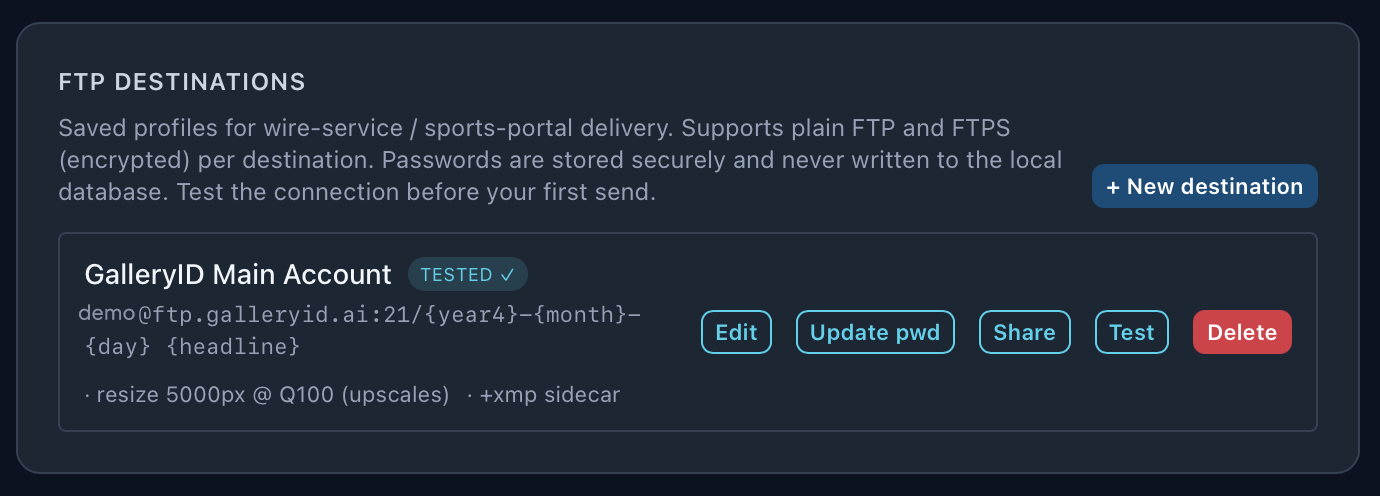
| Control | What it does |
|---|---|
| + New destination | Adds one. See below. |
| TESTED ✓ | The last connection test passed. |
| Edit | Changes the destination's settings. |
| Set pwd / Update pwd | Sets or changes the password on its own. |
| Share | Team plans only. Sends this destination to your team, password included. |
| Test | Checks the connection. Do this before your first send, and after changing the transport. |
| Delete | Removes it. |
New destination
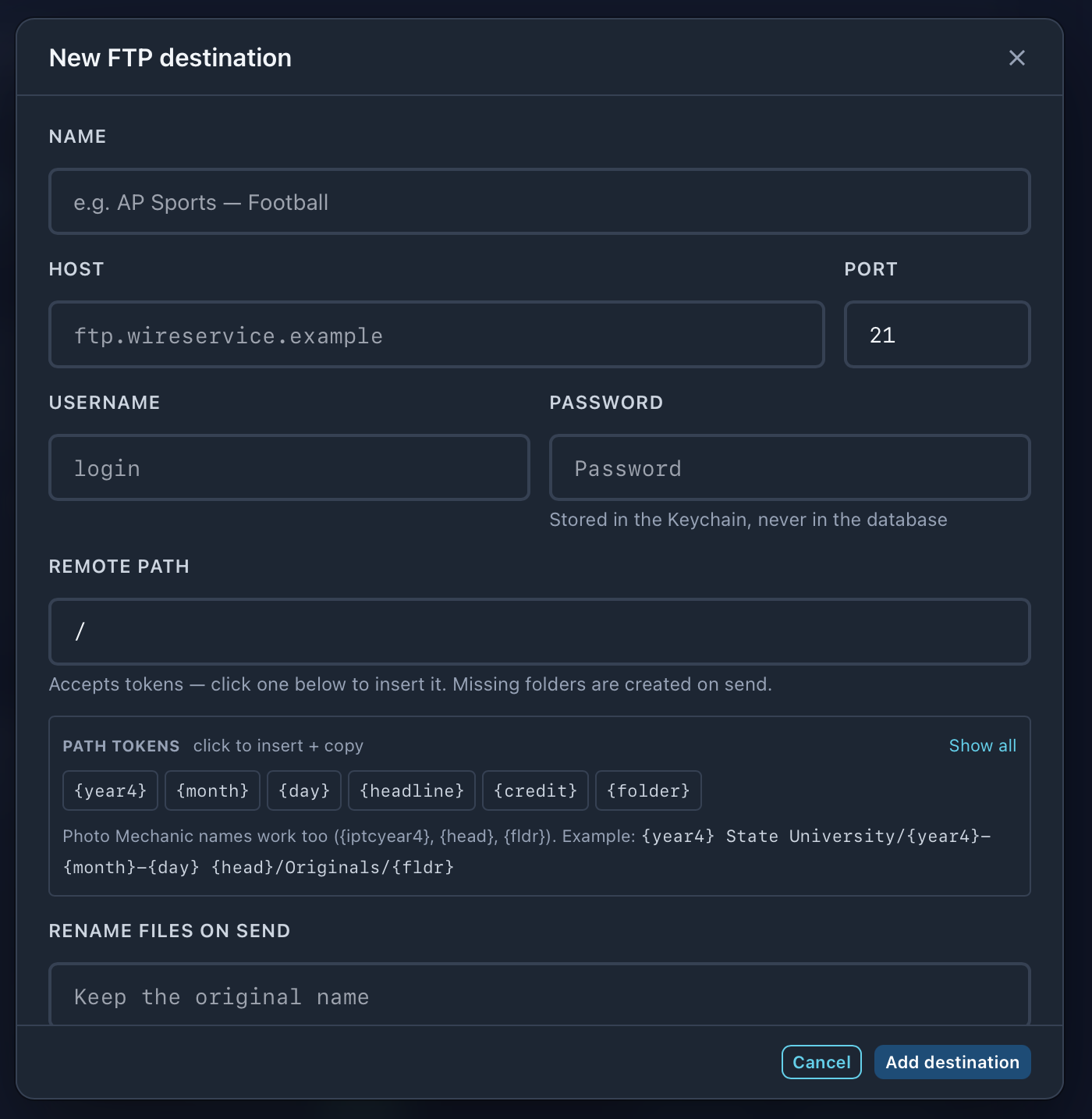
| Field | What to put |
|---|---|
| Name | What you'll pick it by, such as AP Sports: Football. |
| Host and Port | The server address from the wire service or client. 21 for FTP, 22 for SFTP. |
| Username and Password | The login. The password is kept in the Keychain, never in the app's database. |
| Remote path | Where the files go on the server. See below. |
| Rename files on send | Optional. See below. |
Transport

| Option | What it is |
|---|---|
| FTP | Plain FTP. No encryption. |
| FTPS | Explicit FTPS (AUTH TLS). Encrypts the login and the upload. Required by Box, recommended by PhotoShelter. |
| SFTP | SFTP over SSH, port 22. Encrypted, and what most wire services accept. GalleryID Desktop doesn't check the server's host key yet. |
Re-test after changing the transport.
Remote path and rename
Remote path
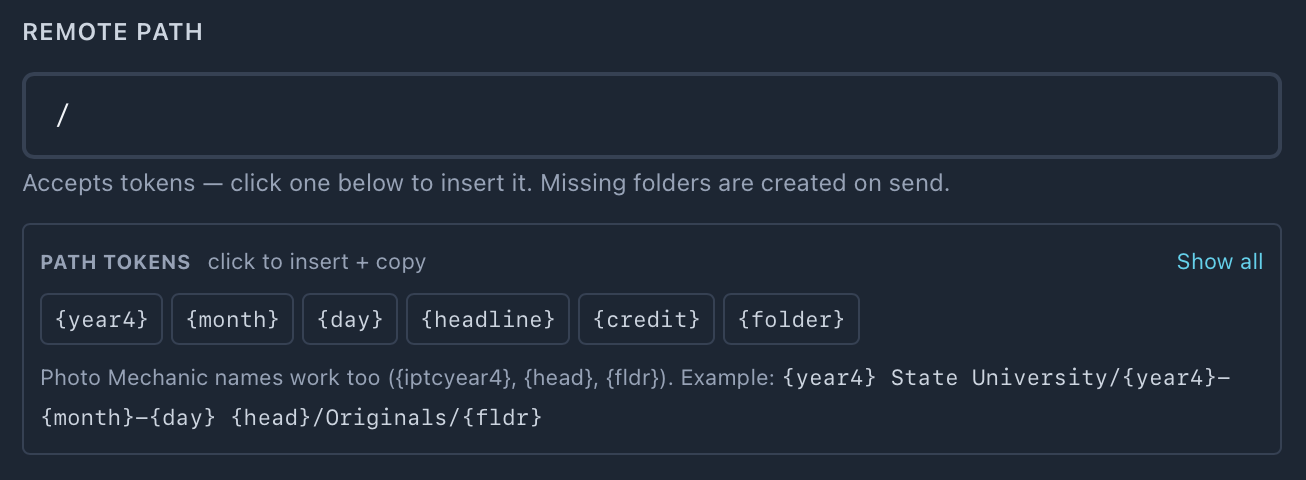
- •Takes the same tokens as ingest, filled per photo from its capture date and IPTC. Click a chip to insert it; Show all lists the rest.
- •One destination can fan out into dated, per-event folders. Missing folders are created on send.
- •A Photo Mechanic path pastes straight in:
{iptcyear4}-{iptcmonth0}-{iptcday0} {head}/Originals/{fldr}.
Rename files on send
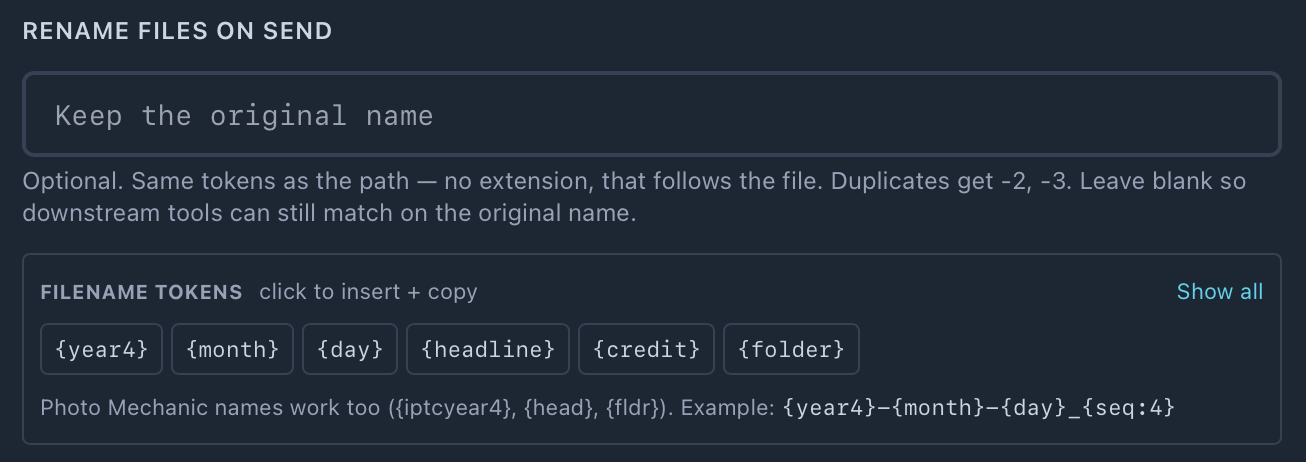
- •Same tokens as the path. Leave out the extension: it follows the file, so a rendered RAW arrives as .jpg.
- •Use
{seq:4}for numbering. Without it, frames that resolve to one name only get a -2, -3 suffix.
Leave it blank if anything downstream matches on the original filename. The send window warns in amber when a rename is on.
Resize, sharpen and watermark
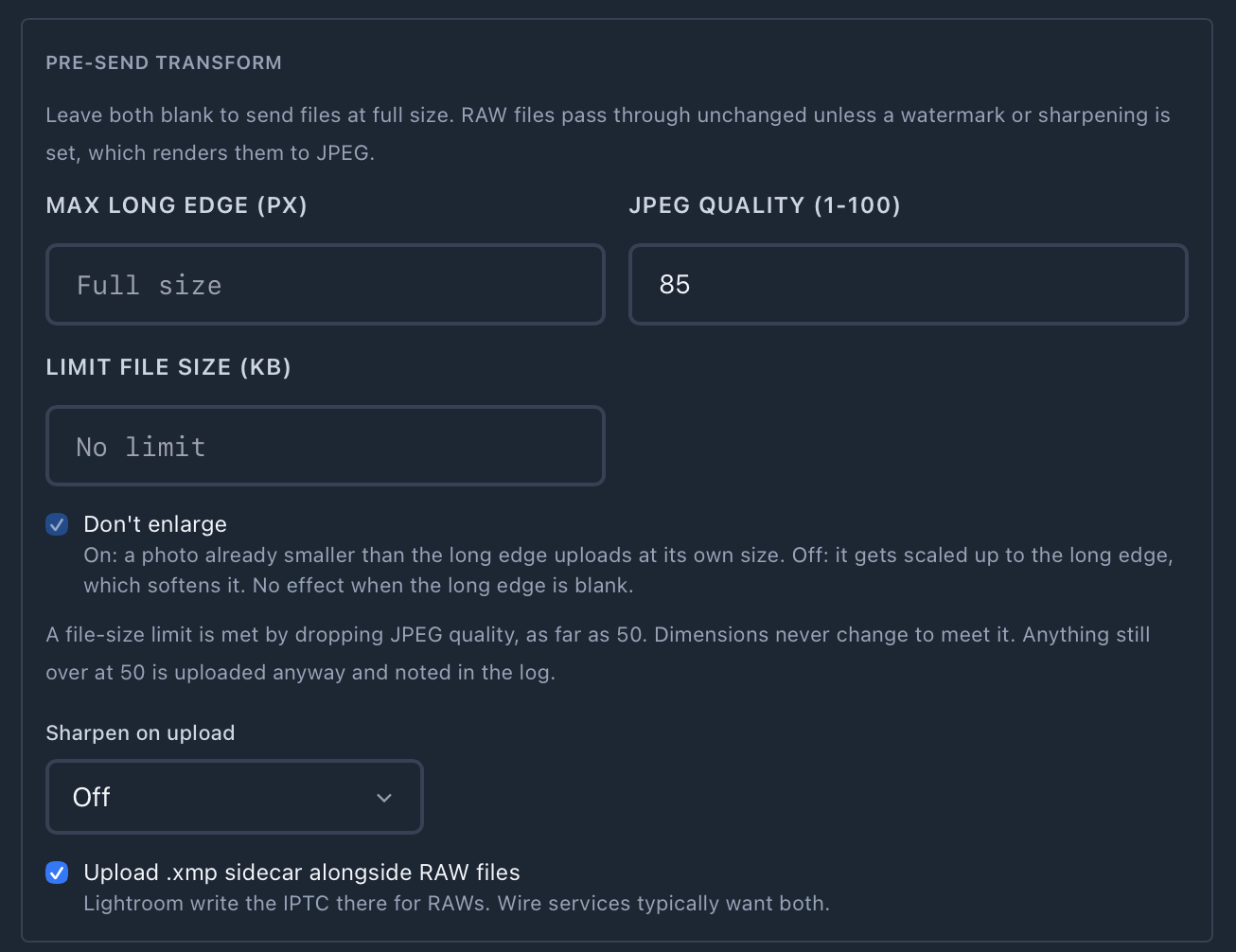
| Setting | What it does |
|---|---|
| Max long edge (px) | Resizes on send. Blank sends full size. |
| JPEG quality (1–100) | Quality of the JPEG sent. |
| Limit file size (KB) | Meets the limit by dropping JPEG quality, as far as 50. Dimensions never change. Anything still over at 50 is sent anyway and noted in the log. |
| Don't enlarge | On: a photo already smaller than the long edge goes at its own size. Off: it's scaled up, which softens it. |
| Sharpen on upload | Off, Low (screen and social), Standard (typical delivery JPEG) or High (print or heavy downsizing). |
| Upload .xmp sidecar alongside RAW | Sends the sidecar with each RAW. Wire services usually want both. |
RAW files go through unchanged, unless a watermark or sharpening is set. Then they’re rendered to JPEG.
Watermark
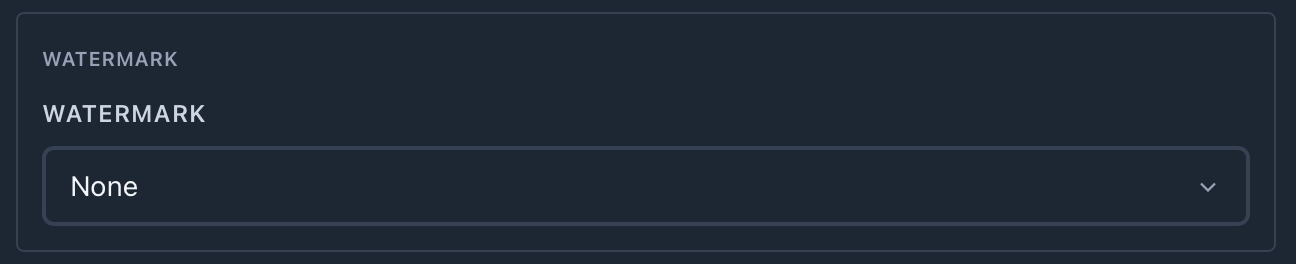
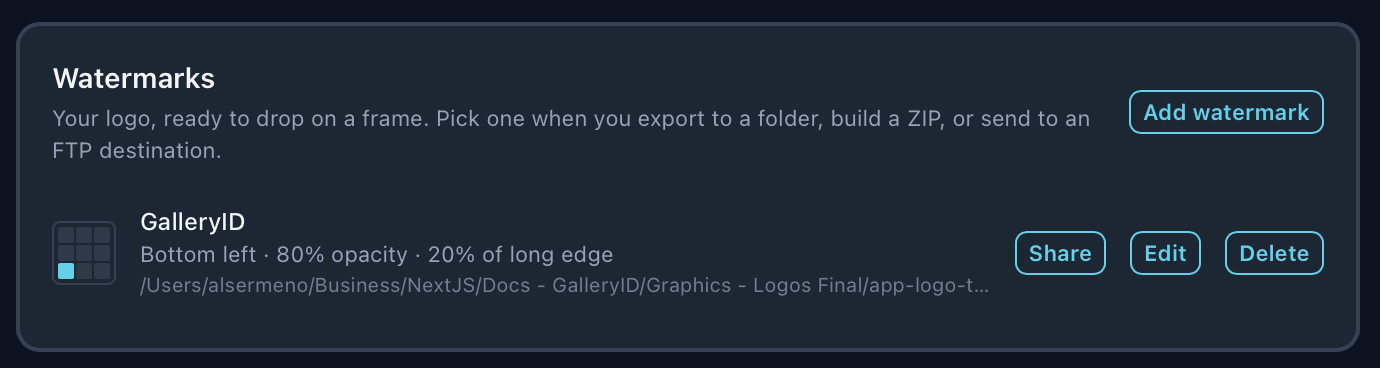
Add watermark takes a PNG or JPEG logo and sets its corner, opacity and size. Share (team plans) sends it to your team.
Watch a folder

New files landing in the folder are queued in Browse for you to review and send. Files already in it when you set this are left alone.
Nothing is sent automatically. A delivery can’t be recalled, so the last step stays yours.