Metadata
Build an IPTC template with tokens
A template decides which fields get written. A token decides what goes in them. Build it once and the same template captions the whole folder, one athlete at a time.
Open the editor

- 1
Select the photos
In Browse, select the photos the template should go on. One photo or a whole folder. - 2
Press ⌘I
The editor opens on your selection, with the fields on the left and the Tokens and Shortcodes rail on the right. - 3
Fill the fields, then Apply
Type the text, drop in tokens, tick the fields you want written, and Apply.
| Control | What it does |
|---|---|
| Template | Loads a saved template into the fields. |
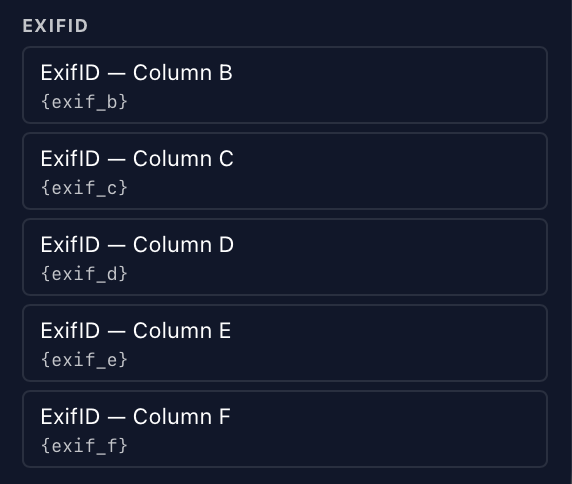
| ExifID | The set {exif_b} to {exif_f} resolve against. A pick here is used for this screen only. use for this folder binds it to the folder the photos are in, use everywhere makes it the default for folders without their own. |
| Save | Writes your changes back to the selected template. |
| Save As… | Saves the fields as a new named template. |
| Manage… | Rename templates, or check several and delete them together. |
| Person Defaults | Applies the Default template's token settings (Settings ▸ MatchID Metadata) to this one. Empty fields take the default's text, filled fields missing {person_name} get it added, and fields that already carry tokens are left alone. It also swaps in any token set with a Replaces value (see Token sets). |
| Load XMP… | Fills the fields from a standalone .xmp file. A field the file doesn’t carry is left as it was. |
| Export XMP… | Writes the checked fields to a standalone .xmp file. |
| Clear | Empties the fields and unticks their boxes. |
Manage templates
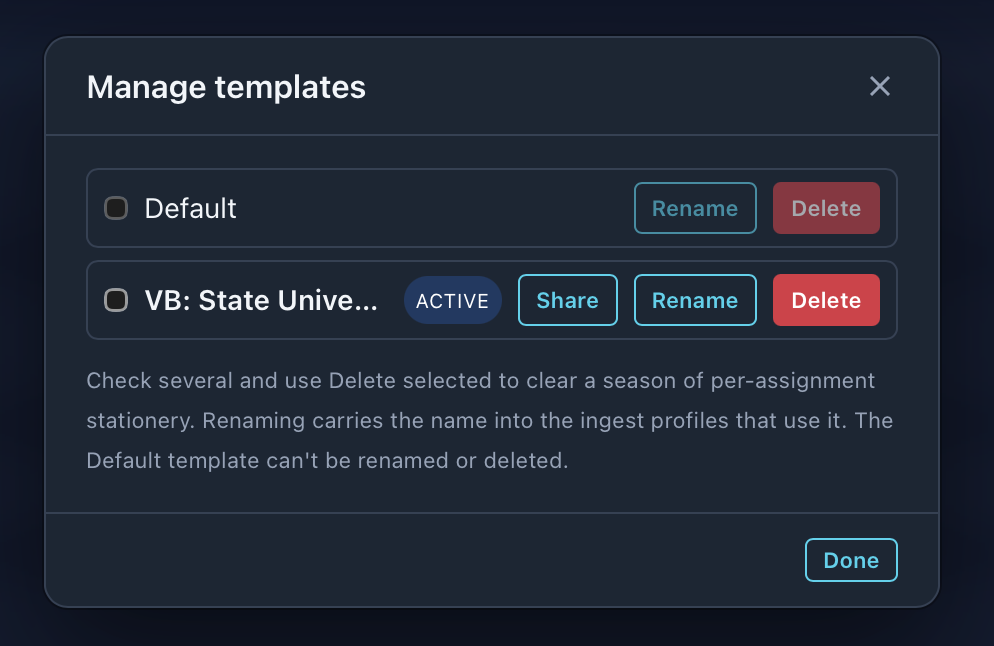
| Control | What it does |
|---|---|
| Checkbox + Delete selected | Clears several templates at once, such as a season of one-off templates. |
| Rename | Renames it, and the ingest profiles that use it follow the new name. |
| Delete | Removes it. Default can’t be renamed or deleted. |
| Share | Team plans only. Sends the saved template to each computer on your team. Once shared it reads Update team, which sends a new version. A template your team locked is read-only. |
Pick the fields that get written
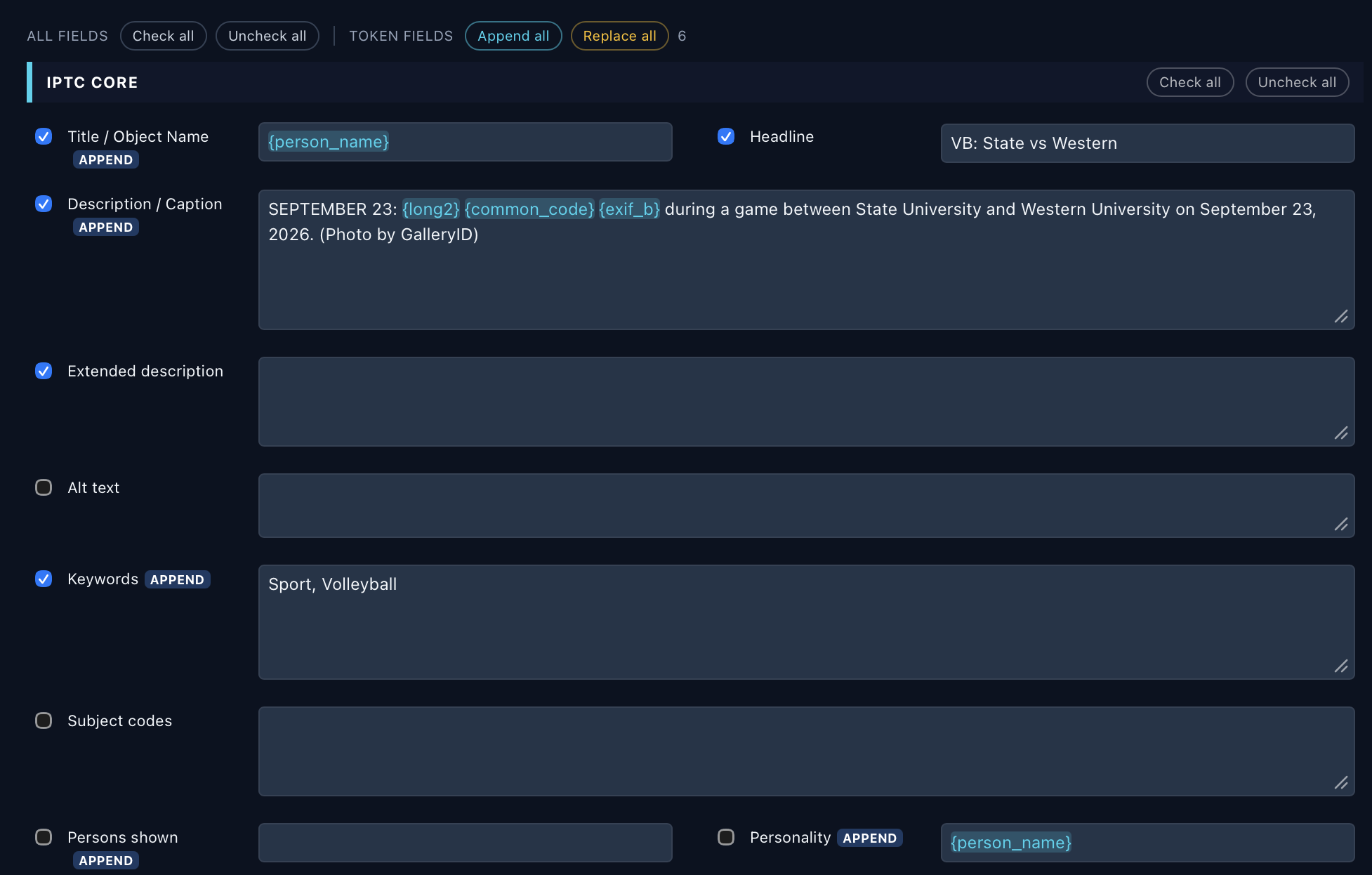
The box beside each field decides whether it's written. An unticked field is never touched, whatever is typed in it.
| Control | What it does |
|---|---|
| Field checkbox | Write this field on Apply. |
| All fields: Check all / Uncheck all | Ticks or unticks each field in the editor. |
| Section Check all / Uncheck all | The same, for one section, such as IPTC Core. |
Append or Replace

Fields that carry a token, and list fields such as Keywords and Persons shown, get an APPEND or REPLACE badge beside the label. Click the badge to switch it. Append all and Replace all set them all at once.
| Mode | Text field | List field (Keywords, Persons shown, Personality, Title) |
|---|---|---|
| Append (default) | Writes the value. If the template comes out empty, the text already on the photo stays. | Keeps the photo’s items and adds these, without duplicates. |
| Replace | Overwrites the field. | Overwrites the list. |
{person_name} field never erases names that are already there.Field groups
The fields come in sections: IPTC Core, Origin, Source, Creator, Creator contact, Rights & licensing, Releases, Camera (EXIF) and Media. Each has its own Check all and Uncheck all.
Camera (EXIF)
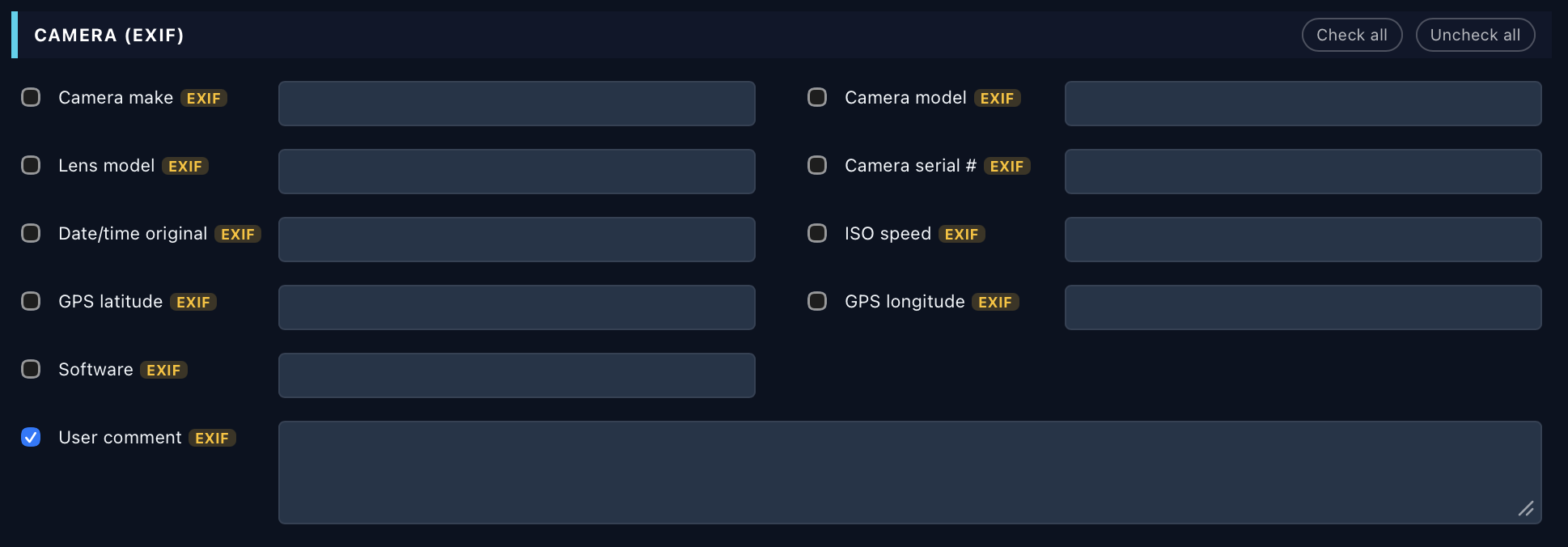
Leave these unticked unless you mean to change what the camera recorded. A blank EXIF field is never written, even when ticked.
Media: Tag (protect)

| Value | What it writes |
|---|---|
| — | Nothing. The photo keeps its current tag. |
| Tagged | Marks the photo protected. It shows the padlock in Browse. |
| Untagged | Clears the tag. |
The Tokens rail
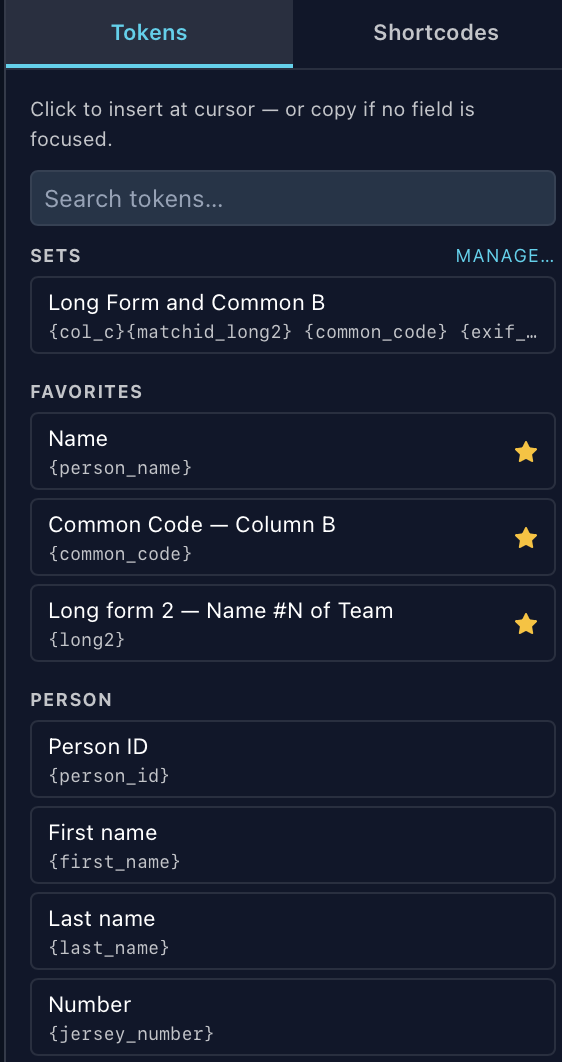
- •Click a token to insert it at the cursor. With no field focused, it's copied instead.
- •Search tokens filters the list by name.
- •Hover a token and click the star to pin it to Favorites, in the order you starred them. Click the filled star to unpin. The same favorites show in the photo window's Insert Token chips.
- •Sets holds your token sets. Manage… opens the editor for them.
Token groups
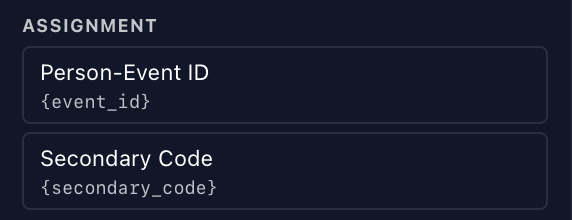
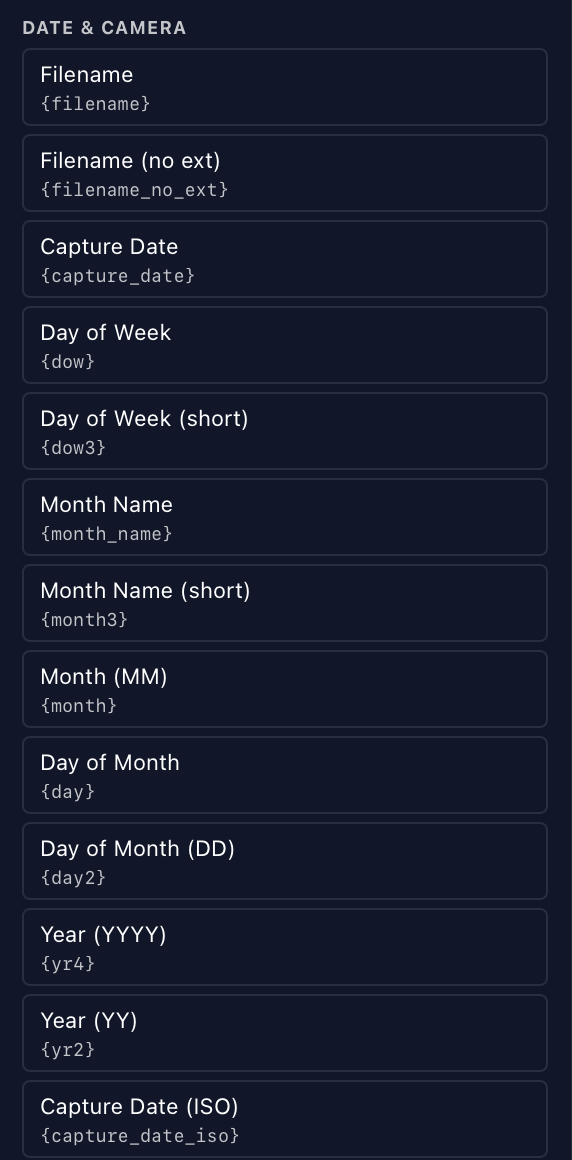
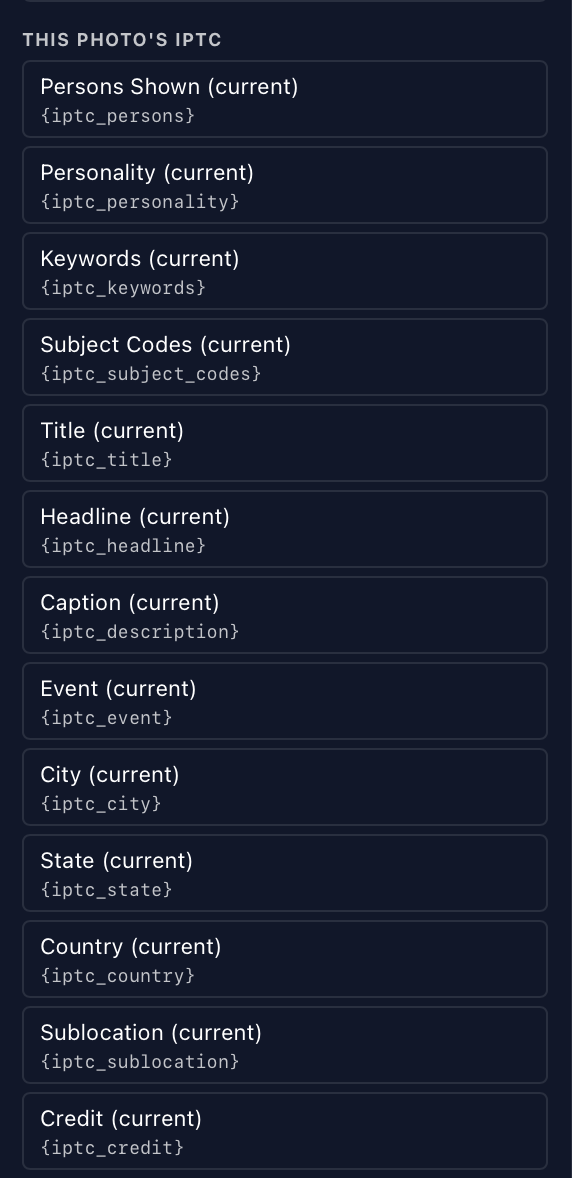
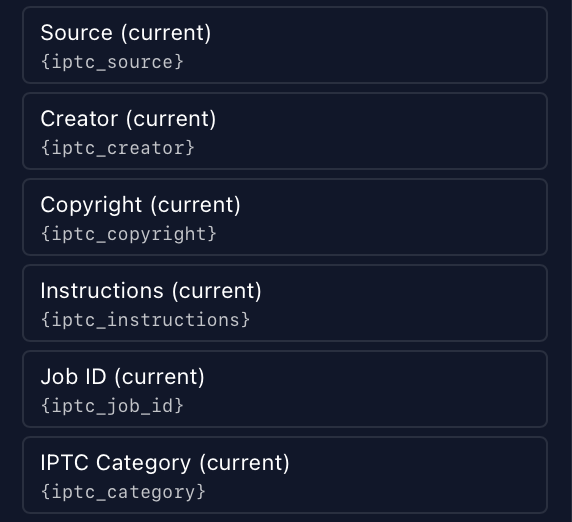
Below the favorites, the rail lists each token by where its value comes from.
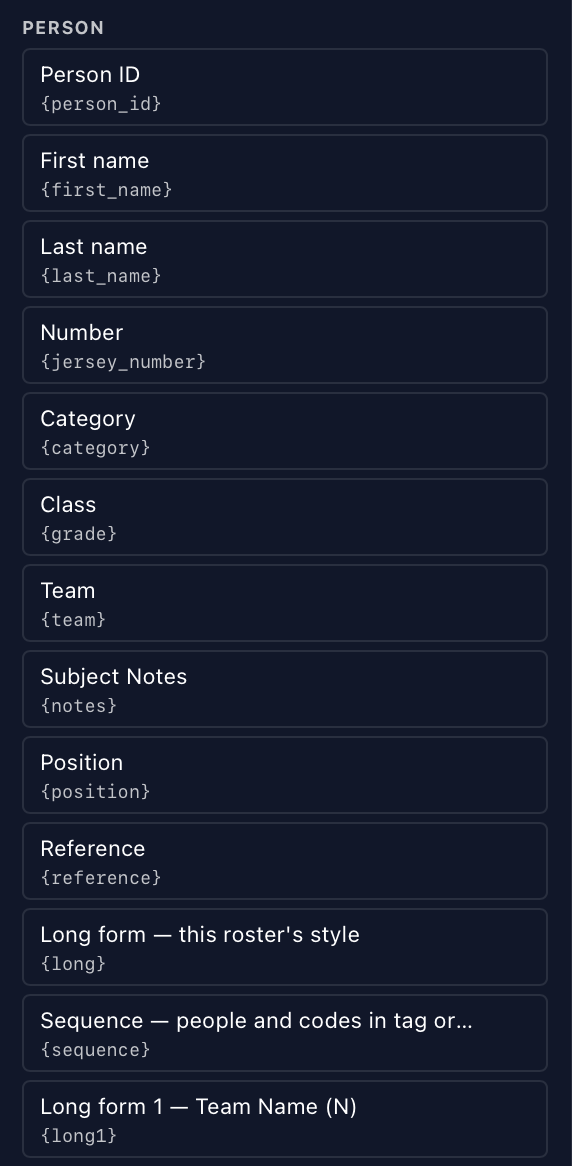
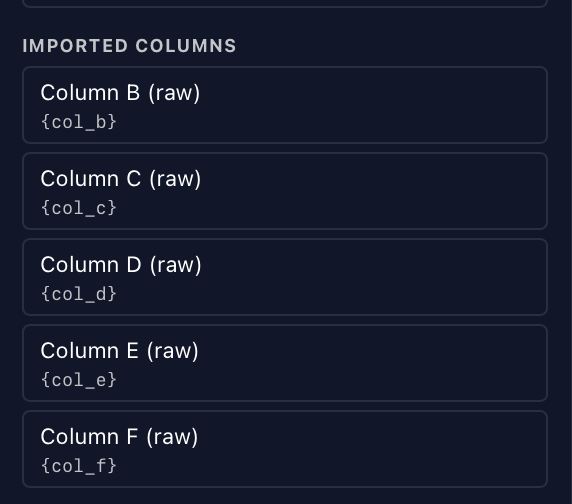
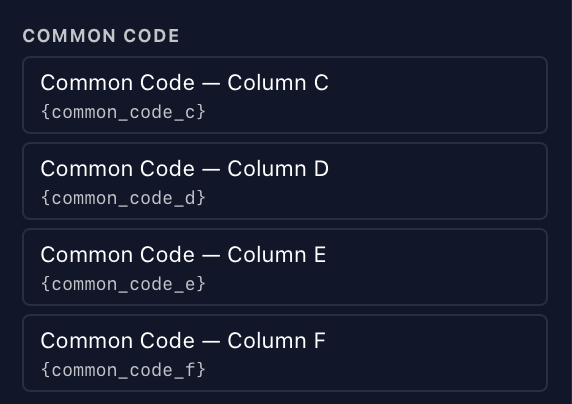
{common_code} is column B, C to F follow.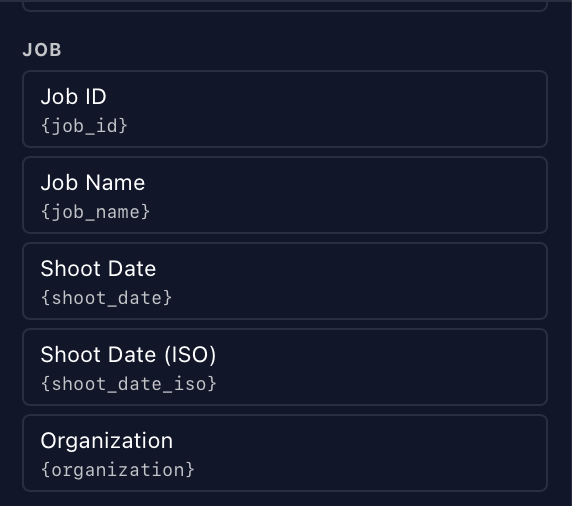
Token sets
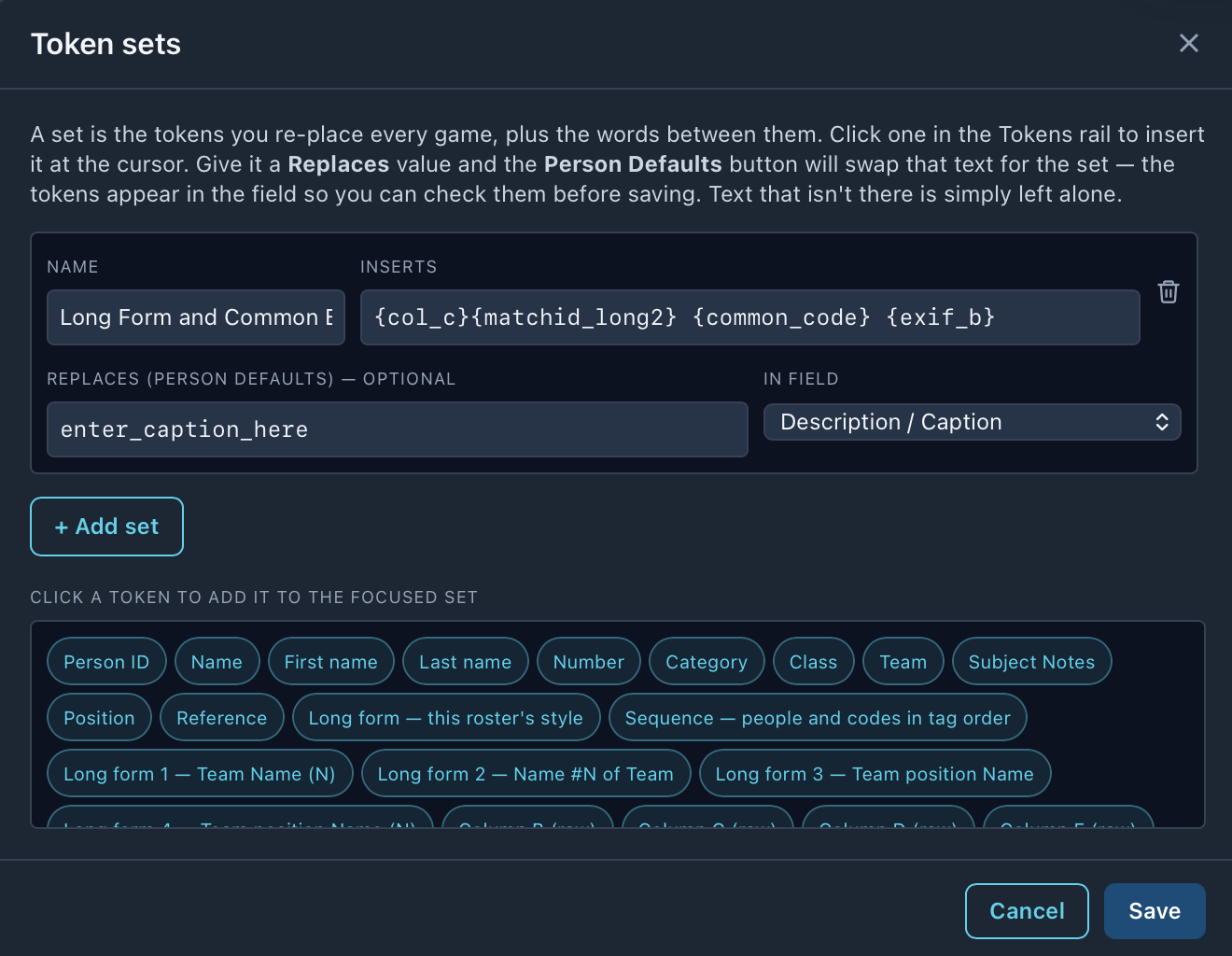
A set is the tokens you place again at each game, plus the words between them, saved under a name. Click it in the rail and it goes in at the cursor, replacing any selected text.
| Field | What it does |
|---|---|
| Name | What the set is called in the rail. |
| Inserts | The tokens and text. Click a token chip below to add it to the set you’re editing. |
| Replaces (optional) | Placeholder text, for example enter_caption_here. Person Defaults swaps it for the set. |
| In field | Which field that swap happens in. |
Shortcodes
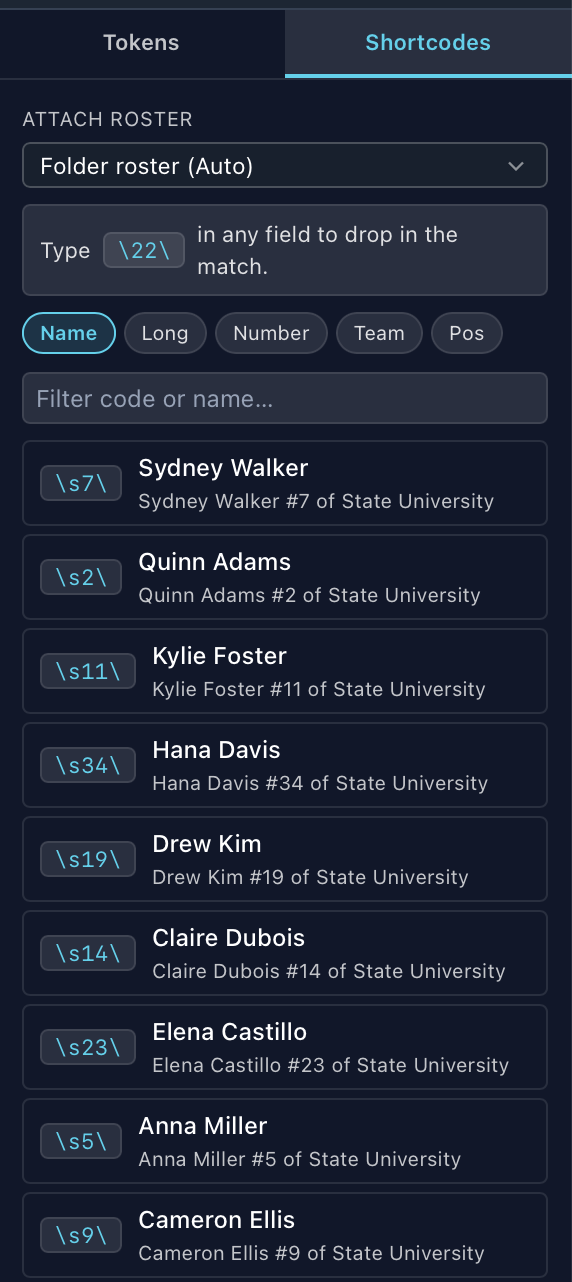
The second tab of the rail puts a roster's codes next to the fields, for typing names in by hand.
| Control | What it does |
|---|---|
| Attach roster | The roster the codes come from. Auto uses the folder’s roster. |
Type \22\ | Type a code between the delimiters in any field and it expands to the match. The delimiter is set in Settings ▸ Browse and defaults to \. |
| Name / Long / Number / Team / Pos | Which column a click on a row inserts. |
| Filter code or name… | Narrows the list. |
| A row | Click to insert that person’s value at the cursor. |
How tokens resolve
- •Tokens stay tokens in the template. They only fill in when a person is tagged, so one template covers the folder.
- •Text you type around them is left alone.
- •Two tokens side by side with nothing between them are one choice: the first with a value wins. That's how a roster column and
{matchid_long2}share a field. - •Once a token fills in, its text is tinted so you can tell a roster name from one you typed. Edit inside it and the tint drops.
- •The file only ever gets finished text, never a raw token.
The folder’s template
Each folder keeps its own copy of a template. That copy is what fills in when you tag someone in that folder, by MatchID or by hand.
| How it gets there | What happens |
|---|---|
| Ingest | With Apply XMP template on, the ingest writes the Default template, then the chosen one with your IPTC for this ingest edits on top, to the new folder before the first photo lands. See Ingest from a card. |
| Photo window ▸ XMP Template | Import a saved template, or the main editor’s current one, into this folder. It’s a copy: editing it never touches the original. |
| Edit in IPTC editor… | Opens ⌘I in folder-template mode, with a banner naming the folder. Save to Folder saves and takes you back to Browse. |
| No template of its own | The folder uses the Default template, set in Settings ▸ MatchID Metadata. |
Other ways to make a template
- •Drag an .xmp file from Finder onto the GalleryID Desktop icon. It's added as a new template named after the file. A name that's taken gets a number.
- •Got one photo exactly right? The icon at the end of the photo window's Save / Back / Next row saves its metadata as a named template.
Token reference
Each caption token, what it holds and an example. Folder and filename tokens for ingest are in Ingest from a card.
Person tokens
Resolved for each person tagged on the photo.
{person_id}{person_name}{jersey_number}{category}{grade}{team}{position}{reference}{notes}Long-form tokens · MatchID
Wire-service caption styles, built from the indexed subject. Missing parts drop out cleanly.
{matchid_long1}{matchid_long2}{matchid_long3}{matchid_long4}Long-form tokens · roster file
The same four styles, built from a tagged roster row.
{long1}{long2}{long3}{long4}Raw roster columns
Whatever text sits in that column of the tagged row. Useful when a roster has its own column order and no header row.
{col_b}{col_c}{col_d}{col_e}{col_f}Photo tokens
Read from the file itself, so they are the same for anyone in it.
{filename}{filename_no_ext}{capture_date}{camera_serial}Job tokens
From the job the photos belong to.
{job_id}{job_name}{shoot_date}{shoot_date_iso}{organization}Assignment tokens
From the assignment attached to the job.
{event_id}{secondary_code}