Getting started and ingest
Ingest from a card
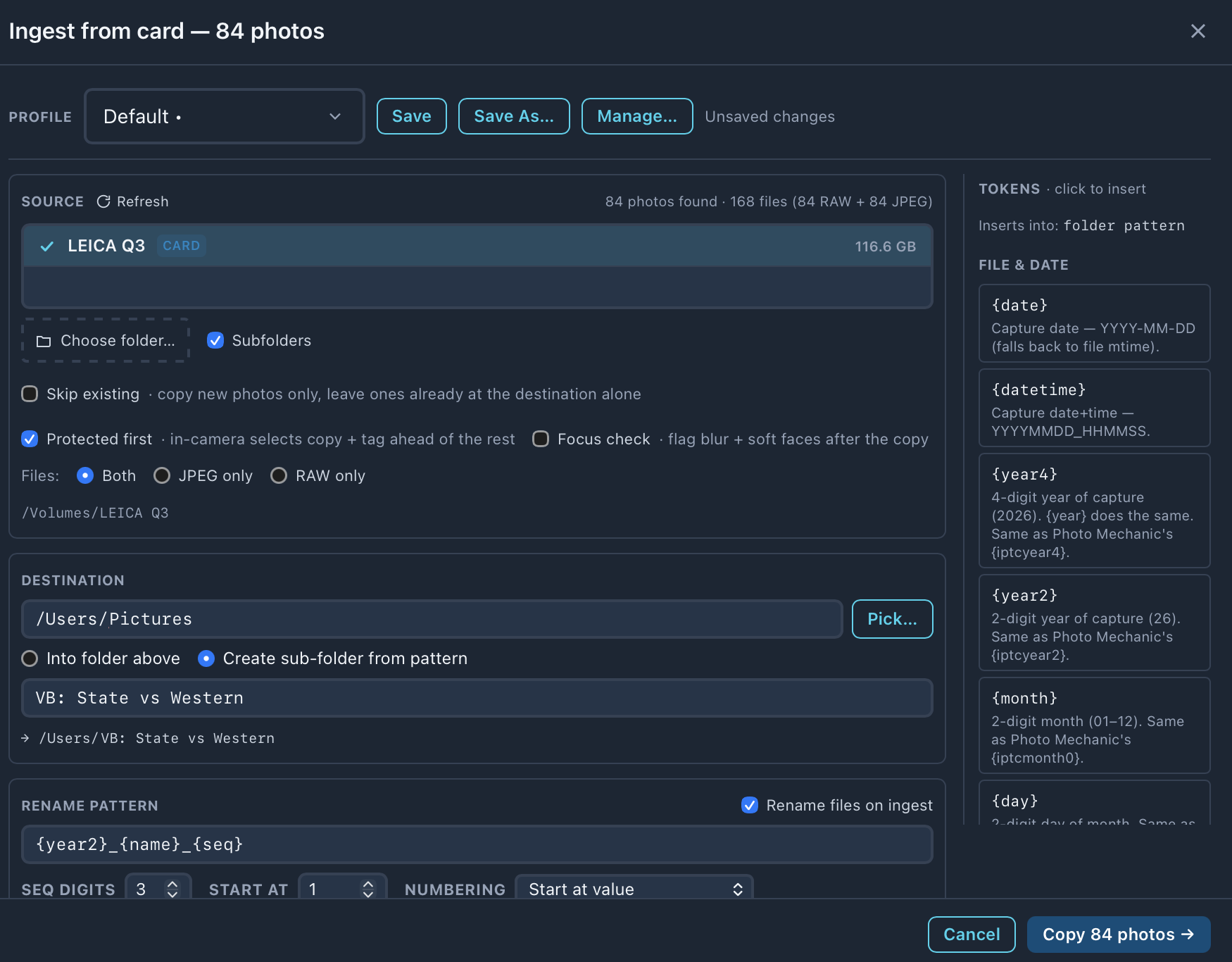
Card to folder, named on the way. One pass copies the frames, renames them, files them into a folder and writes your metadata to them.
Open the dialog
- 1
Open it
Press ⌘G, or plug in a card and the dialog opens on it. - 2
Work down the dialog
Source, destination, rename pattern, then the metadata rows. Each block is covered below in the same order. - 3
Copy
The button at the bottom counts what's about to move, for example Copy 84 photos. It reads Move when Move mode is on.
Profiles

A profile remembers the whole dialog. Set one up per kind of job, say one for volleyball at home and one for football on the road, and pick it from the list.
| Control | What it does |
|---|---|
| Profile list | Loads a saved setup. A dot after the name means you have changed it since it was saved. |
| Save | Writes your changes back to the selected profile. Greyed out until something changes. |
| Save As… | Saves the current setup under a new name. |
| Manage… | Rename or delete profiles. |
| Unsaved changes | Shows when the dialog has drifted from the profile. |
Source
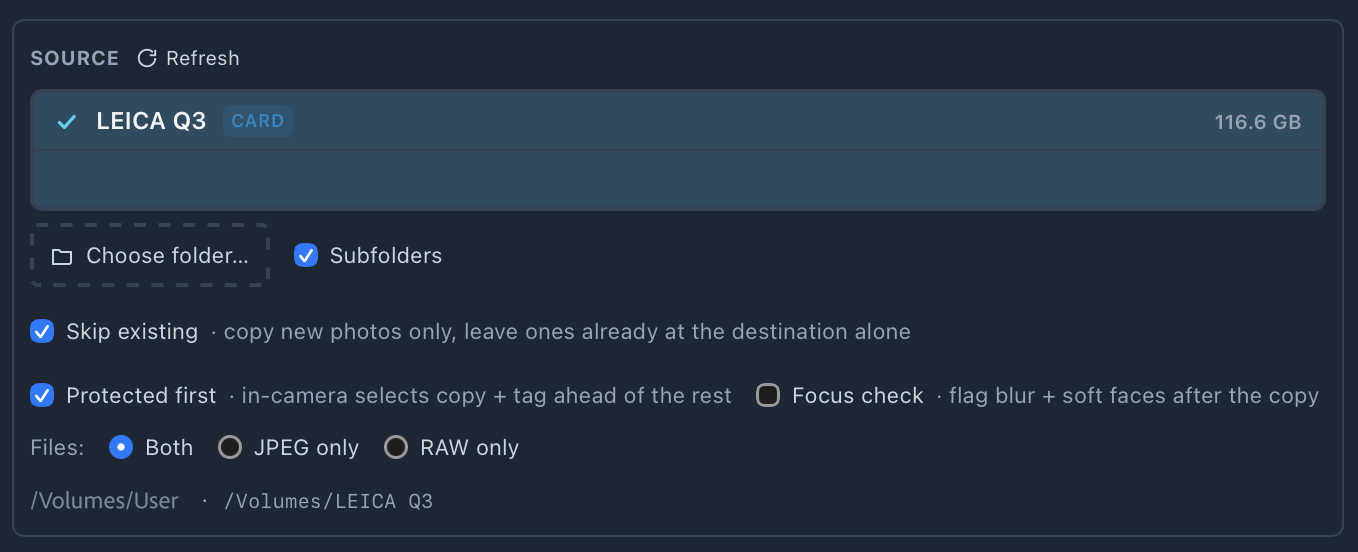
Mounted cards are listed with a CARD badge and their size. Click more than one and the photos merge into one batch with one run of sequence numbers, which is how a two-slot body or a second photographer's card comes in together. The count above the list tells you how many photos and files it found, RAW and JPEG broken out.
| Option | What it does |
|---|---|
| Refresh | Rescans mounted drives and cards. |
| Choose folder… | Adds any folder to the source list, not just a card. |
| Subfolders | Pulls photos from subfolders of the source too, not just the top level. |
| Skip existing | Copies new photos only. Files already at the destination are left alone. Re-insert a card you already ingested and it decides "nothing new" in a moment, ejects the card if that’s ticked, and closes. |
| Protected first | Copies and captions your in-camera selects ahead of the rest, so they’re in Browse first. Filenames and sequence numbers don’t change, only the copy order. |
| Focus check | Scores the ingest for blur and soft faces once the copy finishes. BLUR and SOFT flags stream into Browse, protected photos first. It never slows the copy. |
| Files: Both / JPEG only / RAW only | Which half of a RAW+JPEG pair comes across. The other type stays on the card. |
Destination
| Option | What it does |
|---|---|
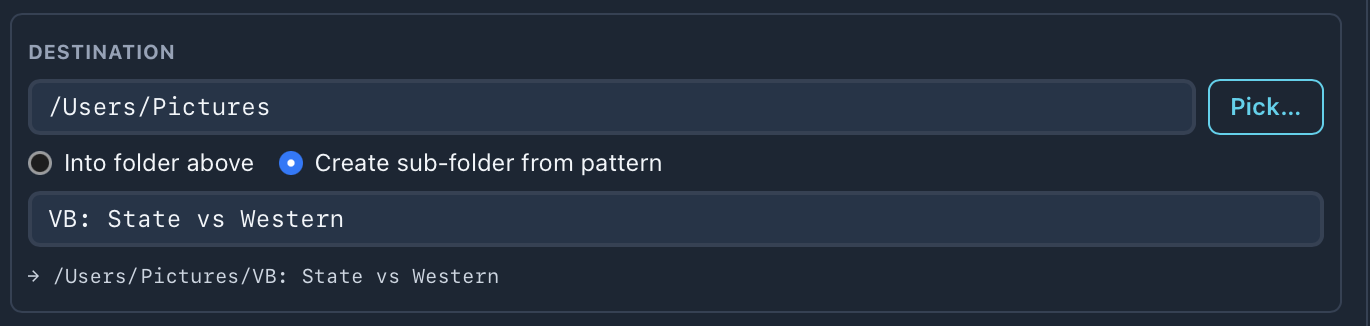
| Destination + Pick… | The parent folder. Required: the Copy button stays dead until it’s set. |
| Into folder above | Photos go straight into the destination folder. |
| Create sub-folder from pattern | Makes a new folder inside the destination, named from the pattern. Default: {date} Ingest. |
How the folder pattern behaves
- •The pattern is worked out per photo. With
{date}in it, a card that spans two days lands in two date folders. - •
{seq}in a folder pattern is the next unused number at the destination, so each run gets a new folder: 01, 02, 03. - •Skip existing still recognises a card you already ingested by looking in those earlier folders.
- •IPTC tokens work here too.
{headline}in the folder pattern picks up the headline you type under IPTC for this ingest. - •A pattern that comes out empty for these photos turns red and says so, rather than leaving you with a dead Copy button.
Rename pattern

Tick Rename files on ingest and each file is named from the pattern. Untick it and files keep their original names. The default is {date}_{name}_{seq}.
| Option | What it does |
|---|---|
| Seq digits | Width of {seq}, 1 to 6. {seq:4} overrides it for one token. |
| Start at | The first number. Greyed out on Continue per folder, which picks it up from the folder. |
| Numbering: Start at value | Starts at the number above each time. |
| Numbering: Continue across ingests | One counter that keeps running from one ingest to the next. |
| Numbering: Continue per folder | A counter per destination folder. A new folder starts at 1, and adding to a folder carries on where it ended. |
{date}/{name}_{seq}. Photo Mechanic's variable names work too, so {head}, {iptcyear4} and {fldr} paste straight in from a PM setup. Each token is in the rail on the right of the dialog and in the token reference below.Mode, metadata and roster
Mode
| Option | What it does |
|---|---|
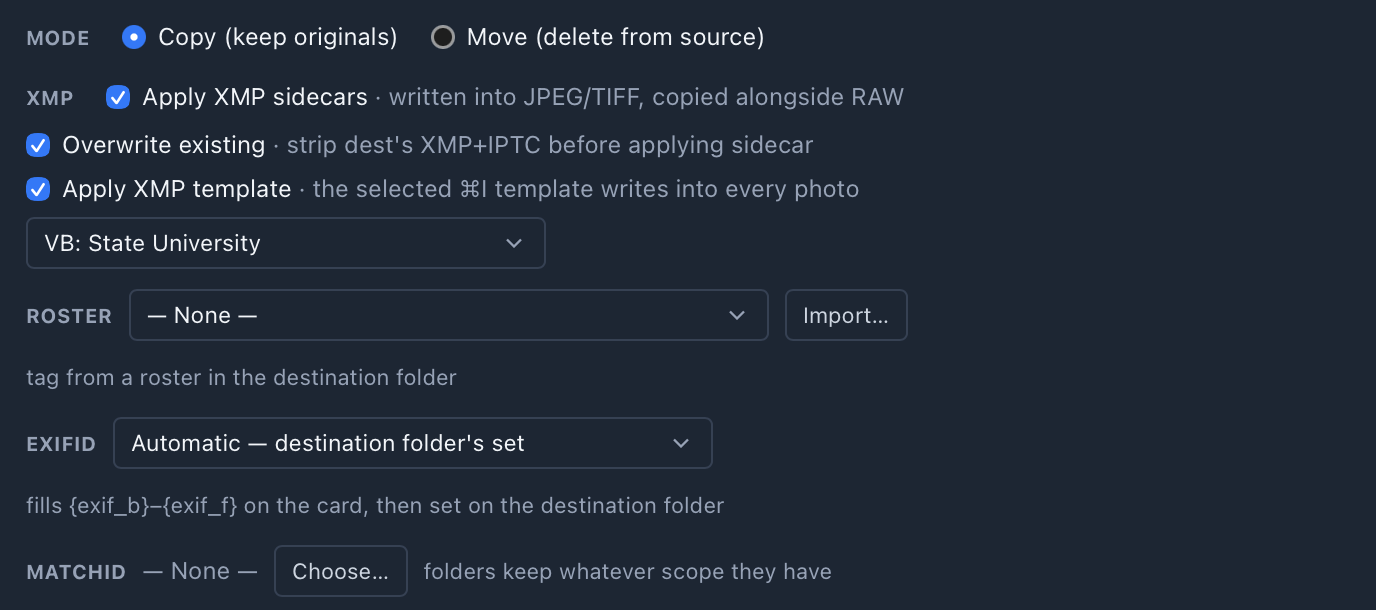
| Copy (keep originals) | The default. The card is untouched. Stay here until your backup is done. |
| Move (delete from source) | Deletes the files from the card once they’re copied. |
XMP
| Option | What it does |
|---|---|
| Apply XMP sidecars | Picks up .xmp files sitting beside the photos. Written to JPEG and TIFF, copied alongside RAW. |
| Overwrite existing | Only with sidecars on. Clears the file’s own XMP and IPTC before the sidecar is applied, instead of merging. |
| Apply XMP template | Writes a saved ⌘I template to each photo as it copies. Pick the template in the list beside it. |
Roster, ExifID and MatchID
All three are set on the destination folder after the copy has made it, so the photos arrive ready to tag.
| Row | What it does |
|---|---|
| Roster | Pick a saved roster, or Import… a file and it's added and selected. If the folder already has a roster, the row warns that this one replaces it. See Set a roster on a folder. |
| ExifID | Automatic uses the template's set, or else the destination folder's. Pick a set to override it. Fills {exif_b} to {exif_f} as the files copy. See Fill fields from the camera with ExifID. |
| MatchID | Choose… the teams MatchID should compare against. Set on each folder this ingest writes, so Who is this? works on the first frame. Clear leaves the folders' scope alone. |
IPTC for this ingest
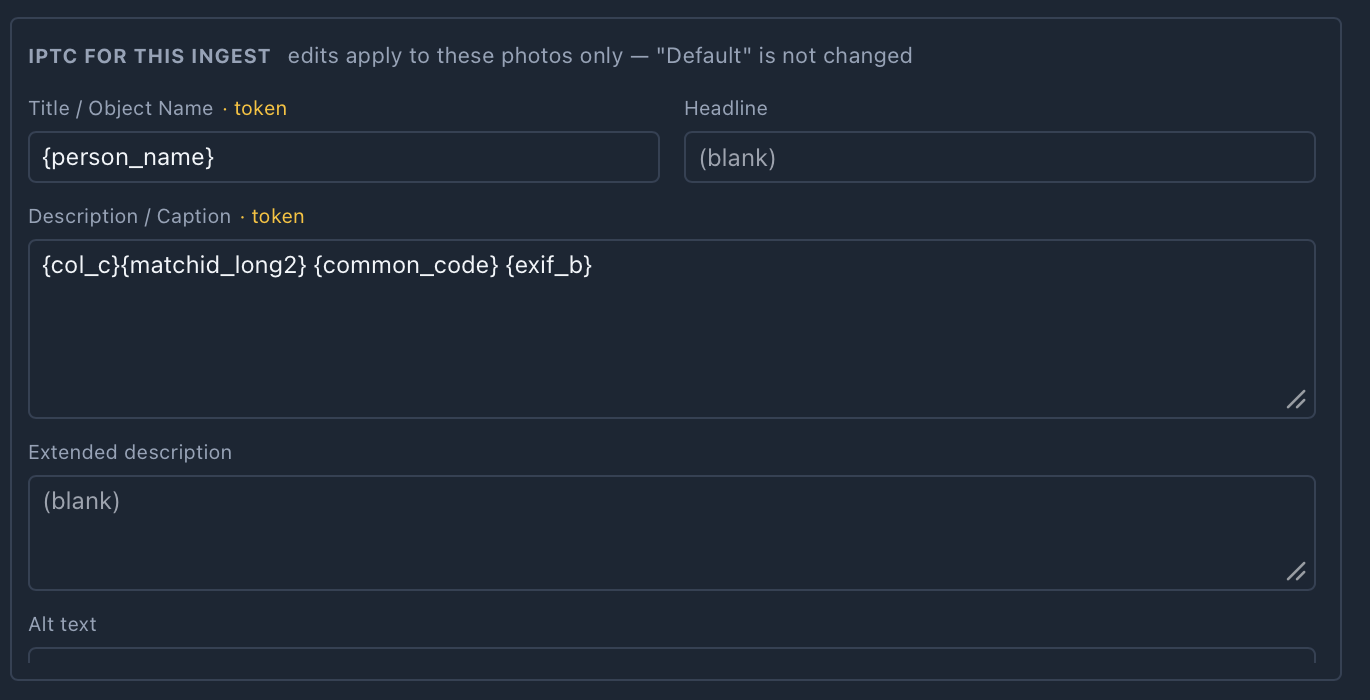
Shows when Apply XMP template is on. It lists the fields that template fills, so you can type the event line once here, for example the headline for tonight's game, and keep the template itself generic.
- •Edits apply to these photos only. The saved template isn't changed.
- •An edited field is marked edited, and Revert puts them all back.
- •A field marked token holds tokens like
{person_name}that fill in per photo. Typing over it replaces that with fixed text. - •What you type here also feeds IPTC tokens in the folder and file patterns.
After the copy

| Option | What it does |
|---|---|
| Open destination in Browse | Jumps to the folder as it fills, so you can start culling the protected frames while the rest is still copying. |
| Eject card | Ejects the card (named beside the box) when the copy is done. Off by default. |
| Next time, start automatically | The next card inserted copies with these settings straight away, without opening the dialog. |
Auto-ingest: insert the card and walk away
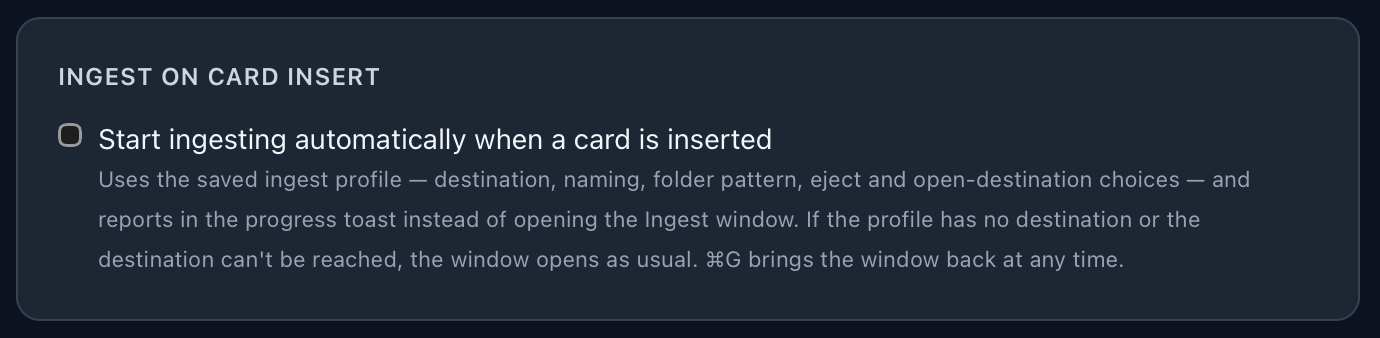
With it on, a card copies with your saved profile the moment it's read and a toast tracks it. The dialog opens as usual instead if the profile has no destination, the card is empty, or the destination can't be reached. ⌘G brings the dialog back at any time.
Video and audio
Clips and recordings on the card come across with the photos (1.0.138 on) and take the same folder and filename pattern, with the date and time from the file. In Browse they carry a VIDEO or AUDIO badge and the preview plays them.
| Codec | Mac | Windows |
|---|---|---|
| H.264 + AAC | Plays | Plays |
| HEVC | Plays | With Microsoft’s HEVC extension installed |
| ProRes | Plays | Copies, shows as a file-type tile |
A clip the app can't decode still copies. It just shows as a file-type tile.
Token reference
The same list the Tokens rail shows, for folder patterns, filenames and FTP remote paths. Click a token in the rail and it goes in at the cursor of the field you clicked last. Photo Mechanic users: these are the equivalents of PM's variables, and PM's own names alias to them.
File & date
From the capture time and the file itself. Photo Mechanic’s names alias: {iptcyear4}, {iptcmonth0}, {iptcday0}, {fldr}, {head}.
{date}{datetime}{year4}{year2}{month}{day}{month_name}{month3}{dow}{dow3}{capture_date}{time}{timems}{hour}{minute}{second}{ms}{seq}{name}{ext}{rating}{color}{folder}IPTC
Read from the photo’s metadata. At ingest they resolve from the template being applied in that same run, so {headline} in a folder pattern works when the ingest template sets one.
{headline}{title}{description}{credit}{source}{copyright}{creator}{persons}{instructions}{jobid}{city}{state}{country}Camera
From the EXIF the camera wrote. Read from the file itself, never a sidecar.
{camera}{make}{model}{lens}{iso}{shutter}{aperture}{focal}{serial}ExifID
Values you define, looked up from what the photo carries. See the ExifID passage on the Ingest page.
{exif_b}{exif_c}{exif_d}{exif_e}{exif_f}Troubleshooting
| What you see | Why, and what to do |
|---|---|
| Copy button does nothing | No destination set, or the folder pattern renders empty. Both show in red in the dialog. |
| Rename field is red | The pattern has no token. Add one, such as {seq}. |
| "Nothing new" and the dialog closes | Skip existing found each file already at the destination. That card is done. |
| Duplicates at destination | Skip existing is off. Cancel and tick it, or continue and duplicates get a letter suffix. |
| RAW and JPEG names don’t match | They were ingested in separate runs. Use Files: Both. |
| Auto-ingest opened the dialog anyway | The profile has no destination, the card was empty, or the destination couldn’t be reached. |