Tag from your roster with one press, or let MatchID do it. Included in all plans. Start your 14-day free trial.Get Started →
GalleryID
GalleryID CloudGalleryID DesktopMatchIDCaptionID
PhotographersTeamAthletic DepartmentsColleges & UniversitiesAthletic ConferencesOrganizations
HelpComparePricingBlogAbout
Book a DemoLog In
GalleryID CloudGalleryID Desktop
Help homeVideo tutorials

Start here

How GalleryID Desktop worksYour first game, start to finish

Getting started and ingest

Set your MatchID settings and metadata templateIngest from a cardBrowse your photos

MatchID

Index reference headshotsTag photos with MatchIDTurn camera voice memos into names

CaptionID

Set a roster on a folderTag photos in the photo window

Metadata

Build an IPTC template with tokensFill fields from the camera with ExifIDFix a wrong value across a folder

Culling and editing

Cull out-of-focus photosCrop and straightenAdjust tone and colour

Files and delivery

Copy, move and rename filesExport, watermark and sharpenSend named files over FTPSend photos to GalleryID Cloud

Camera and phone

Caption on your phone as the camera sends, with SidelineID

Archive and backup

Browse an unplugged drive with CatalogBack up and restore

Reference

Keyboard shortcutsActivate a computer and manage devicesTeams: personal keys and sharing

More

TutorialsContact supportYour Desktop account
Desktop help›Start here›Your first game, start to finish

Start here

Your first game, start to finish

Your first game, start to finish2:03

The whole workflow in order, from an empty library to named files you can search. Each step is short and links to the article with the details.

Roster or headshotsBefore the seasonBring the game inRun MatchIDReview and tagWhen names are writtenSend itFind it later
On Windows, Ctrl takes the place of ⌘ and Alt takes the place of ⌥.

Roster or headshots

MatchID finds the athlete. CaptionID names them. They’re two different things, and most folders use both.

Roster (CaptionID)Headshots (MatchID)
What it isA list of names with shortcodes, built from the Roster Feed or imported from a spreadsheet.Reference headshots you index, one card per person.
Where it livesRosters (⌥⌘4), or Codes in Browse.MatchID People (⌥⌘3).
What it doesYou type a shortcode, a number or a name, and CaptionID writes the name and the caption line.MatchID finds the faces it knows and names them for you to confirm.
What it needsNothing else. It works on its own.Indexed headshots. A roster alone can't match a face.
Start with the roster. It names anyone, with no headshots. Add headshots for the teams you cover again and again, and MatchID does most of the naming while the roster picks up the rest.
The jersey numbers MatchID checks come from the indexed headshots, not from the roster. Check the numbers on the People cards.

Before the season

Once per season, or once per team.

  1. 1

    Set the Default template

    Settings (⌘,) ▸ MatchID Metadata ▸ Edit default template… Put {person_name}, or a long form that carries the number, in the fields you want filled, such as Persons Shown and the caption. Any folder without a template of its own uses it.
  2. 2

    Build the roster

    Rosters ▸ + New Roster picks a league and teams from the Roster Feed. Import roster… brings in a spreadsheet instead.
  3. 3

    Index headshots, for MatchID

    In MatchID People, make a category for the school and a subcategory for the team, drop the headshots in, check the names and numbers, and index. Media day headshots are ideal.
  4. 4

    Leave the MatchID settings alone, for now

    The defaults are calibrated for team sports. Change one when Review gives you a reason to.
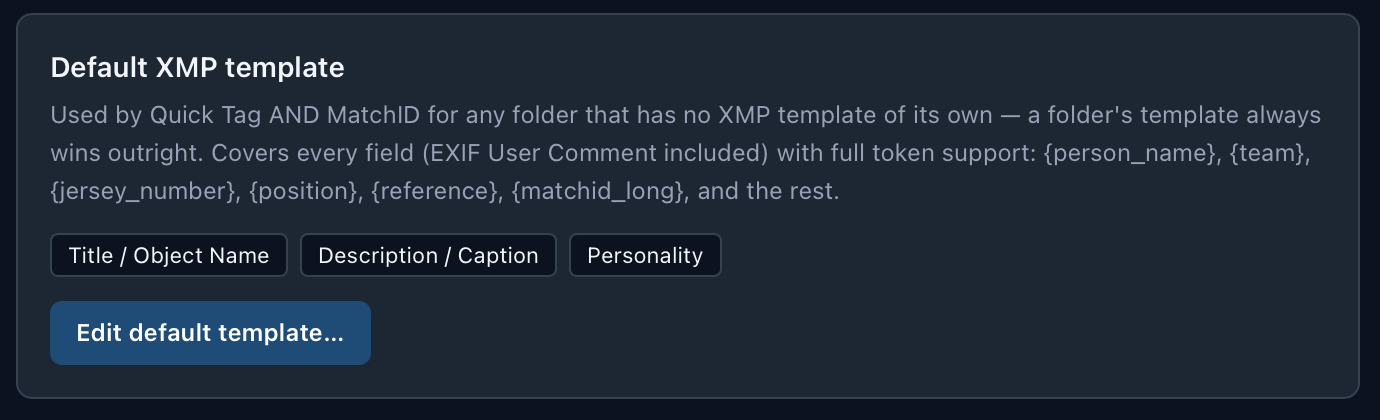
Settings, MatchID Metadata, with the Default XMP template card
The Default template decides which fields a name is written to.

More: MatchID settings and template · Set a roster on a folder · Index reference headshots

Bring the game in

From the card

  1. 1

    Open Ingest

    Press ⌘G, or plug in a card and the dialog opens on it.
  2. 2

    Set the rows

    Roster: the game’s roster. MatchID ▸ Choose…: the teams on the field. XMP: your template.
  3. 3

    Copy

    The new folder arrives with its roster and teams already set, ready to tag.
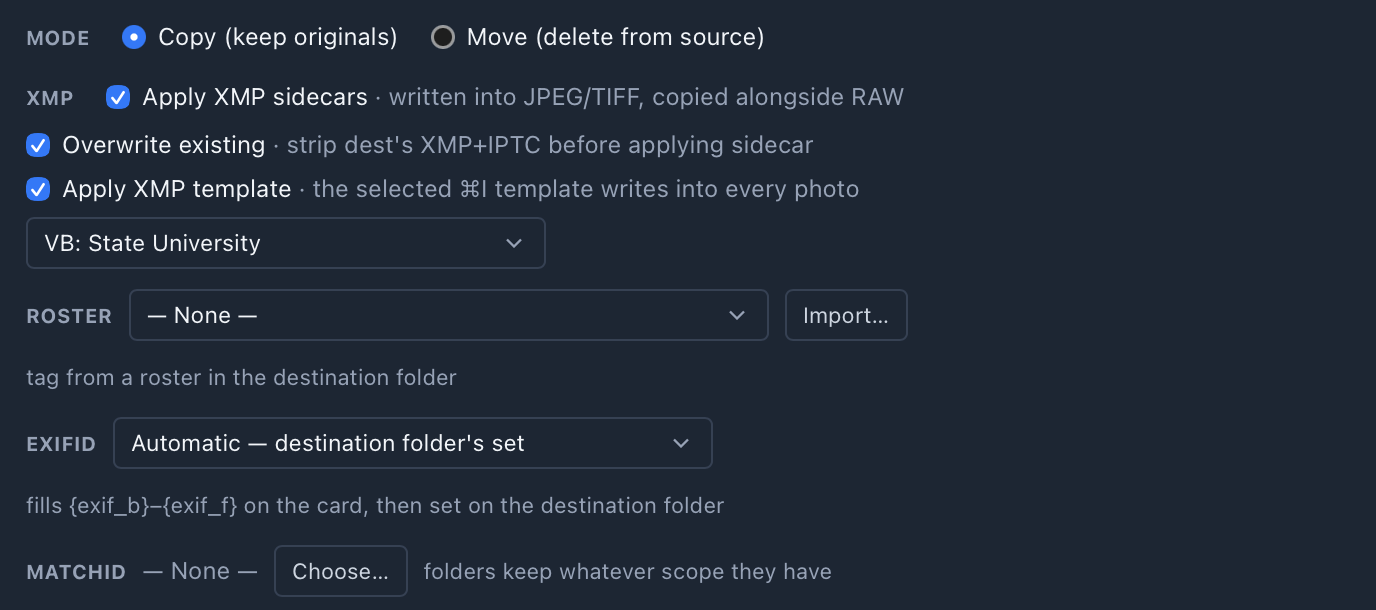
The Mode, Roster, ExifID, MatchID and XMP rows of the ingest dialog

Already on your drive

Open the folder in Browse. Codes sets the roster. MatchID sets the teams and runs it, which is the next step.

The Browse action bar: Review 9/10, Codes, FTP, ZIP, Trash, MatchID and Help

More: Ingest from a card · Browse your photos

Run MatchID

  1. 1

    Click MatchID in Browse

    The window holds the folder’s teams and common codes.
  2. 2

    Tick the teams

    At least one team, not just the school. One team beats the whole library, for speed and for accuracy.
  3. 3

    Save & process

    It reads the whole folder, or only the photos you selected. When it finishes you land in Review, or a toast offers it.

Faces and jersey numbers are read in the same run. There’s no second pass.

A jersey number backs up a face. When no face on a photo matched anyone, MatchID suggests the player who wears the number on a JERSEY card, and it waits for you like any Review card. A number worn on both teams suggests no one, so some back-of-jersey and helmet frames still land in No Tags, and the next step covers them.
No headshots yet? Skip this step. Open a photo with I or Enter and tag from the roster underneath it.

More: Tag photos with MatchID · Tag photos in the photo window

Review and tag
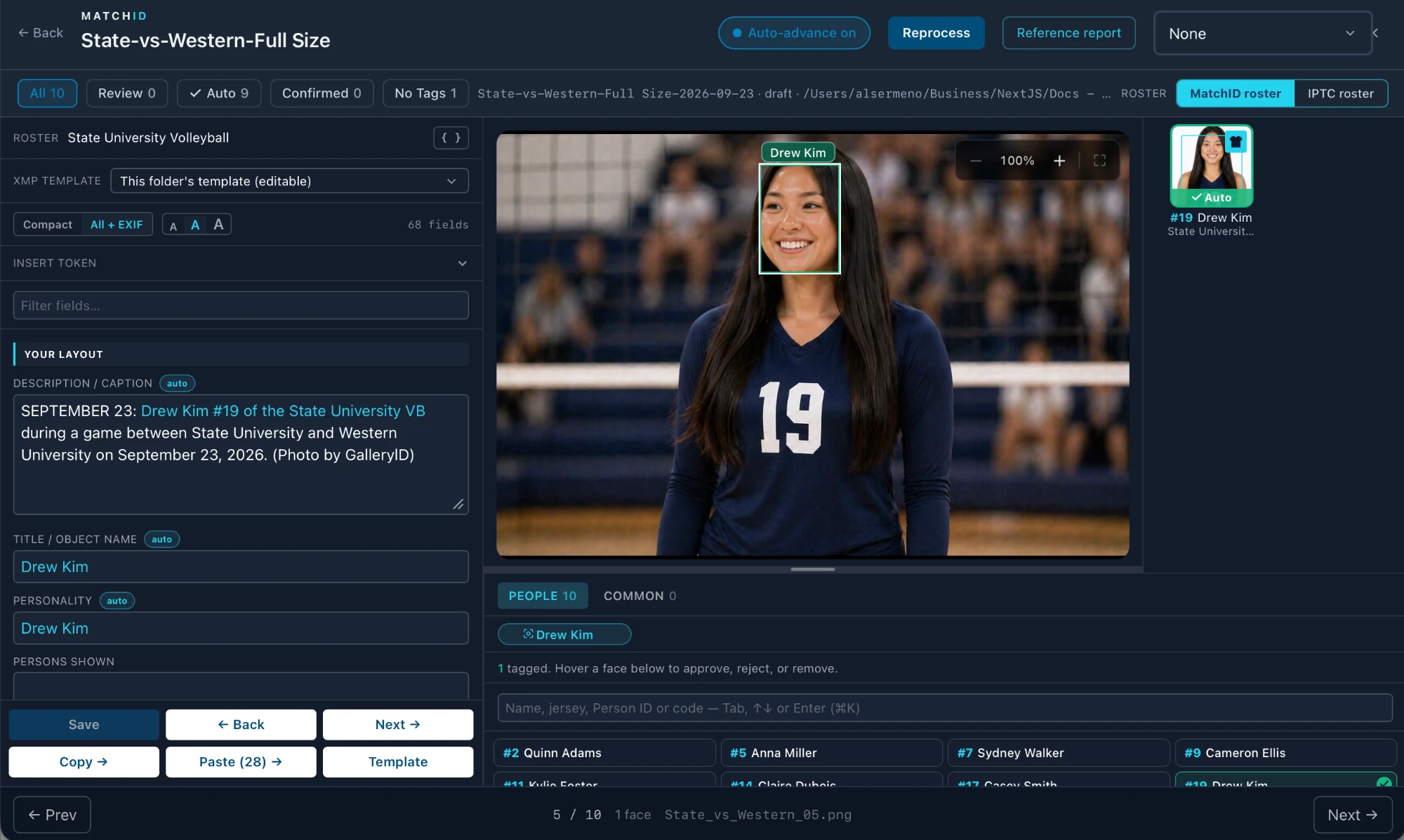
The MatchID review screen: filters across the top, fields on the left, the photo in the middle, its card on the right, and the roster underneath
  1. 1

    Start with Review

    Approve (✓, or A for the whole photo) or reject (✕, or R) each card. On a Review or JERSEY card, check the number against the jersey.
  2. 2

    Tag who it missed

    Type in the tag box under the photo (⌘K): a shortcode, a number or a name from the roster.
  3. 3

    Clear No Tags

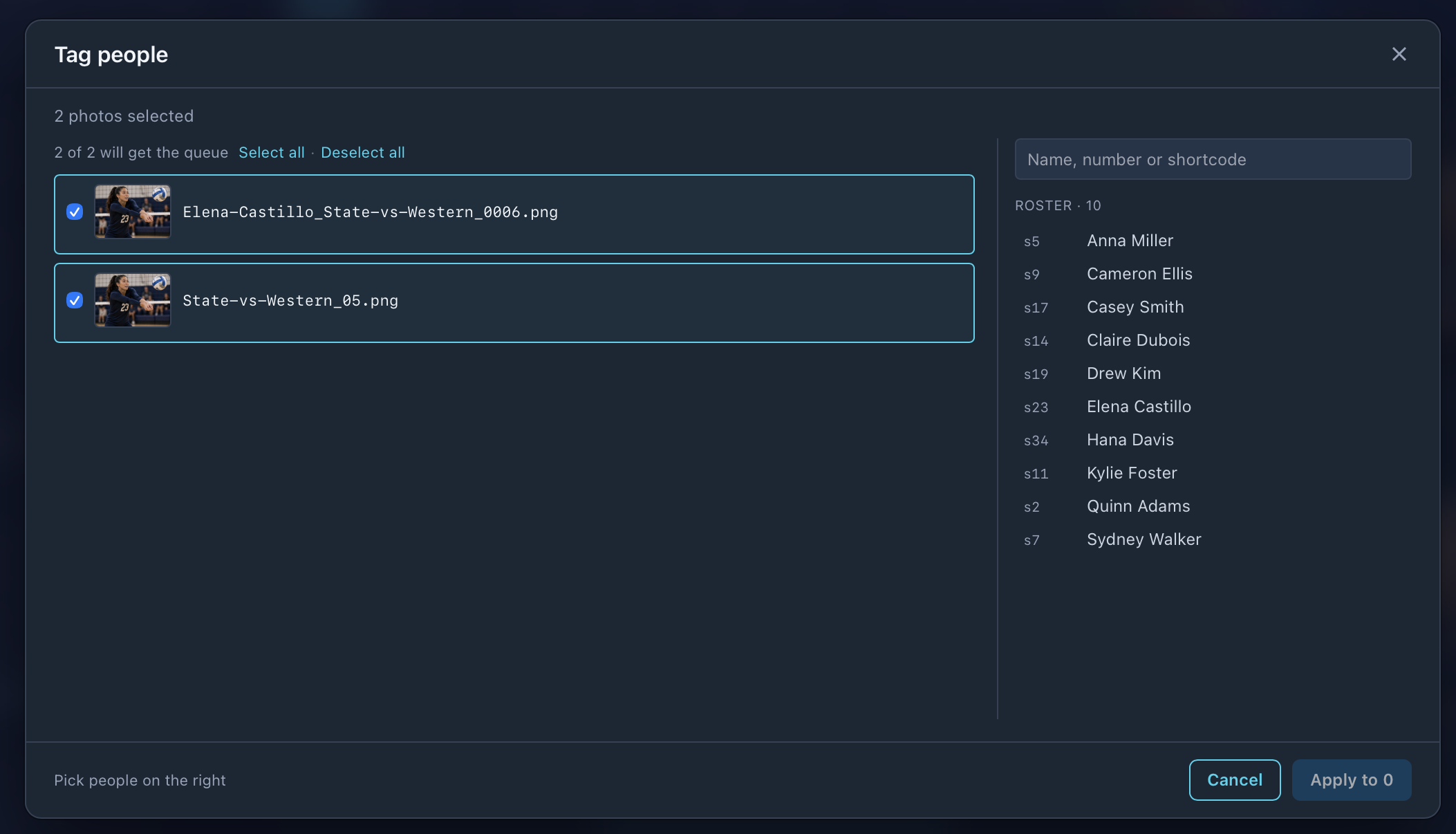
    No one in these frames is named yet, usually because no face is showing. Select a run of them in Browse, press ⌘T, search by jersey number, and click Apply.
  4. 4

    Move on

    Next → (⌘N) or → saves the photo and opens the next one.

All 10, Review 1, Auto 8, Confirmed 0, No Tags 1
Review waits for you. Auto is already approved. No Tags has no one named yet.
The Tag people window: selected frames on the left, the roster on the right
⌘T tags a whole run of frames at once. A bare number searches the jersey column.

When names are written

What you didWhen it's written to the file
MatchID auto-approved itWhen the run finishes.
Approved or tagged it in Review or the photo windowWhen you press Save, Next or Back, or go to another photo with the arrow keys.
Tagged it with Tag people (⌘T)When you click Apply.
Closed the window (Esc) before savingNot yet. It asks before throwing the changes away.

Names write to the file in XMP and IPTC metadata, with a sidecar for RAW. Photo Mechanic, Lightroom and Capture One read them, so the names go wherever the file goes.

Send it

From BrowseWhat it does
FTP (⌘U)Sends the selected photos to a saved FTP, FTPS or SFTP destination, resized and watermarked if you want.
ZIP (⌘⇧U) or ExportWrites copies to a ZIP or a folder, with your size, sharpening and watermark.
Send to CloudUploads the selected photos to a GalleryID Cloud gallery. Cloud is a separate subscription, and Desktop doesn't need it.

More: Send named files over FTP · Export, watermark and sharpen · Send photos to GalleryID Cloud

Find it later

To findUse
An athlete, across your folders⌘F Search. Type a name and it looks through Persons Shown, keywords, title, headline and caption.
A jersey numberThe same Search, when the number is in the caption. A long form like “Marcus Cole #12 of State” makes #12 searchable.
Something in this folder⌥⌘F Find narrows the grid by filename or any metadata field.
Photos on an unplugged driveCatalog. Catalog the drive once, then browse and search it with the drive disconnected.
Search reads an index. A folder you’ve opened in Browse is indexed the next time Desktop starts. To search one straight away, click Index a folder in the Search panel.

More: Browse your photos · Browse an unplugged drive with Catalog

Related

How GalleryID Desktop works →Set your MatchID settings and metadata template →Index reference headshots →Set a roster on a folder →Tag photos with MatchID →Tag photos in the photo window →
GalleryID

Athlete naming for sports photographers and athletic departments. GalleryID Desktop ingests, culls and captions on your own computer, and nothing is uploaded; SidelineID is Desktop on your phone at the game. GalleryID Cloud is the hosted archive you search by athlete name. The built-in Roster Library covers NCAA Division I, II and III and the major US pro leagues.

Find photos by athlete, not by filename.

iPhone and Android apps for both products →

Product

GalleryID DesktopGalleryID CloudMatchIDCaptionIDPhone appsFeaturesPricingCompare

Solutions

Sports PhotographersTeamAthletic DepartmentsColleges & UniversitiesAthletic ConferencesOrganizations

Company

Book a 30-Min DemoAboutContactPrivacyTermsDPA

Resources

HelpCloud Getting StartedDesktop Getting StartedCaptioning SoftwareRoster LibraryAfter Photo Mechanic PlusBlog
© 2026 GalleryID. All rights reserved.Built by working sports photographers, on the same deadline you are.macOS, Windows and the web.

Photo Mechanic and Photo Mechanic Plus are trademarks of Camera Bits, Inc. Lightroom, Photoshop and Adobe are trademarks of Adobe Inc. Capture One is a trademark of Capture One A/S. Sideline Captions, Caption Pro, PhotoShelter, SmugMug, Zenfolio, Pixieset, Pic-Time and all other product and company names referenced on this site are trademarks of their respective owners. GalleryID is not affiliated with, sponsored by, or endorsed by any of them. Those names are used here only to identify the products being described or compared, and any comparison reflects each vendor’s published documentation at the time of writing.