Settings, naming and metadata
Add a custom domain for your galleries
A custom domain puts your public galleries and gallery share links on an address you own, such as gallery.yourschool.edu, instead of galleryid.ai. You add the name in Settings, then add two DNS records where you manage that domain. GalleryID checks the records and finishes the setup on its own.
Before you start: organization admins add, retry and remove domains.
What you need
- •A domain you own, and access to its DNS settings. That is usually the company you bought it from, or your IT team.
- •A subdomain, such as gallery.yourschool.edu. A bare domain such as yourschool.edu is not supported.
- •A name nothing else uses. The CNAME record points the whole name at GalleryID, so a subdomain that already runs a site would stop showing it.
Add a domain
- 1
Open the Custom Domain tab
Go to Org Dashboard → Settings → Custom Branding, then choose the Custom Domain tab next to Gallery Pages. - 2
Type the subdomain
Enter it without https:// and without anything after the name, then choose Add domain.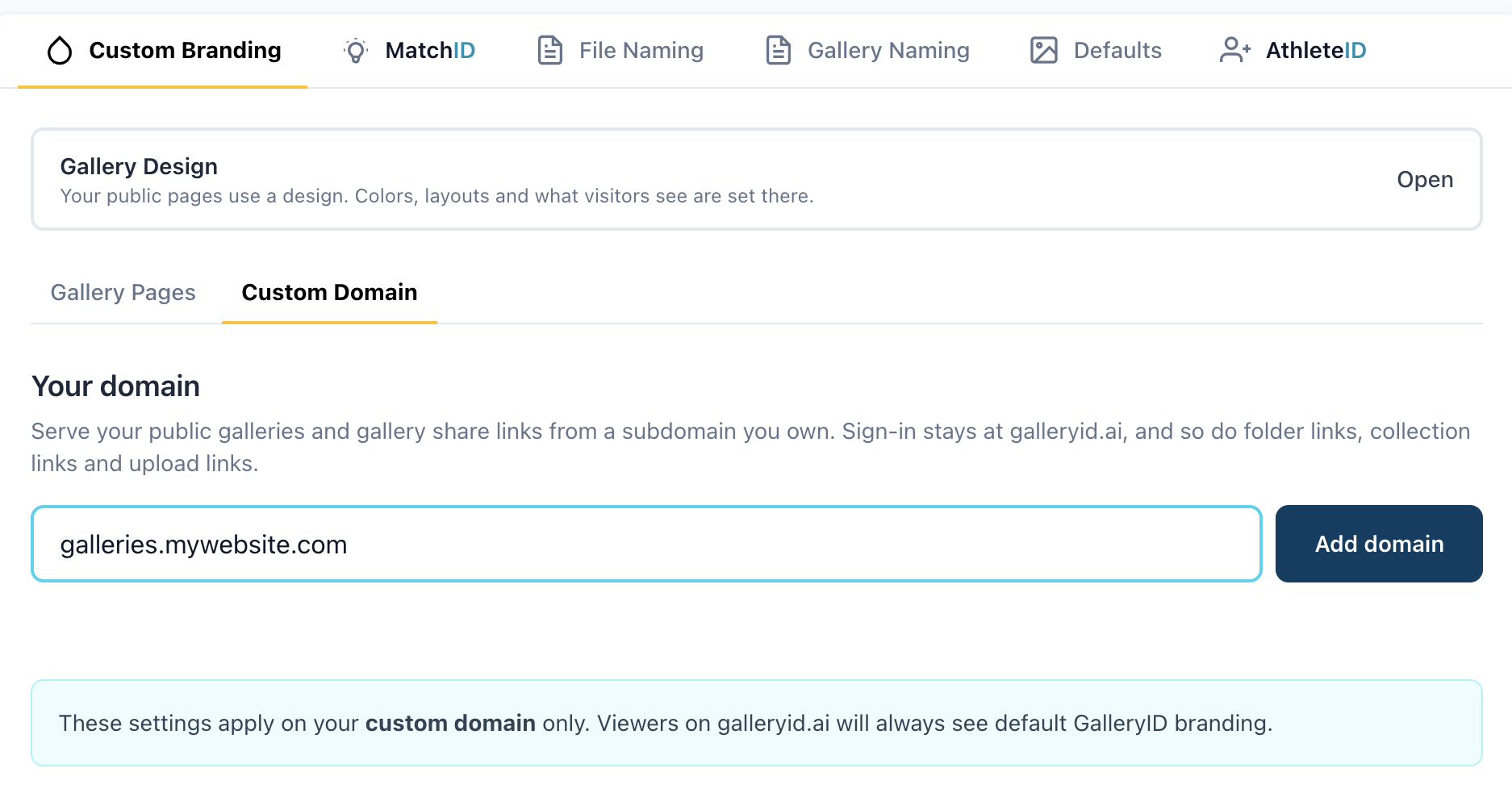
Custom Domain: type the subdomain, then choose Add domain. - 3
Add the two DNS records
The domain appears with two records, each with a Copy button beside its name and value. Add both where you manage DNS for the domain.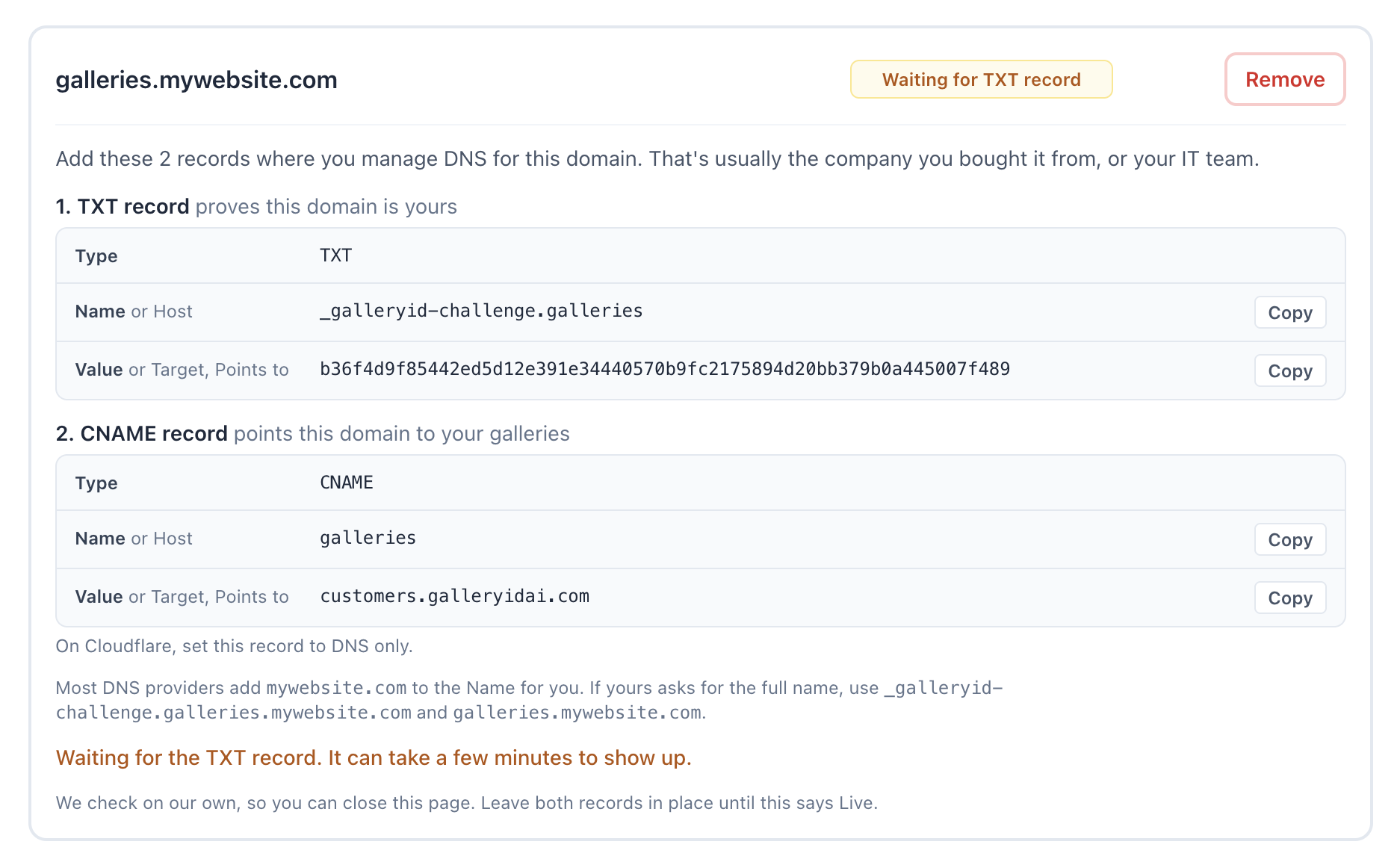
A new domain with its two records. The status chip starts at Waiting for TXT record. - 4
Wait for Live
GalleryID checks the records on its own, about once per 2 minutes, and this page refreshes at 20-second intervals, so you can close it. Leave both records in place until the status says Live.
| Record | Name | Value | What it does |
|---|---|---|---|
| TXT | _galleryid-challenge.gallery | A code GalleryID shows you, different for each domain | Proves you control the domain. |
| CNAME | gallery | customers.galleryidai.com | Sends visitors to GalleryID. |
- •The examples use gallery.yourschool.edu. Most DNS providers add your main domain to the Name for you, so the panel shows the short form. If your provider asks for the full name, the panel lists it under the records.
- •On Cloudflare, set the CNAME record to DNS only.
- •DNS changes can take a few minutes to show up. If a record still isn't found, check its Name and Value against the panel.
What the status means
| Status | What it means | What to do |
|---|---|---|
| Waiting for TXT record | GalleryID can’t see the TXT record yet. It can take a few minutes to show up. | Check the Name and Value, then wait. |
| Waiting for CNAME | The TXT record was found. The CNAME record is next. | Add the CNAME record. |
| Issuing certificate | Both records were found. GalleryID is waiting for the security certificate. | Nothing. It finishes on its own. |
| Live | The domain works. Your public galleries and gallery share links open on it. | Keep the CNAME record in place. |
| Off | The domain stopped working, most often because the CNAME record no longer points to GalleryID. Your organization admins get an email. | Fix the record, then press Retry. Retry gives you a new TXT record to add. |
| Failed | Setup didn’t finish. The line under the name says why. | Press Retry for a new TXT record, or Remove. |
| Removing | The domain is being removed. | Nothing. |
GalleryID checks a Live domain once an hour. If the CNAME record is missing on two checks in a row, the domain turns Off. A domain left Off for 7 days is let go and shows Failed. A new domain that doesn't get both records within 72 hours shows Failed too. Retry restarts the 72 hours, and a Failed entry is cleared after 7 days.
What opens on your domain
A custom domain serves your public pages and nothing that needs a sign-in.
Opens on your domain:
- •Your public galleries, and the gallery page at the front of the domain.
- •Gallery share links.
Stays on galleryid.ai:
- •Sign-in and your dashboard.
- •Buyer accounts and store order pages.
- •Folder links, collection links and upload links.
A link to one of the pages that stay on galleryid.ai, opened on your domain, is sent on to the same page there.
Links you send
Once the domain is Live, gallery share links use it, and so do links to the pages of published galleries set to Public or Password. A Private or unpublished gallery keeps its galleryid.ai page link, because people open it by signing in there. Links you copied before the domain went Live keep working on galleryid.ai.
Colors, fonts and favicon
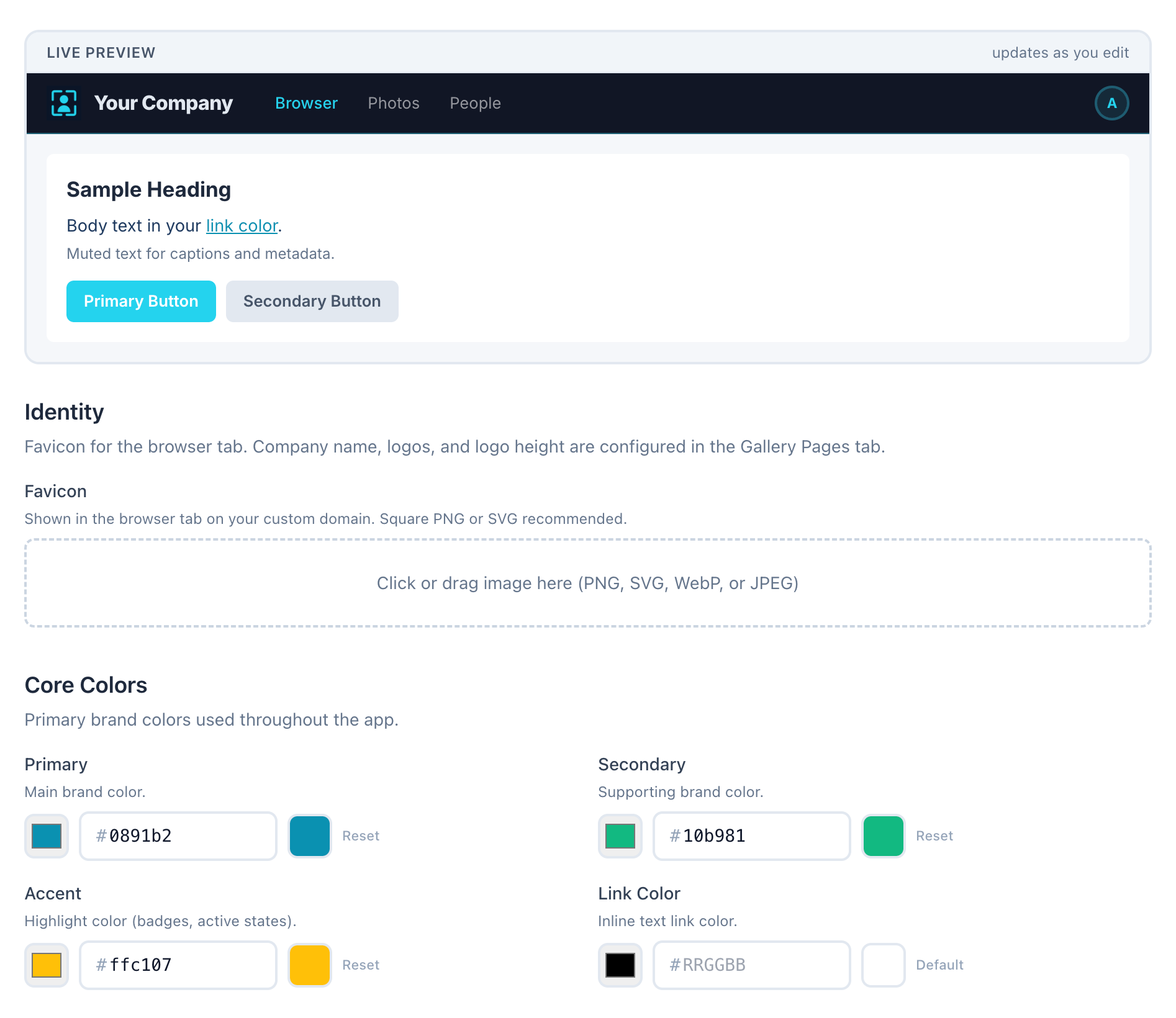
Under the domain list, the Custom Domain tab holds a favicon, the color sections, the font and the corner rounding, with a live preview that updates as you edit. These apply on your custom domain only. Visitors on galleryid.ai see GalleryID's own look. Your company name and logos are set under Gallery Pages. Each field is listed in Set branding, domain and org-wide defaults.
If a domain won't add
| Message | What it means |
|---|---|
| That name isn’t available. | Another account already has this name set up, or it is a name GalleryID doesn’t allow. Try a different subdomain. |
| Use a subdomain, like gallery.yourschool.edu. | You entered a bare domain. Add a name in front of it. |
| That doesn’t look like a hostname. | Leave off https:// and anything after the name. |
| You can have up to 3 custom domains. | Remove one you no longer use, then add the new one. |
| You’ve added 5 domains today. | Try again tomorrow. |
If a domain fails
The line under a Failed or Off domain says why. Retry gives you a new TXT record to add, so update the TXT record at your DNS provider before you expect it to pass.
| What it says | What to do |
|---|---|
| We didn’t see both DNS records within 72 hours. | Add both records, then press Retry. |
| The CNAME record no longer points to us. | Fix the CNAME record, then press Retry. |
| Another account proved ownership of this name first. | A name goes to the account that proves it first. If the domain is yours, contact support. |
| We couldn’t set up this name. | Press Retry. If it fails again, contact support. |
| Setup for this name was lost. | Press Retry. If it fails again, contact support. |
| Custom domains aren’t on this account right now. | Contact support. |
Remove a domain
Choose Remove beside the domain and confirm. The address stops working right away, and so do links sent on it. Your galleries and shares stay. Copy a link again from Share to get its new address, then resend it. Links on galleryid.ai keep working.
Related