Settings, naming and metadata
Set branding, domain and org-wide defaults
Settings
Configure branding, AI behavior, and file naming for your organization.
Accessing Settings
- 1
Open Org Dashboard
Click your avatar in the top-right corner, then select Org Dashboard. - 2
Go to Settings
Click the Settings tab in the Org Dashboard sidebar. - 3
Choose a tab
Settings has five tabs: Custom Branding, MatchID, File Naming, Gallery Naming, and AthleteID. Custom Branding splits into Gallery Pages and Custom Domain (white-label only) sub-tabs.
Custom Branding: Gallery Pages
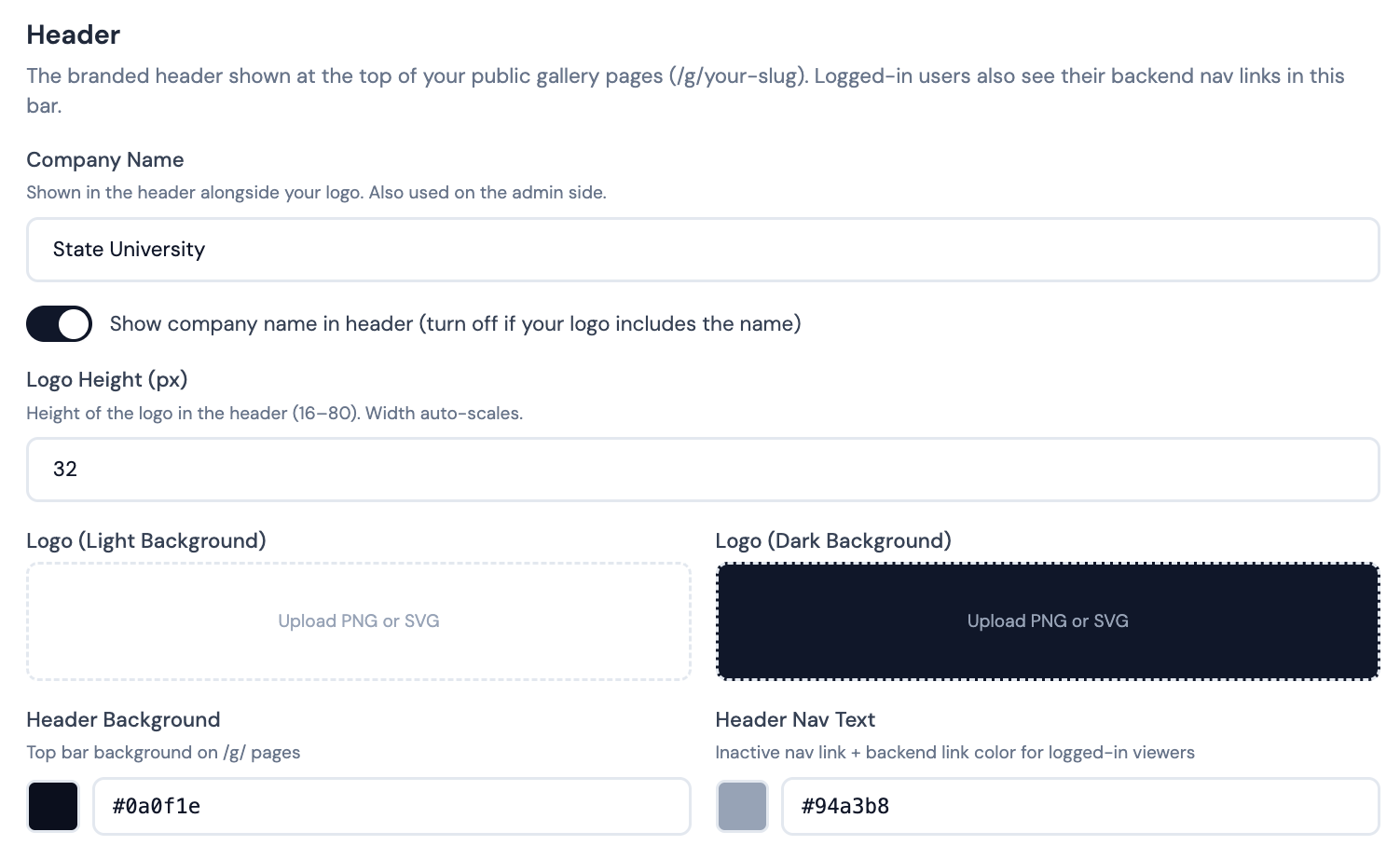
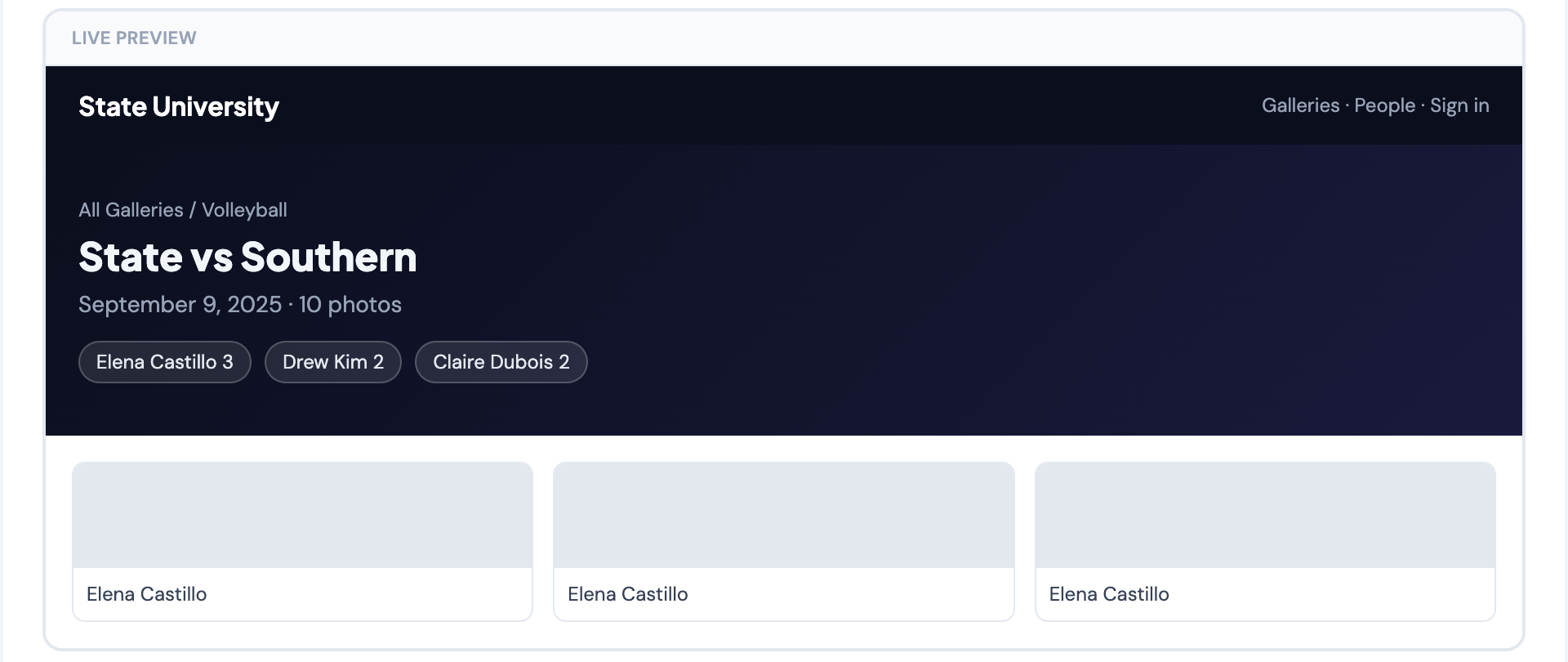
Controls the look and feel of your public gallery pages at /g/your-slug. Changes apply to each public gallery in your organization.
Header
The branded header bar shown at the top of your public gallery pages.
- •Company Name: shown in the header alongside your logo. Also used on the admin side.
- •Show company name in header: toggle off if your logo already includes the name.
- •Logo Height (px): height of the logo (16–80 px). Width auto-scales.
- •Logo (Light Background): shown on light-themed pages.
- •Logo (Dark Background): shown on the dark gallery header. Falls back to light logo if not set.
Two color pickers control the header appearance:
- •Header Background: background color for the top bar.
- •Header Nav Text: inactive nav link and backend link color for logged-in viewers.
Hero
The large branded banner at the top of each gallery. This is the first thing visitors see.
- •Welcome Text: shown below the organization name on the gallery list page. Leave empty for default.
- •Hero Background Image: optional background image. Overlays on top of the background color.
- •Background Type: choose between Solid Color or Gradient.
- •Hero Background Color: solid color (when type is Solid Color).
- •Hero Gradient: CSS gradient value (when type is Gradient).
Color pickers for hero text:
- •Hero Accent: breadcrumb link and count highlights.
- •Hero Title Color: gallery name heading.
- •Hero Subtitle Color: subtitle and meta info.
Gallery title typography:
- •Title Font Size: heading size from Small (1.5rem) to Extra Large (3rem). Default 2.25rem.
- •Title Font Weight: heading weight from Regular (400) to Black (900). Default 800.
Two toggles control what additional info shows in the hero:
- •Show event date in hero: display the event date.
- •Show gallery description in hero: display the gallery description field.
People Pills
Filter pills (People, Folders) shown in the hero area. Visitors click them to filter photos by identified person or folder. Five color pickers control their look:
- •Pill Background: inactive pill background.
- •Pill Text: inactive pill text color.
- •Pill Border: inactive pill border color.
- •Count Circle Bg: number circle background inside each pill.
- •Count Circle Text: number color inside the count circle.
Gallery Card
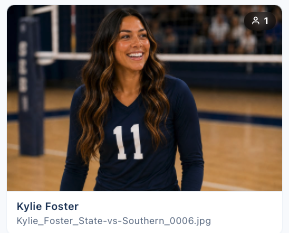
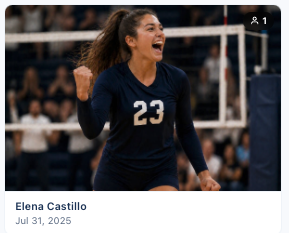
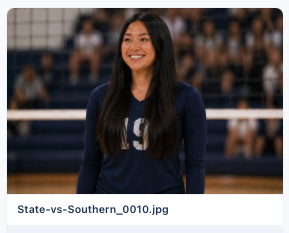
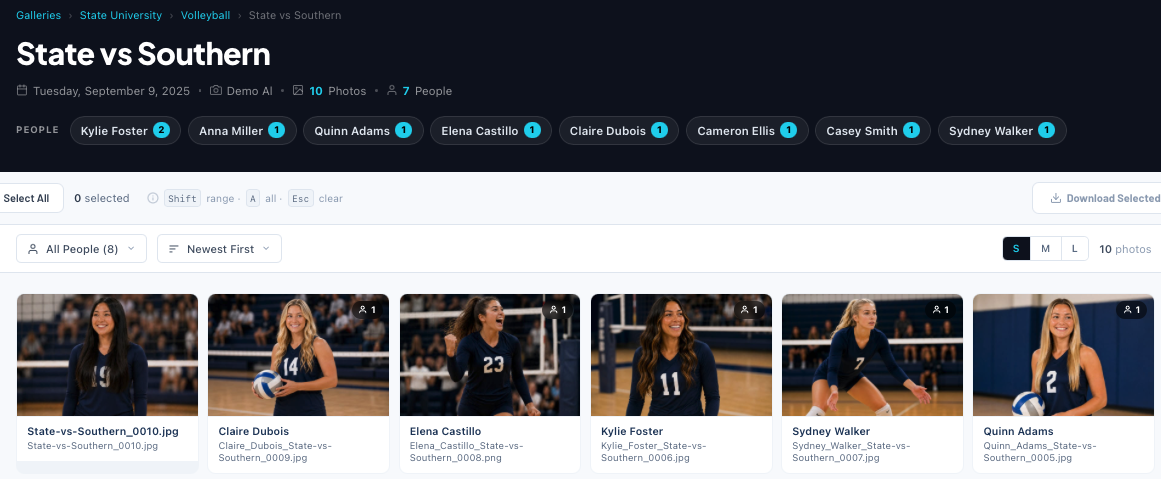
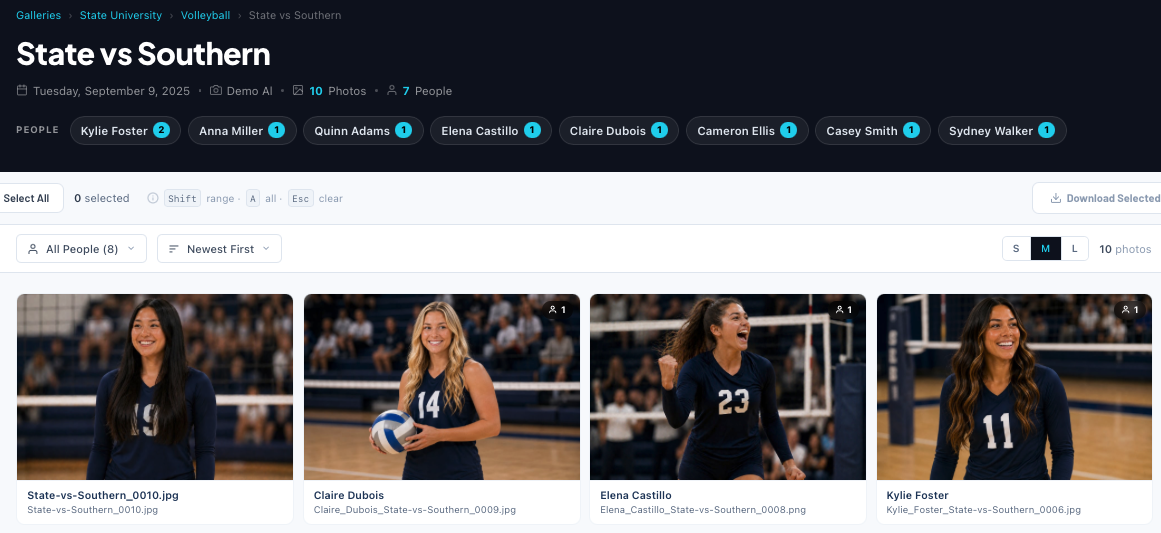
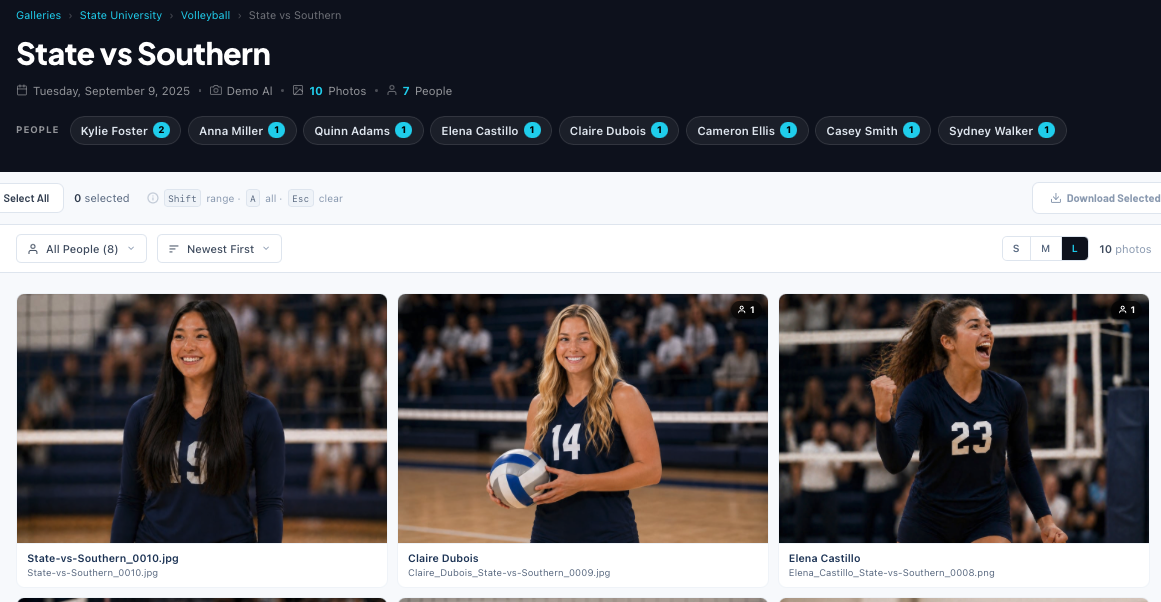
How each photo card looks and what information appears on it.
| Field | Description |
|---|---|
| Thumbnail Size | Photo grid density: Small, Medium, or Large. |
| Photos Per Page | Number of photos to load at a time (10–100). |
| Primary Display Field | Main text below each photo: Person in Image, Headline, Caption, Title, Filename, Capture Date, Date & Time, or No Text. |
| Fallback Field | Used when the primary field is empty. Same options as Primary. |
| Secondary Field | Smaller subtitle below the primary field. |
| Max Names | Maximum names before showing +N (1–10). |
| Name Separator | Character(s) between multiple names (e.g. ", " or " & "). |
| Time Format | Clock format for Date & Time display: 12-Hour or 24-Hour. |
Three toggles control the card info display:
- •Show secondary field: show the secondary text line.
- •Show face count badge: show a badge with the number of faces detected.
- •Show +N for additional names: show "+2 more" when names exceed Max Names.
Photo Sort & Actions:
- •Default Photo Sort: initial sort order: Newest First, Oldest First, Upload Order, By Name A-Z, or By Name Z-A.
- •Show download icon on photo cards: adds a download overlay on each card. Requires downloads enabled on the gallery.
Lightbox
Full-screen photo viewer shown when a photo card is clicked. The download button in the viewer follows the gallery's Public downloads switch.
- •Show photo metadata in lightbox: display filename and people tags in full-screen.
Visitor Options
Control what visitors can see and do on your public galleries:
- •Show photographer name: display the photographer's name.
- •Show share button: show the share button.
- •Enable social sharing: show share-to-social buttons (Facebook, X, LinkedIn, Email) on gallery hero, photo cards, and lightbox.
Watermark
Add a watermark overlay to gallery photos. Toggle Enable watermark to reveal the configuration options:
- •Watermark Type: Text or Logo Image.
- •Watermark Text: the text to overlay (when type is Text).
- •Logo Image: upload a PNG or SVG with transparent background (when type is Logo).
- •Position: Top Left, Top Right, Bottom Left, Bottom Right, or Center.
- •Opacity: 20%, 35%, 50%, 75%, or 100%.
- •Size: S, M, L, XL, or 2XL.
Footer
Bottom bar of each public gallery page:
- •Custom Footer Text: shown next to the copyright. Leave empty for default.
- •Footer Background: footer bar background color.
- •Footer Text Color: copyright and footer text color.
Features & Layout
Behavioral toggles and defaults for your public gallery pages:
- •Show people filter: let visitors filter photos by name.
- •Show top people section: display a section showing athletes with the most photos.
- •Top People Count: how many athletes to show (1–50). Only visible when Top People is enabled.
Custom Branding: Custom Domain
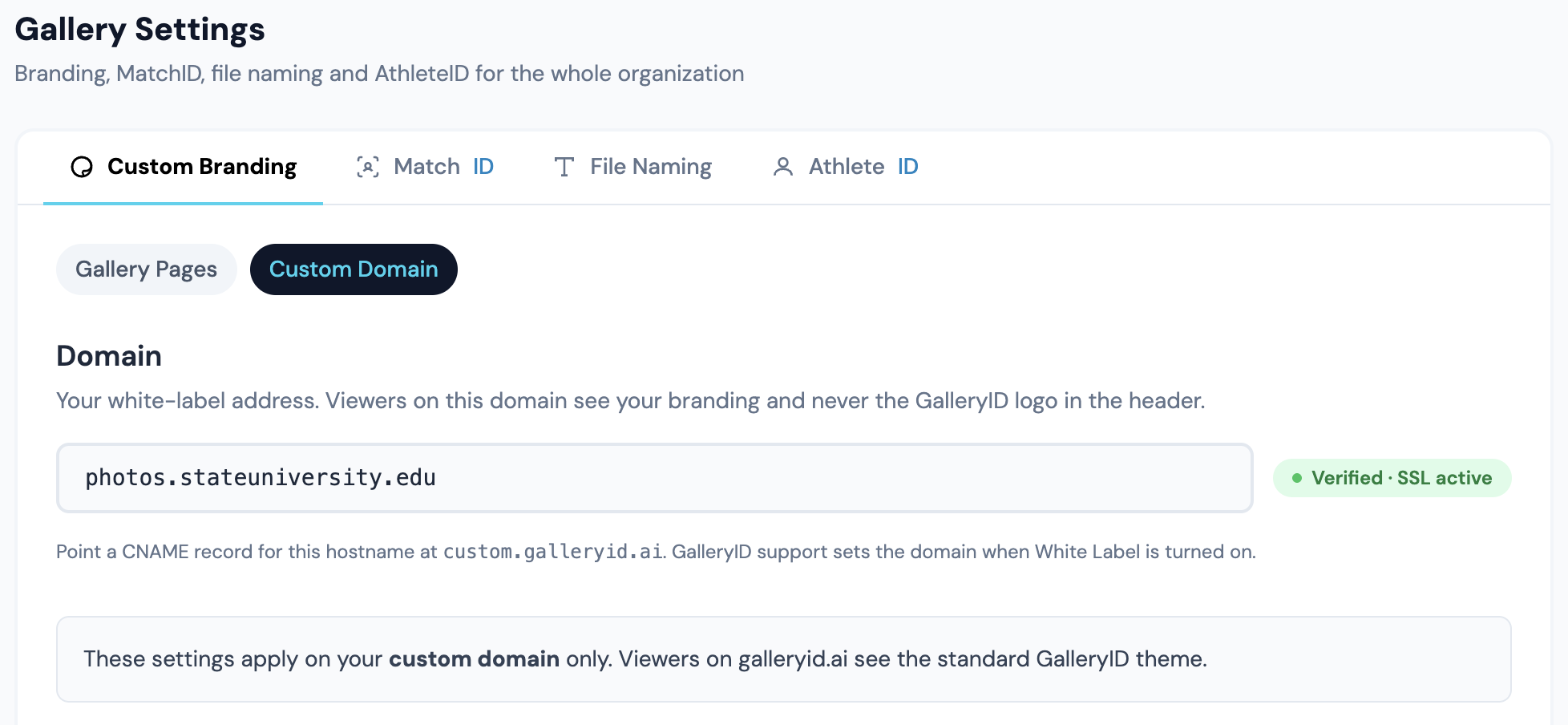
The Custom Domain sub-tab is only available if your plan includes white-label support. It lets you fully rebrand the GalleryID interface under your own domain.
Identity
Company name, logos, and favicon for your custom domain:
- •Company Name: shown in the header, browser tab, and login page.
- •Show company name in header: toggle off if your logo includes the name.
- •Logo Height (px): height in the header. Width auto-scales. Default 28px.
- •Logo (Light Background): shown on light-themed pages (login, gallery).
- •Logo (Dark Background): shown on the dark admin header. Falls back to light logo.
- •Favicon: shown in the browser tab. Square PNG or SVG recommended.
Color Sections
The Custom Domain tab has several color sections. Each section contains color pickers that let you customize each aspect of the interface:
| Section | Controls |
|---|---|
| Core Colors | Primary, Secondary, Accent, and Link Color. |
| Buttons | Primary & Secondary button backgrounds, text colors, and hover states. |
| Text & Nav | Heading Color, Body Text, Muted Text, and Nav Active color. |
| Header, Nav & Avatar | Header background/border, inactive nav text, and avatar circle colors. |
| Page Layout | Page Background and Card Background. |
Typography & Shape
Font stack and corner rounding applied app-wide on your custom domain:
- •Font Family: CSS font-family value. Must be available on the visitor's device or loaded via custom CSS.
- •Base Font Size: root font size (e.g. 16px, 15px).
- •Border Radius: default corner rounding for cards and buttons (e.g. 6px, 8px).
Advanced: Custom CSS
Inject raw CSS that is applied after all other branding rules. Use this for fine-grained overrides that the color pickers don't cover.
MatchID
Configure auto-approve and review depth for facial recognition matches. Find this at Org Dashboard → Settings → Facial Recognition.
Auto-Approve
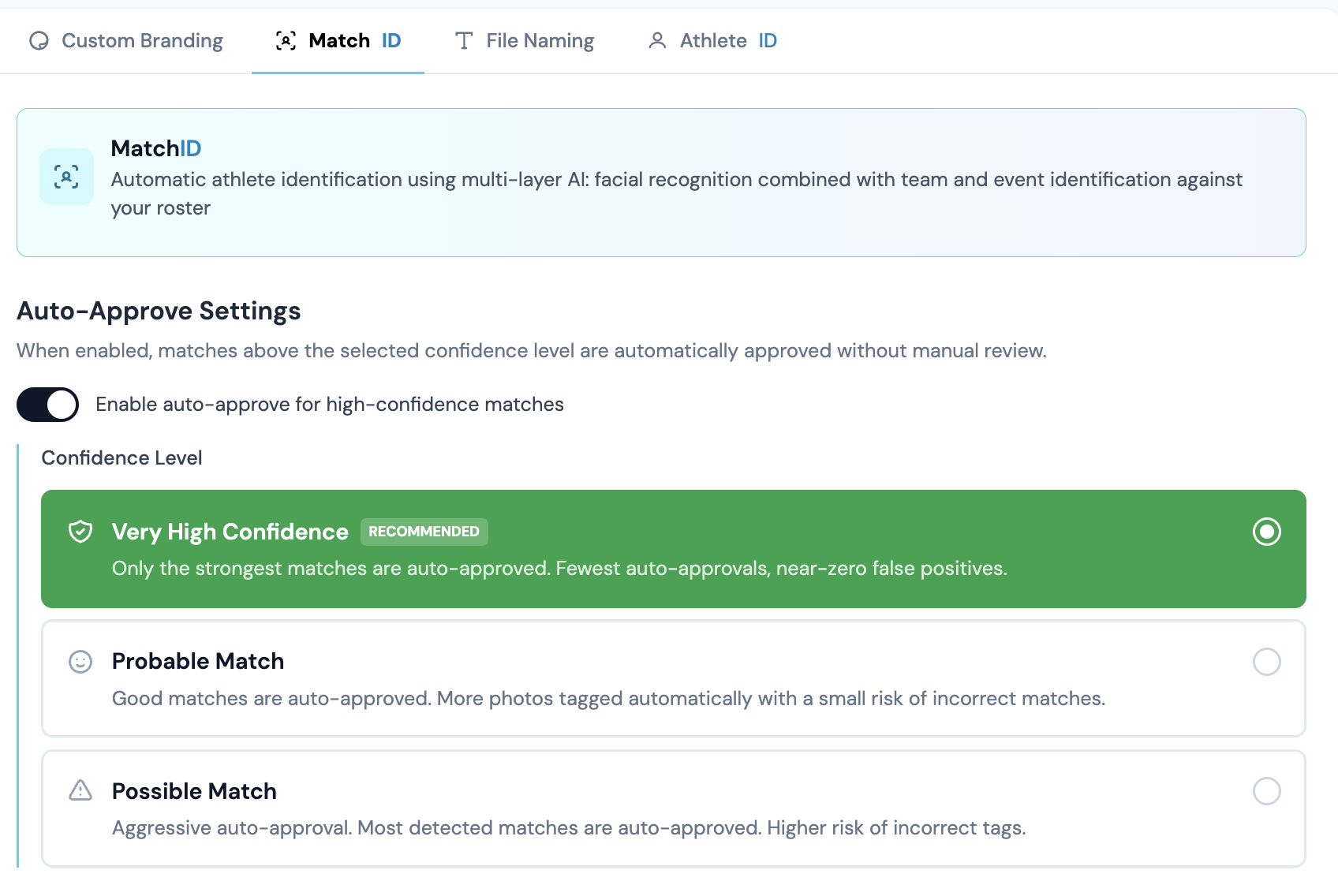
With auto-approve on, a match that clears your organization's confidence bar is written to the photo without anyone reviewing it. A match below the bar goes to the Review queue for a person to confirm or reject. With it off, nothing is written until someone approves it.
The bar is calibrated for your account by GalleryID, so the toggle is the only decision on this line. Where the queue stops is the next setting down. Strong matches go through on their own, borderline ones wait. That is the standard behind MatchID: each name is confirmed, never guessed. A name is written one of two ways, a person approved it, or it cleared the bar.
Review Depth
Auto-approve sets where the automatic line is. Review depth sets the other end of the band: how far down the Review queue goes. All matches is the default and the deepest queue. Fewer weak hides the weakest matches. Strongest only keeps the shortest queue. It doesn't move the auto-approve line.
Tightening it hides matches rather than discarding them. They stay in your account, so loosening it back brings them straight back with no reprocessing. Jersey-only tags and matches made before this setting existed aren't hidden. The gallery badges, the photo edit modal, the org dashboard count and the phone app all follow the same setting.
Jersey Tags in Review

When no face can be matched but a jersey number was read, MatchID files a jersey tag under the Jersey filter in the review modal. This sets whether those tags show by default when Review opens. A reviewer can still switch the filter for their own session.
Always Match Staff

A gallery scoped to one sport normally matches only that sport's roster, so the athletic director or SID on the sideline never gets a name. With this on, your staff directory rides along on each scoped gallery. Coaches keep matching from their team roster as before.
Recognition Mode
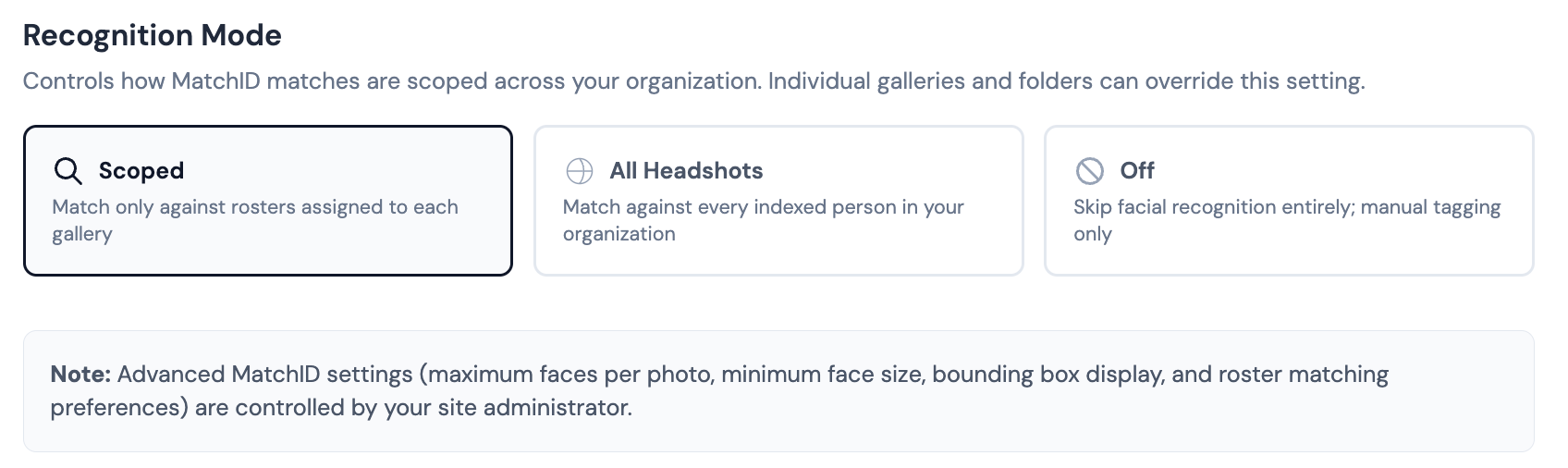
Sets the scope of facial recognition for the whole organization. Individual galleries and folders can override it.
- •Scoped, match only against rosters assigned to each gallery. The default.
- •All Headshots, match against any indexed person in the organization. Use for general events.
- •Off, skip facial recognition entirely. Names come from roster tagging only.
Match Sensitivity
Sensitivity is set by GalleryID, not from this tab. If Review is showing too many wrong candidates, or names you expected are not being suggested, open a support ticket and we will look at your galleries with you.
Re-indexing a gallery
Re-Index Faces lives inside the gallery's own Settings modal, in the MatchID section. It used to sit in the gallery toolbar; the redesign moved it next to the rest of the matching controls. It is gated on the Edit tags permission.
Advanced Settings (Site Admin Only)
The following settings are controlled by the site administrator and are not available in the Org Dashboard:
- •Maximum faces per photo: default: 20
- •Minimum face size percentage: default: 5%
- •Show bounding boxes: display face detection boxes on photos
- •Roster matching preferences: prefer client roster for matching
AthleteID
The feature toggle for the athlete portal, plus the download size athletes receive and the notification settings. Everything on this tab saves the moment you change it.
How saving works on these screens
There is no Save Changes button. Toggles, dropdowns and color pickers commit the moment you change them, and a short message confirms in the bottom-right corner.
Text inputs behave differently on purpose. They hold what you type and show Save and Cancel underneath, so a stray keystroke cannot rewrite a name or a label before you are ready. Five fields on Gallery Pages work this way, company name, welcome text, hero gradient, name separator and footer text, as do the font and Custom CSS fields on Custom Domain, and the Organization Token.
Photographer initials in the table are a third case: they commit when you click out of the field, or press Enter.
File Naming
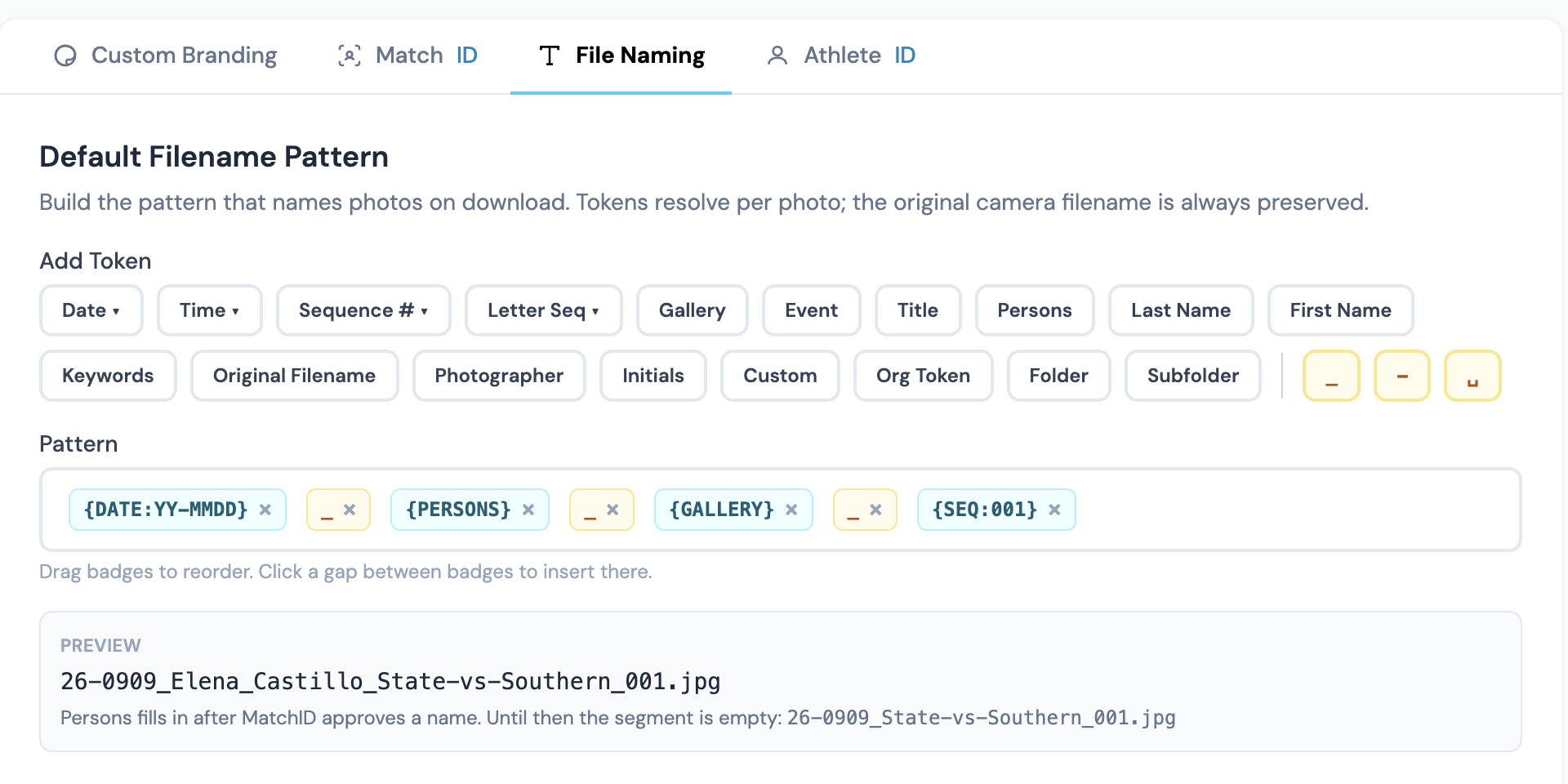
The filename pattern, its eighteen tokens, the organization token and the photographer initials table all live under Gallery Settings → File Naming.
Gallery Naming
Gallery Settings → Gallery Naming holds the three templates that name what Create Galleries makes: one for games, one for events, and one for the subfolder when the structure is “Subfolder, one per photographer”. Click tokens to add them, type any separator or text between them, and watch the preview. Each change saves on its own. The subfolder template has no photographer token and accepts both game and event tokens; the ones that do not apply come out blank.
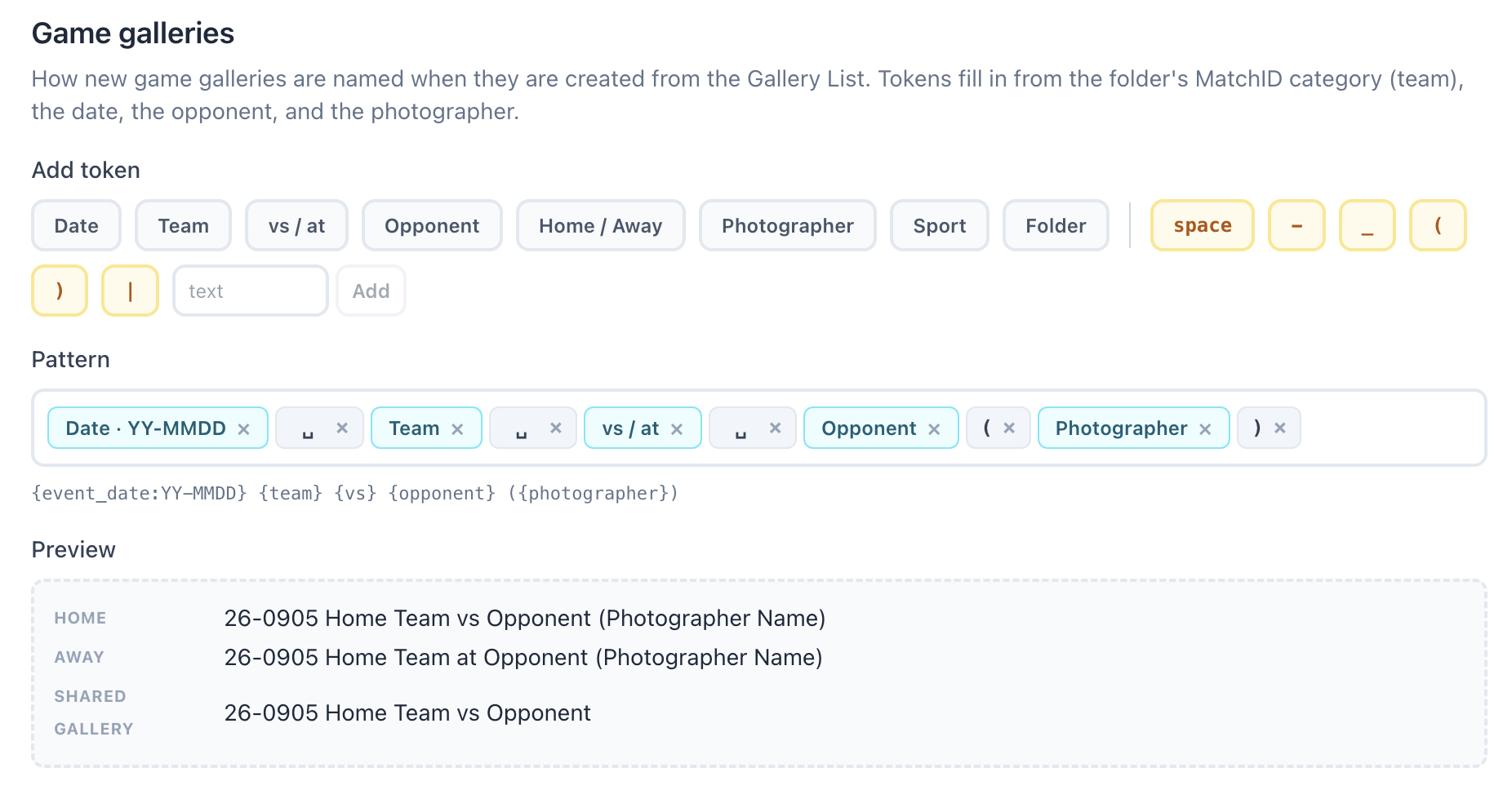
| Token | What it inserts |
|---|---|
| Date | The gallery date, in the format you pick from the presets or type yourself: YYYY or YY for the year, MMMM (September), MMM (Sep), MM (09) or M (9) for the month, DD (05) or D (5) for the day, dddd (Saturday) or ddd (Sat) for the weekday. YY-MMDD gives 26-0912; MMM D, YYYY gives Sep 12, 2026. |
| Team | The team name from the folder’s MatchID category, or whatever was typed for the batch. |
| vs / at | The home word or the away word. Games only. |
| Opponent | The opponent typed for the batch. Games only. |
| Home / Away | The literal word Home or Away, for orgs that want it in the name. |
| Event name | The event name typed for the batch. Events only. |
| Photographer | The photographer that gallery is for. Blank on a shared gallery, and the empty brackets around it are dropped. |
| Sport | The sport on the folder’s MatchID category. |
| Folder | The target folder’s name. |
Home and away sets the two words the vs / at token becomes. The defaults are “vs” and “at”, so a home game reads 26-0912 State University vs Riverside (Jordan Reyes) and the same game away reads 26-0912 State University at Riverside (Jordan Reyes).
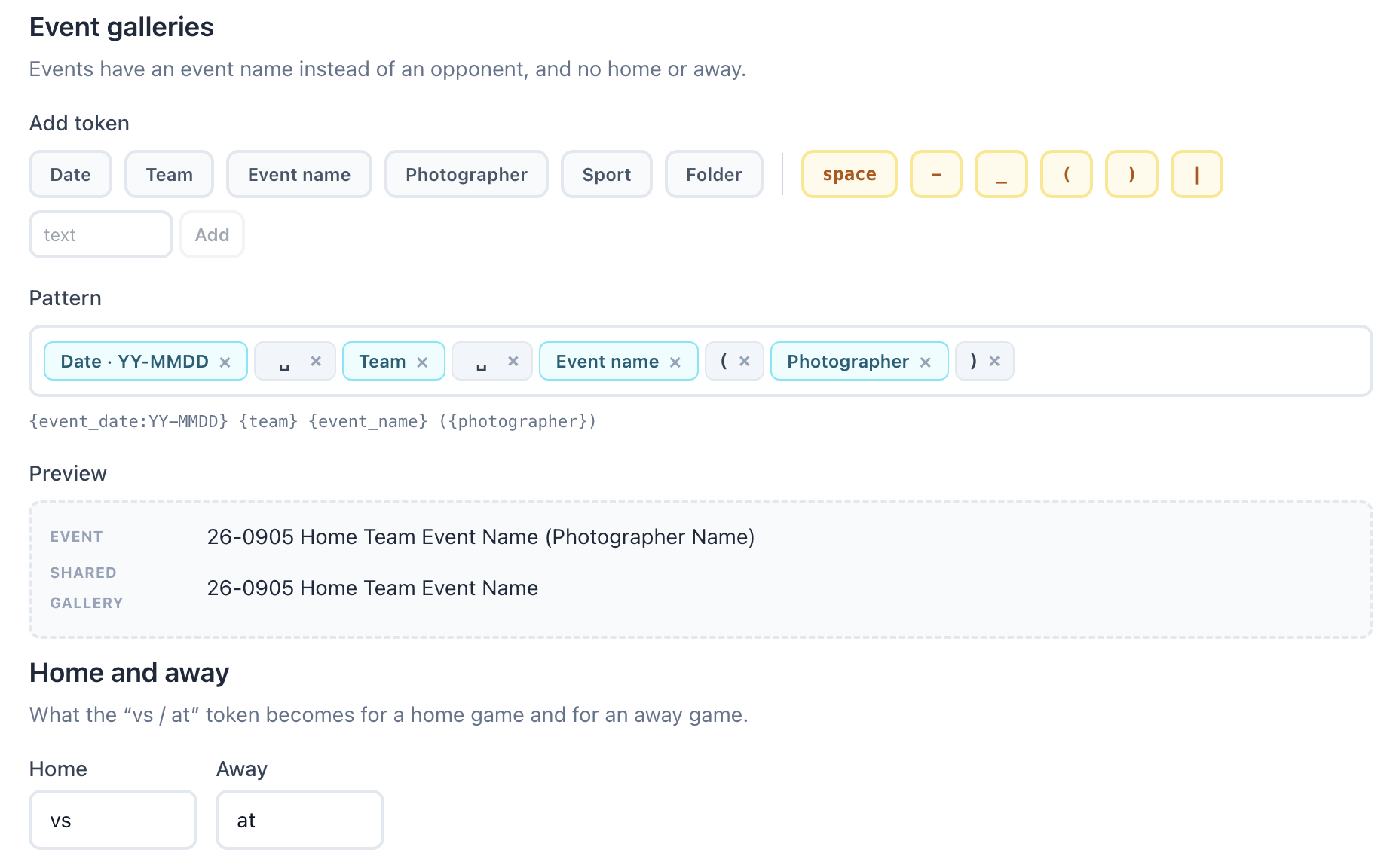
Defaults for new galleries
Gallery Settings → Defaults sets what a new gallery starts with: its visibility (Private, Public link only, or Public listed) and whether public downloads are on. Each choice saves when you click it.
A folder can set its own in Folder Settings → New gallery defaults, and a subfolder inherits from the folder above it unless it sets its own. A new gallery takes the nearest folder's setting, then the organization's, then Private with downloads off. Visibility and downloads resolve separately, so a folder can set one and leave the other to the organization.
- •The create screens show the default already picked, with where it came from. Change it there for that gallery.
- •Defaults apply once, when the gallery is made. Changing one later never touches galleries that already exist.
- •Galleries that arrive by FTP follow them too. With nothing set, FTP galleries start private with downloads on, as before.
- •GalleryID Desktop’s Send to Cloud still creates private galleries.
Related