Integrations
Deliver photos over FTP
Sending somewhere once
In the Send via FTP window, One-Time takes a host, username and password typed in on the spot, for a wire desk or a client you will not deliver to again. Nothing is saved: not the server, not the password, and not a record in your export history. Come back tomorrow and you type it again.
It supports FTP, FTPS and SFTP, and the port follows the protocol, 22 for SFTP and 21 otherwise. The folder template is the same one saved destinations use, so {gallery_slug}, {sport}, {event_date}, {year} and {month} all work.
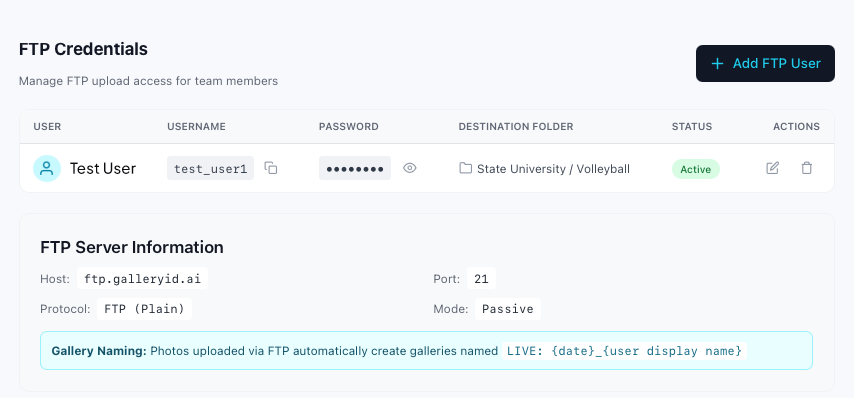
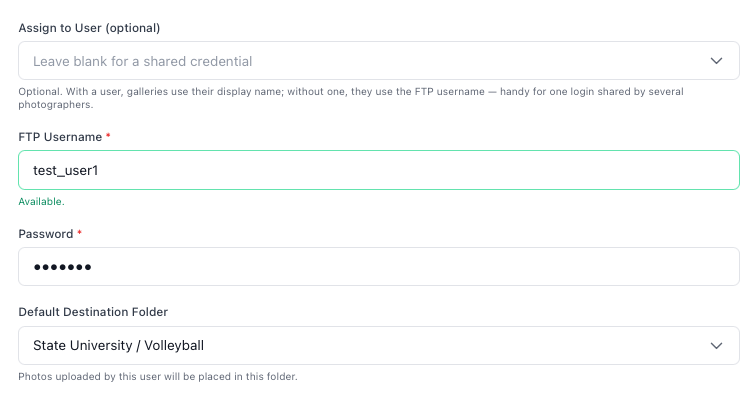
Two sections. FTP Credentials creates the accounts photographers upload through, each tied to a gallery. FTP Destinations holds the external servers you export finished photos to.
FTP Upload
Upload photos directly to GalleryID using any FTP client, including GalleryID Desktop, Photo Mechanic, FileZilla, or your camera's built-in FTP transfer.
How FTP Upload Works
- 1
Admin creates FTP credentials
An administrator creates FTP credentials for a specific gallery. - 2
Credentials sent to photographer
The admin sends the credentials to the photographer via email. - 3
Configure FTP client
The photographer enters the credentials in their FTP client of choice. - 4
Upload photos
Photos upload directly into the assigned gallery and are processed automatically.
GalleryID Desktop Setup
Desktop sends over FTP from Browse, so a gallery captioned on your own machine can land in GalleryID Cloud with the names already in the files.
- 1
Add a destination
In GalleryID Desktop, open Send to FTP and add a new destination. - 2
Enter the connection details
Serverftp.galleryid.ai, port21, plain FTP, passive mode on, and the username and password from your credential email. - 3
Send
Select the photos in Browse and choose Send to FTP. They arrive in the gallery the credential points at, and MatchID runs on them as they land.
Photo Mechanic Setup
Photo Mechanic is the most popular FTP client for sports photographers. It supports FTP upload from both the Contact Sheet and the Ingest dialog.
- 1
Open FTP Upload
In Photo Mechanic, go to File → FTP Photos (or pressCtrl/Cmd + U). - 2
Add new server
Click the + button to add a new FTP server. - 3
Enter connection details
Fill in the following fields from your credential email:
| Photo Mechanic Field | Value |
|---|---|
| Server | ftp.galleryid.ai |
| Port | 21 |
| User Name | Your username from credential email |
| Password | Your password from credential email |
| Initial Directory | Leave blank (auto-set by server) |
| Use Passive Mode | Yes (checked) |
| Use Firewall | No (unchecked) |
- 4
Save and select the server
Click OK to save. Select the GalleryID server from the dropdown. - 5
Select and upload
Select photos in your Contact Sheet, then click Upload. Progress shows per file.
FileZilla Setup
FileZilla is a free, open-source FTP client for Windows, Mac, and Linux.
- 1
Open Site Manager
Go to File → Site Manager (or pressCtrl + S). - 2
Create a new site
Click New Site and name it "GalleryID". - 3
Enter connection details
Set Protocol to FTP, Host toftp.galleryid.ai, Port to21. - 4
Set login type
Set Logon Type to Normal. Enter your Username and Password from the credential email. - 5
Set transfer settings
Go to the Transfer Settings tab. Set Transfer mode to Passive. - 6
Connect and upload
Click Connect. Drag photos from the local panel (left) to the remote panel (right).
Transmit (Mac)
Transmit is a native Mac FTP client from Panic.
- 1
Add a new server
Click the + button in the bottom-left to add a new favorite. - 2
Enter connection details
Set Protocol to FTP, Server toftp.galleryid.ai, Port to21, and enter your Username and Password. - 3
Connect and upload
Double-click the favorite to connect. Drag photos into the remote file list to upload.
Camera FTP Transfer
Most modern cameras (Canon, Nikon, Sony) support built-in FTP transfer over WiFi or Ethernet. Check your camera manual for FTP setup, the connection settings are the same:
| Setting | Value |
|---|---|
| Host / Server | ftp.galleryid.ai |
| Port | 21 |
| Protocol | FTP |
| Passive Mode | On |
| Username | From your credential email |
| Password | From your credential email |
Connection Settings Reference
Use these settings for any FTP client:
| Setting | Value |
|---|---|
| Host | ftp.galleryid.ai |
| Port | 21 |
| Protocol | FTP (not SFTP or FTPS) |
| Transfer Mode | Passive |
| Username | From credential email |
| Password | From credential email |
| Directory | Leave blank, the server routes to your gallery automatically |
Upload Destination
Each FTP account is configured to upload to a specific gallery. Contact your administrator to change your upload destination or to get credentials for a different gallery.
FTP Export
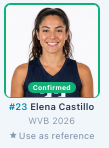
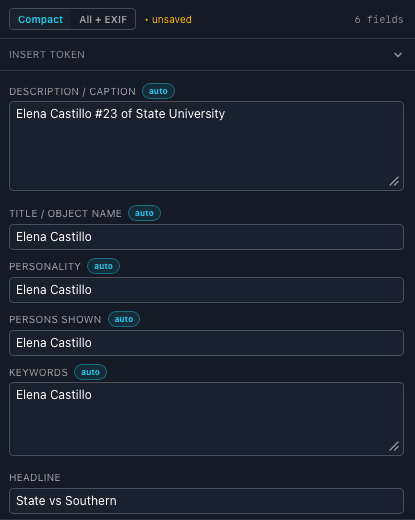
| Persons Shown | Elena Castillo | from MatchID, always |
| Caption / Description | Elena Castillo #23 of State University | from your template |
| Headline | State vs Southern | from your template |
| Keywords | Elena Castillo | from your template |
Export photos directly to FTP, FTPS, or SFTP servers. This is useful for delivering photos to media partners, wire services, or backup storage.
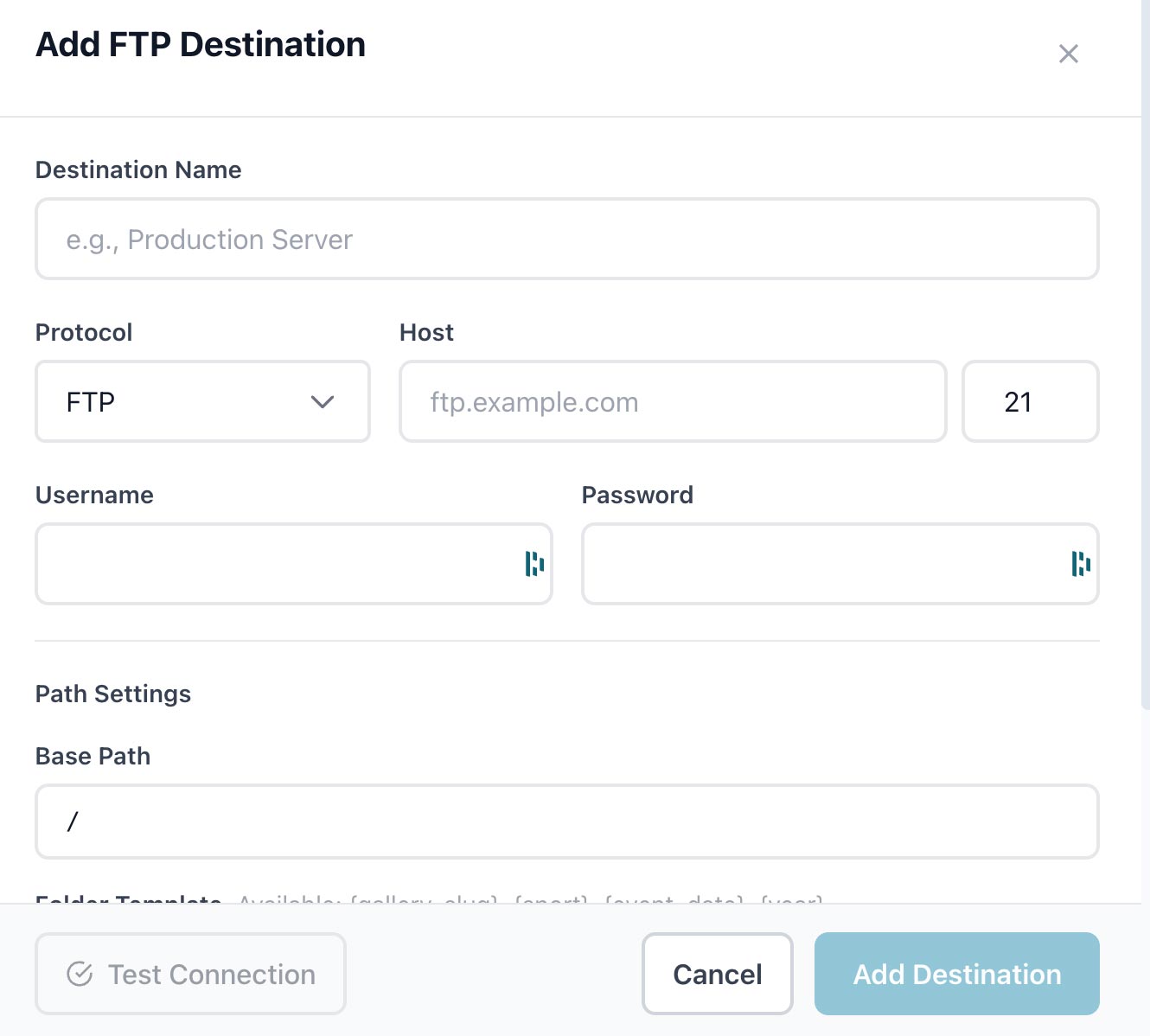
Setting Up FTP
- 1
Go to Settings → Integrations → FTP
Open the FTP configuration page. - 2
Add a destination
Click "Add FTP Destination". - 3
Enter server details
Fill in host, port, username, and password. - 4
Test connection
Click "Test" to verify the connection works. - 5
Save
Save the destination for future use.
FTP Settings
| Setting | Description |
|---|---|
| Protocol | FTP, FTPS (encrypted), or SFTP (SSH) |
| Host | Server address (e.g., ftp.example.com) |
| Port | Default: 21 (FTP), 22 (SFTP) |
| Username | Your FTP login username |
| Password | Stored securely, encrypted at rest |
| Base Path | Starting folder on the server |
| Folder Template | Pattern for organizing uploads |
Exporting Photos
Once configured, you can export photos from any gallery:
- 1Open a gallery and select photos to export.
- 2Click "Export" → "FTP Export".
- 3Choose the destination server.
- 4Select resolution and metadata options.
- 5Click "Export" to start the transfer.
Auto-Export
Enable automatic exports for hands-free delivery:
- •Export new photos as they're uploaded
- •Export after facial recognition completes
- •Export when XMP metadata has been written
Folder Templates
Customize how exported files are organized using variables:
| Variable | Example Output |
|---|---|
| {gallery_slug} | cal-vs-stanford-football |
| {date} | 2024-01-15 |
| {year} | 2024 |
| {sport} | football |
| {original} | original filename |