Search and collections
Save photos to favorites and collections
Favorites & Collections
Bookmark photos you love with Favorites, group photos into shareable Collections, and control who can view or download them.
Overview
GalleryID gives you two ways to organize photos beyond galleries: Favorites and Collections. They serve different purposes and are designed to work together.
| Feature | Favorites | Collections |
|---|---|---|
| Purpose | Personal bookmarks for quick access | Curated groups of photos to organize or share |
| Visibility | Private, only you can see them | Private, Password-protected, or Public |
| Sharing | Not shareable | Shareable via link with optional password |
| Downloads | N/A | Configurable, enable or disable per collection |
| Who can use | Subscribers and Buyers | Subscribers and Buyers |
Saving Favorites
Favorites are personal bookmarks. When you heart a photo, it is saved to your Favorites list for quick access later. Favorites are private, no one else can see which photos you have favorited.
How to Favorite a Photo
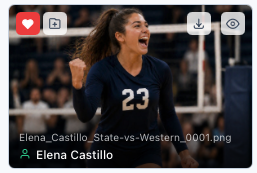
- 1
Browse any gallery
Open a gallery from the Gallery Browser or from a shared link. - 2
Click the heart icon
Hover over any photo thumbnail and click the heart icon in the corner. The heart fills red to confirm the photo is saved. - 3
Access your Favorites
Click Favorites in the dashboard sidebar to see all your bookmarked photos in one place.
Removing a Favorite
Click the filled heart icon on any favorited photo to remove it. You can do this from the gallery view or from your Favorites list. Removing a favorite does not delete the photo, it simply removes your bookmark.
Creating & Managing Collections
Collections let you group photos from one or more galleries into a curated set. Use them to build highlight reels, client selections, team picks, or any custom grouping.
Creating a Collection
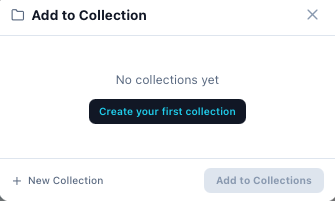
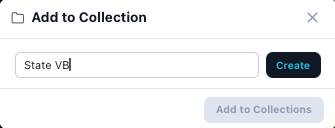
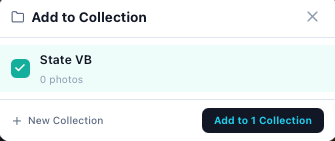
- 1
Open the Collections panel
Click Collections in the dashboard sidebar. - 2
Click Create Collection
Enter a name and optional description for your collection. - 3
Add photos
Browse galleries and select photos you want to include. Use the Add to Collection option to add selected photos to an existing collection.
Collection Settings

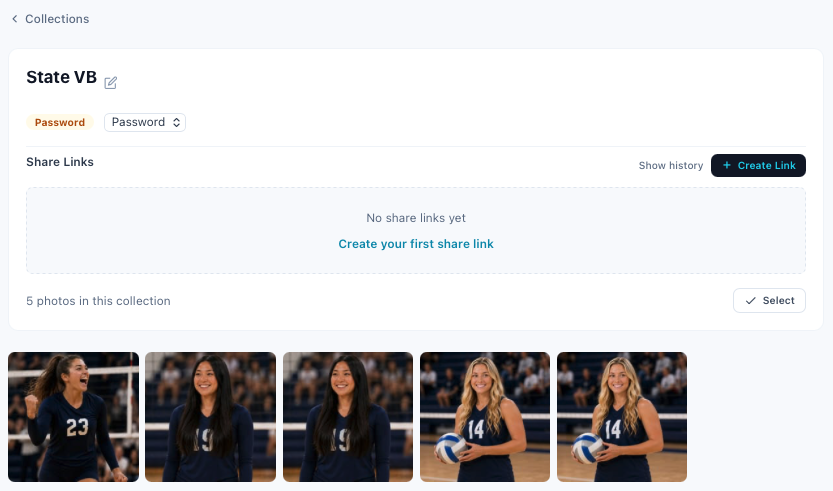
Each collection has its own settings that control visibility, access, and downloads. You can change these at any time from the collection detail view.
| Setting | Options | Default |
|---|---|---|
| Name | Any text | (required) |
| Description | Optional text shown on the share page | Empty |
| Visibility | Private, Password, or Public | Private |
| Password | Required when visibility is Password | None |
| Allow Downloads | On / Off toggle | Off |
Reordering Photos
Photos in a collection maintain a custom sort order. Drag and drop photos in the collection detail view to reorder them. The sort order is preserved when the collection is shared.
Sharing Collections
Collections can be shared with anyone via a unique link. The share link format is /c/<token> where the token is automatically generated when you set the collection visibility to Public or Password.
Visibility Modes
| Mode | How It Works |
|---|---|
| Private | The collection is only visible to you. No share link is generated. Set visibility to Public or Password to enable sharing. |
| Password | Anyone with the link sees the collection name and photo count, but must enter the correct password to view photos. |
| Public | Anyone with the link can view all photos in the collection immediately. |
How to Share a Collection
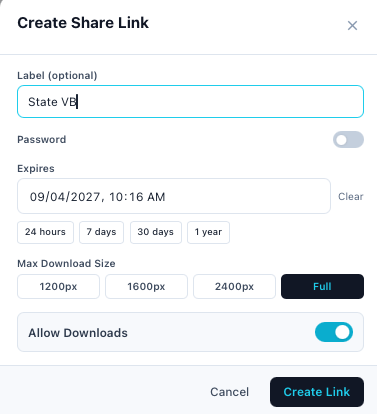
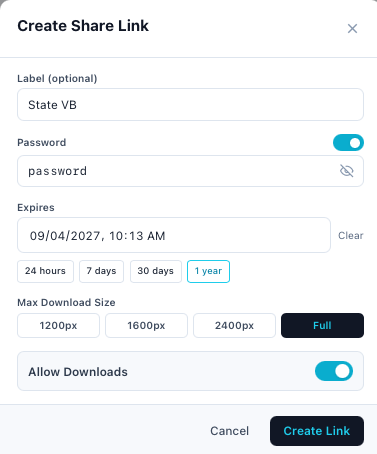
- 1
Set visibility
Open the collection settings and change visibility from Private to Public or Password. A share token is generated automatically. - 2
Set a password (optional)
If you chose Password visibility, enter a password. Recipients will need this password to view the photos. - 3
Copy the share link
Click the copy icon next to the share link. The full URL is copied to your clipboard, ready to send via email, text, or social media.
People Filter on Shared Collections
When photos in a shared collection have been processed with facial recognition, the share page displays people filter badges at the top. Recipients can click any person's name to filter the collection down to just their photos.
How People Badges Work
- •Each badge shows a person's name and the number of photos they appear in.
- •Click a badge to filter, only photos containing that person are shown.
- •Click the badge again (or click All) to clear the filter and show all photos.
- •Photo cards display person names in bold above the filename, making it easy to identify who is in each shot.
Downloads from Shared Collections
The collection owner controls whether recipients can download photos. This is managed via the Allow Downloads toggle in the collection settings.
When Downloads Are Enabled
- •Recipients see checkboxes on each photo card for selection.
- •A Select All button appears at the top of the page.
- •A Download button lets recipients download selected photos as a ZIP file.
- •Individual photos can also be downloaded from the lightbox view.
- •Select All respects the active people filter, if filtering by a person, only their photos are selected.
When Downloads Are Disabled
When the toggle is off, all download-related UI is hidden from the share page. Recipients can browse and view photos in the lightbox, but there are no checkboxes, no Select All button, and no download options.
Buyer / Recipient Path
There are two paths to Favorites and Collections depending on how you access GalleryID.
Subscriber Path (Organization Account)
If you have a GalleryID subscription, you access Favorites and Collections from the dashboard sidebar. As a subscriber you can:
- •Favorite photos across all galleries in your organization.
- •Create, manage, and share collections.
- •Control visibility, passwords, and download settings.
- •View the collection in the dashboard or via the share link.
Buyer / Recipient Path
If you received a gallery or collection link (you are a buyer or recipient), you can also use Favorites and Collections from your buyer dashboard. As a buyer you can:
- •Favorite photos from galleries or collections shared with you.
- •Create your own collections from photos you have access to.
- •Share your collections with others.
- •Access your Favorites and Collections from the sidebar in your buyer dashboard.
| Capability | Subscriber | Buyer |
|---|---|---|
| Favorite photos | Yes | Yes |
| View Favorites in sidebar | Yes | Yes |
| Create collections | Yes | Yes |
| Share collections | Yes | Yes |
| Control downloads | Yes | Yes |
| Upload photos | Yes | No |
| Manage galleries | Yes | No |
Troubleshooting
| Issue | What to Check |
|---|---|
| Share link shows /c/null | The collection may not have a share token yet. Change visibility to Private, then back to Public or Password to regenerate the token. |
| Collection not found | The collection may be set to Private, or the share token may have changed. Verify visibility is Public or Password in collection settings. |
| Cannot download photos | Check that Allow Downloads is toggled on in the collection settings. The toggle only appears when visibility is Public or Password. |
| People filter badges not showing | Photos must have been processed with facial recognition. If xmp_persons data is missing, the badges will not appear. |
| Password not working on share page | Passwords are case-sensitive. Open collection settings and verify the password matches exactly. |
| Favorites disappeared | Make sure you are logged into the same account. Favorites are tied to your user account and do not transfer between accounts. |
| Cannot see Collections in sidebar | Collections appear in the dashboard sidebar. If you are viewing a shared gallery page (not logged in), you will not see the sidebar. |