Users and access
Choose a role and what it can do
How the model works
Roles bundle capabilities. There are 11 capabilities, plus a separate set of user-level flags for billing, role creation and user management. Capabilities apply per folder or per gallery through grants. User-level flags apply across the whole app.
| Capability | What it allows |
|---|---|
| view | See the folder or gallery (implicit on any grant) |
| download | Download photos at allowed sizes |
| upload | Add photos to the gallery |
| delete | Delete photos, galleries, or folders |
| edit_tags | Edit metadata, approve MatchID matches, set reference photos |
| organize | Rename, move, set cover, reorder |
| share | Create share links, upload links, grant access |
| settings | Edit visibility, downloads, description, file naming, roster scope |
| export | FTP and PhotoShelter export |
| store | Enable store on a gallery, manage price tiers (admin-only by default) |
| assign_photographer | Set photographer attribution on a gallery (admin-only by default) |
The two tiers
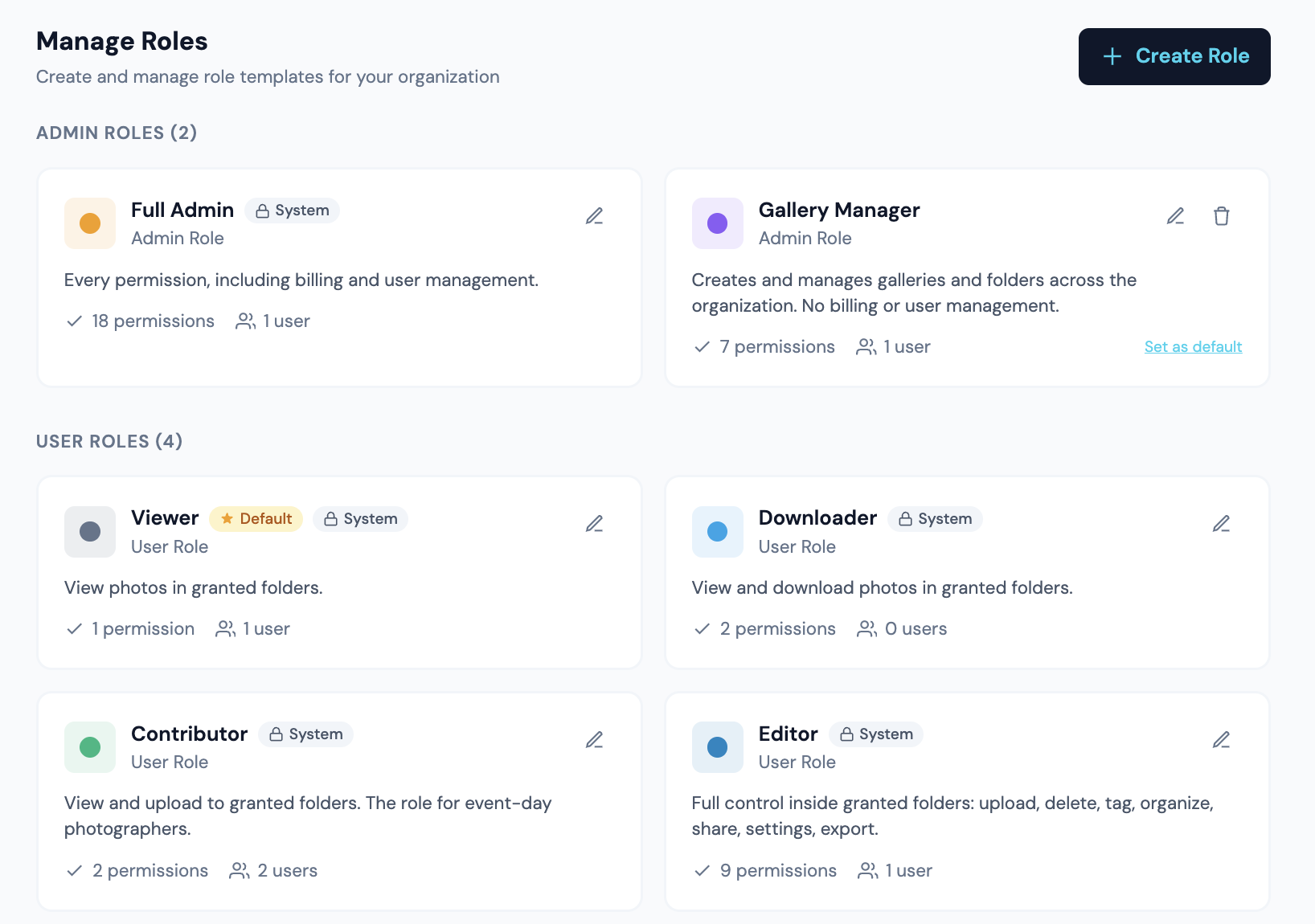
A role's tier controls where it can be assigned. This is the distinction that explains why a role you created does not appear in a folder dropdown.
- •Admin-tier roles are assigned to a person as their primary role, and unlock the user-level flags such as manage users and billing. Full Admin and Gallery Manager are examples.
- •User-tier roles are assigned per folder or per gallery through grants, and define the capability set inside that folder. Viewer, Downloader, Contributor and Editor are examples.
Each per-grant dropdown, in Folder Access, in Gallery Permissions, and in the Folder Permissions modal, lists user-tier roles only. Admin-tier roles are not grantable per folder.
Built-in user-tier roles
| Role | Capabilities granted |
|---|---|
| Viewer | view |
| Downloader | view, download |
| Contributor | view, upload |
| Tagger | view, edit_tags |
| Photographer | view, create. Sees the other galleries in the folder and can create their own there. Full control of galleries they are photographer of record on, and view, upload and tag on galleries they were added to as an additional photographer |
| Editor | view, download, upload, delete, edit_tags |
| Folder Admin | Everything except store: view, download, upload, create, delete, edit_tags, organize, share, settings, export, assign_photographer |
Custom roles
Edit any role to add or remove capabilities and to set its color and default flag. Edits save on toggle, and the name and description show inline Save and Cancel when changed. Creating a role from scratch keeps a Create Role button, because there is no row yet to save against.