Uploading and sharing
Share a gallery with a link
Sharing Galleries
Create share links, email them to recipients, set passwords and expiration dates, and control what viewers can see and download.
Creating Share Links
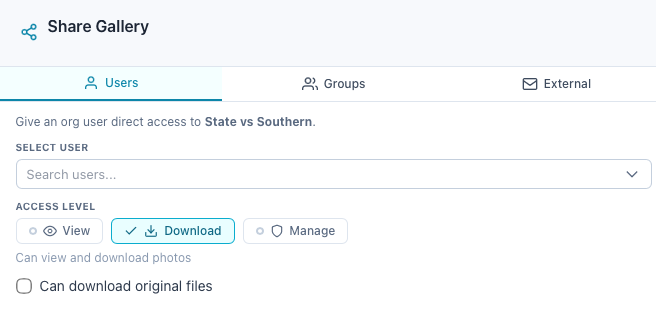
Each gallery can have one or more share links. Each link has its own visibility, password, expiration, and download settings, so you can give different access to different people from the same gallery.
How to Create a Share Link
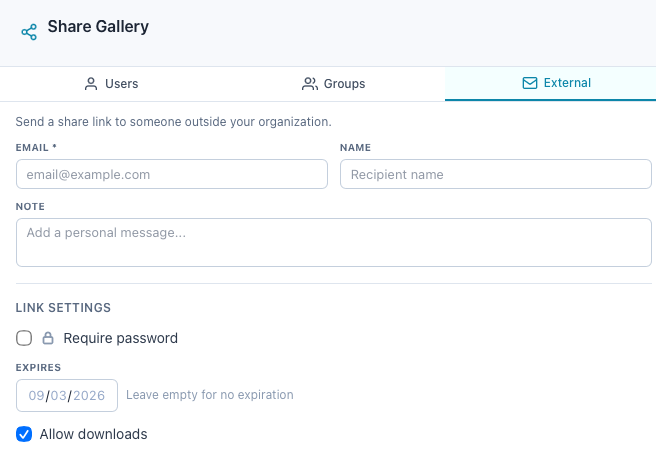
- 1
Open the Share panel
Right-click a gallery in the Gallery Browser and select Share, or click the share icon in the gallery toolbar. - 2
Set visibility
By default the link is public: anyone with the URL can view. Check Require password to add a password. - 3
Set expiration (optional)
Pick a date in the Expires field. Leave it empty for a link that never expires. - 4
Toggle downloads
The Allow downloads checkbox controls whether recipients can download photos. It is enabled by default. - 5
Create
Click Create Share Link. The link is immediately active and appears in the Existing Shares list.
Visibility Modes

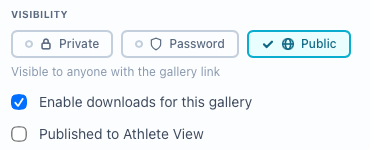
| Mode | How It Works |
|---|---|
| Public | Anyone with the link can view the gallery immediately. No login or password required. |
| Password | The link works, but recipients must enter the correct password before they can see photos. |
A public gallery or a share link?
| Choice | Who can open it | On your public page |
|---|---|---|
| Public, listed | Anyone | Yes, and search engines can find it |
| Public, link only | Anyone with the gallery URL | No |
| Share link | Anyone with that link, until it expires or you revoke it | No |
For photos that shouldn't circulate, such as recruits, send a share link. It can expire, take a password and turn downloads off, and revoking it doesn't change the gallery. A public gallery's own URL keeps working until you make the gallery private.
Share Link Format
Share links use the format /s/<token> where the token is a unique 32-character identifier. When a recipient opens the link, they are redirected to the gallery page (public links) or shown a password form (password-protected links).
Sending Share Links via Email
You can email a share link directly from the Share panel, either at creation time or later from an existing share.
Email at Creation Time
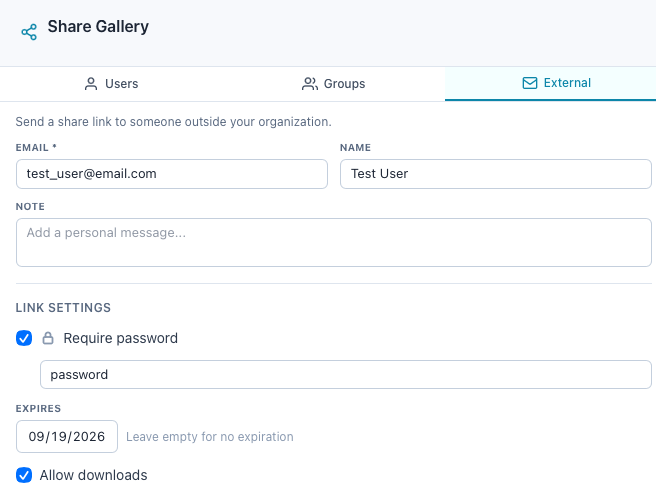
- 1
Check Send link via email
In the create form, enable the Send link via emailcheckbox. An email form appears below. - 2
Fill in recipient details
Enter the recipient's email (required) and name (optional). - 3
Add a note (optional)
Type a personal message in the Note field. This message appears in the email body. - 4
Create and send
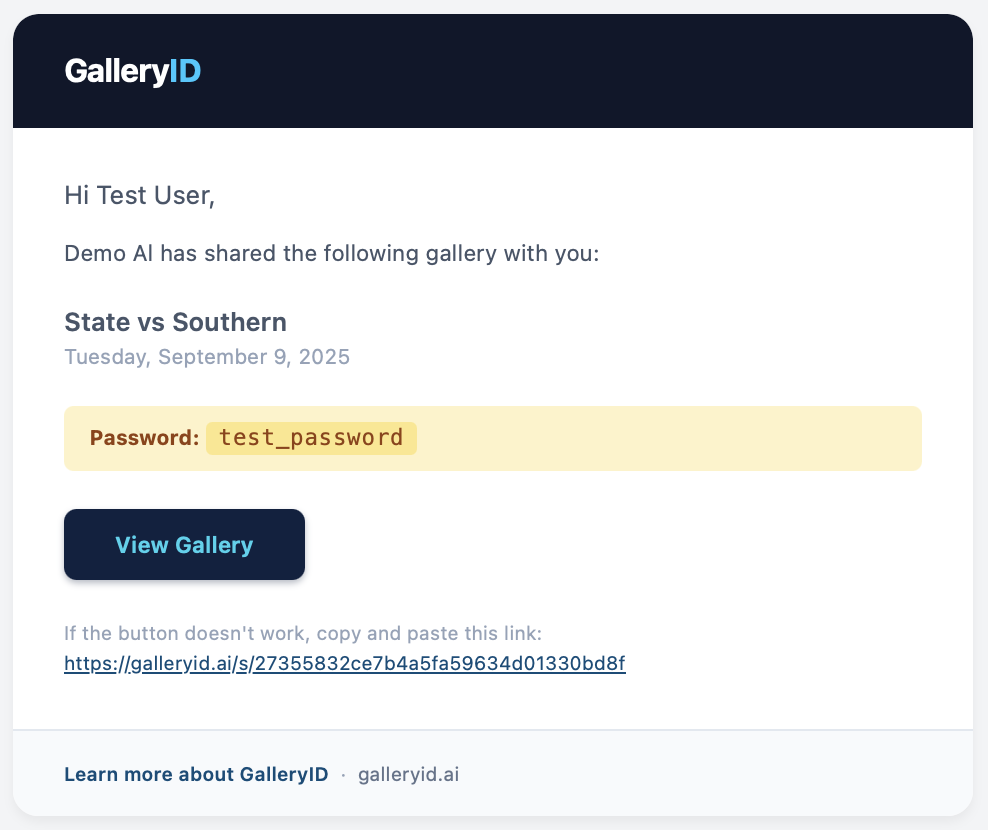
Click Create Share Link. The share link is created and the email is sent in one step. If the share is password-protected, the password is automatically included in the email.
Email from an Existing Share
- 1
Expand Existing Shares
Click Existing Shares at the bottom of the Share panel to reveal all active links. - 2
Click the email icon
On the share card you want to send, click the envelope icon. - 3
Fill in the form
Enter the recipient's email and name. For password-protected shares, the password field is pre-filled, you can clear it if you prefer the recipient to contact you for the password separately. - 4
Send
Click Send Email. The recipient receives a branded email with the gallery title, photo count, your personal note, and a View Gallery button linking directly to the share.
Managing Existing Shares
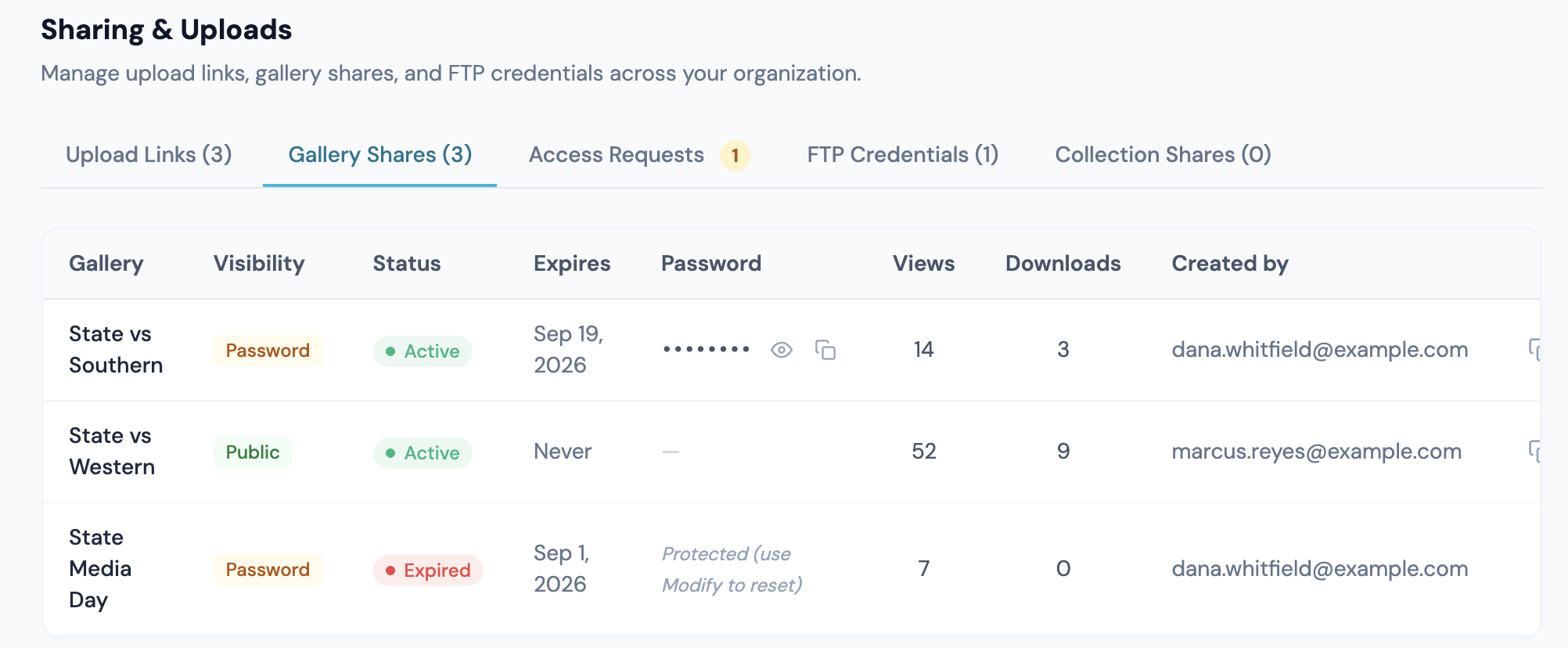
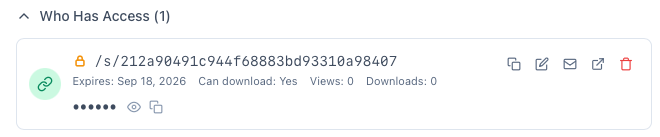
The Existing Shares section at the bottom of the Share panel lists each active link for the gallery. Each share card shows the link token, visibility mode, expiration date, download setting, view count, and password (if applicable).
Share Card Actions
| Action | What It Does |
|---|---|
| Copy | Copies the full share URL to your clipboard. |
| Modify | Opens inline editing, change the password, expiration, download toggle, or visibility mode. Click Save Changes when done. |
| Opens an inline email form to send this specific share link to a recipient. | |
| Open | Opens the share link in a new browser tab so you can preview what the recipient sees. |
| Delete | Permanently removes the share link. Anyone who has the URL will no longer be able to access the gallery through it. |
Modify, Email and Delete show on the links you can change: links you created, and any link on a gallery you manage. Org admins can change any link.
Modifying a Share
Click the pencil icon on any share card to edit it inline. You can change:
- •Password: keep the existing password, change it to a new one, or remove it entirely (which switches visibility to public).
- •Expiration date: set a new date, clear the date to remove expiration, or leave it as-is.
- •Allow downloads: toggle whether recipients can download photos through this link.
Click Save Changes to apply. Changes take effect immediately for anyone using that link.
Tracking Views
Each share card shows a Views count that increments each time someone successfully accesses the gallery through that link. For password-protected shares, the count increments after the password is verified.
What Recipients See
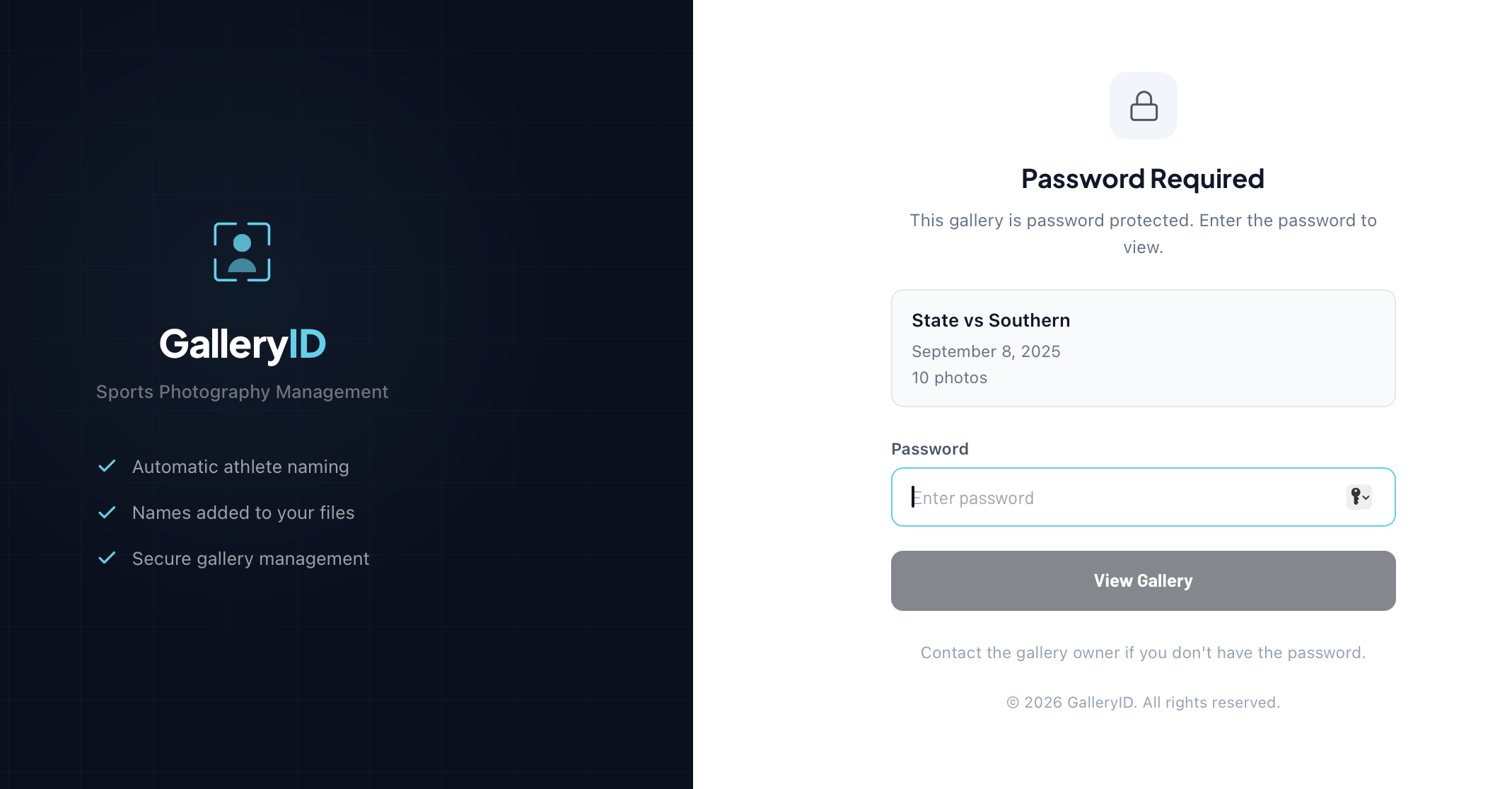
When someone opens a share link, what they see depends on the link's settings.
| Scenario | What Happens |
|---|---|
| Public link | The recipient is immediately redirected to the gallery page where they can browse and (if enabled) download photos. |
| Password-protected link | A password form appears showing the gallery title, event date, and photo count. After entering the correct password, they are redirected to the gallery. A secure cookie keeps them logged in for 24 hours. |
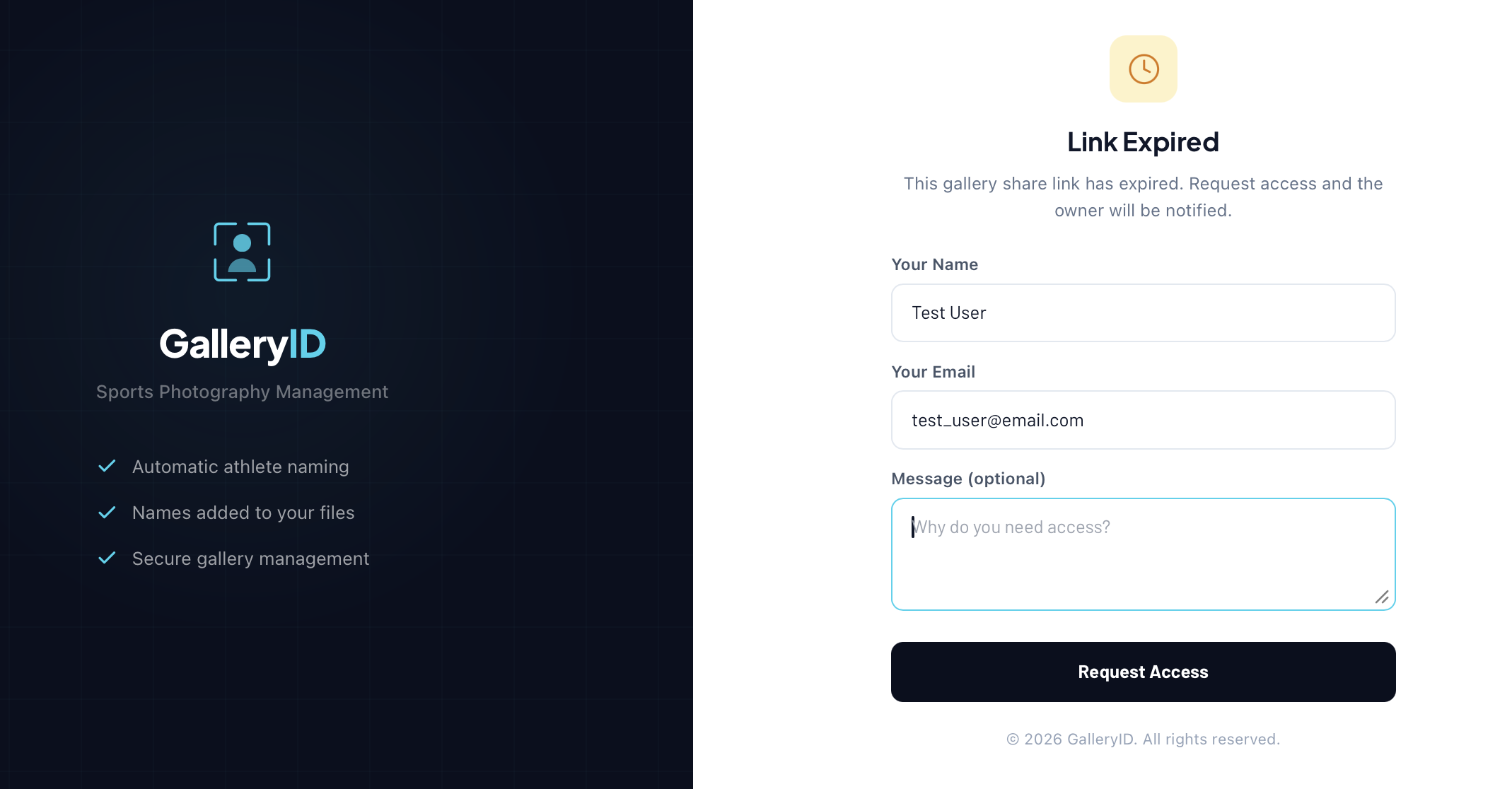
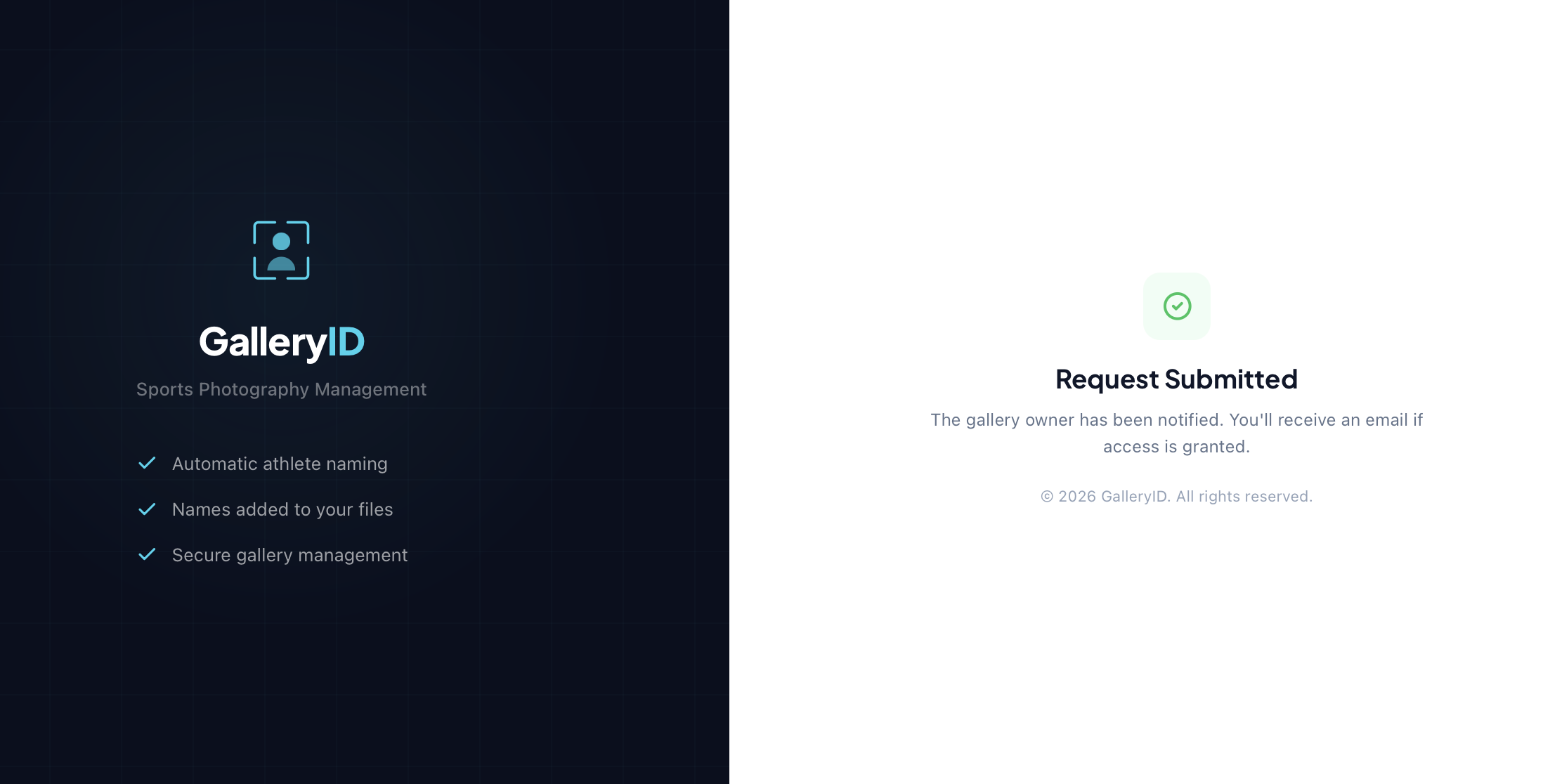
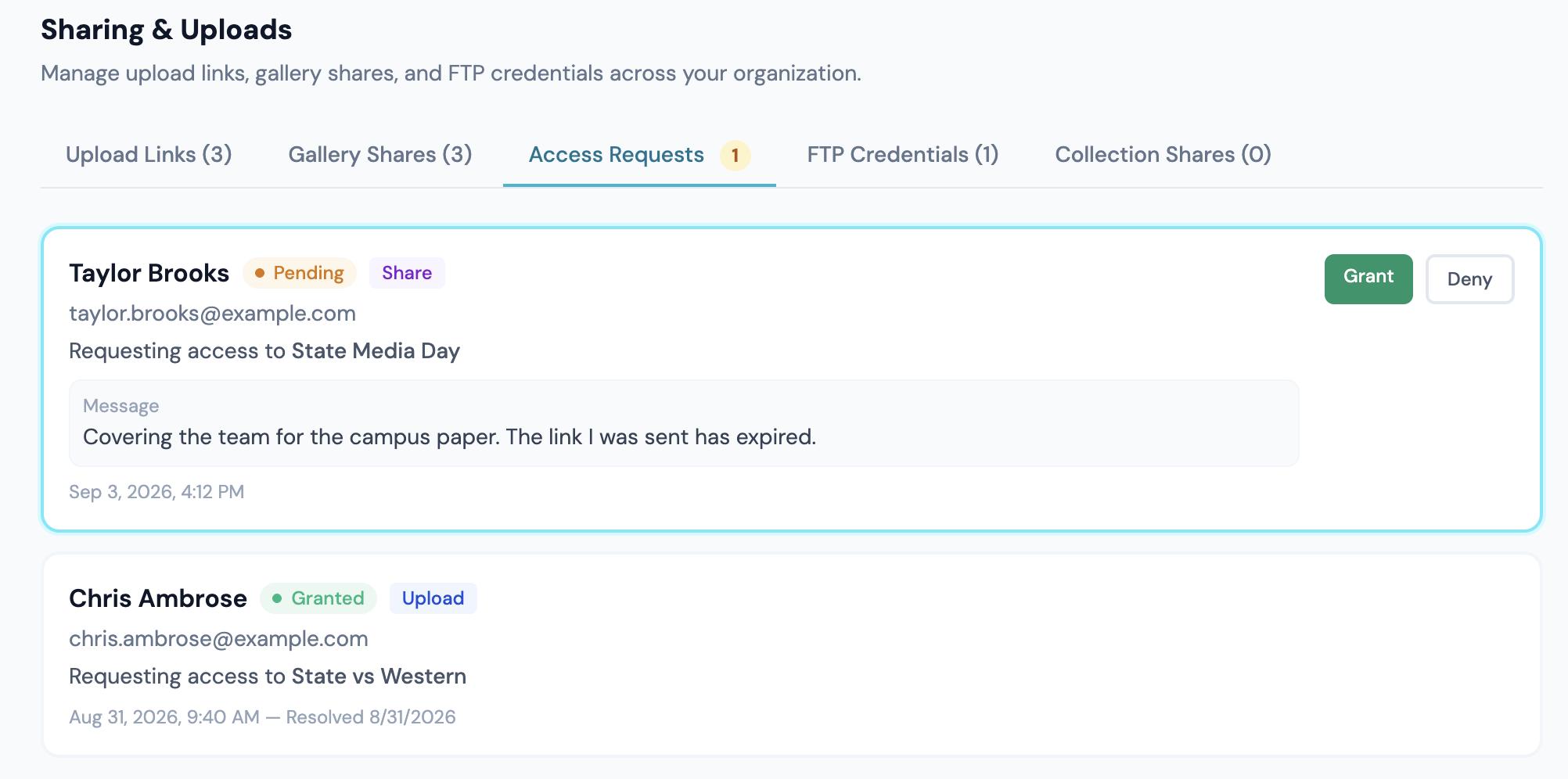
| Expired link | A "Link Expired" page appears with a form where the recipient can request access by entering their name, email, and an optional message. The request is emailed to the owner and lands in Sharing & Uploads on the Org Dashboard, where it can be granted with a new expiry date, or denied. |
| Deleted or invalid link | A "Gallery not found" message appears. |
Troubleshooting
| Issue | What to Check |
|---|---|
| Share link shows "Gallery not found" | The link may have been deleted. Open the Share panel for the gallery and check whether the link still exists in Existing Shares. |
| Recipient says "Link Expired" | The expiration date has passed. Modify the existing share to extend the date, or create a new share link. |
| Password not working | Passwords are case-sensitive. Open the share card, click the eye icon to reveal the password, and verify it matches. You can also change the password from the Modify form. |
| Recipient cannot download photos | Check that Allow downloads is enabled on the share link. Open the share card and verify the Downloads field shows "Yes". |
| Social media preview not showing | Preview cards may take a few minutes to appear after the link is first shared. Try the Facebook Sharing Debugger or Twitter Card Validator to force a refresh. |
| Email was not received | Check the recipient's spam folder. The email is sent from GalleryID, some corporate mail filters may require whitelisting. |
| "Too many attempts" error on password page | Password verification is rate-limited to 5 attempts per minute. Wait 60 seconds and try again. |
Related
Social Media Sharing
When a gallery link is shared on social media (Facebook, Twitter/X, LinkedIn), GalleryID automatically generates preview cards with the gallery title, photo count, and cover image. These Open Graph meta tags are served from a dedicated endpoint that ensures social media crawlers can access them.
What the Preview Shows
Enabling Social Sharing
Social sharing buttons on the public gallery page are controlled by the Enable social sharing toggle in gallery settings. When disabled, the share buttons are hidden but the Open Graph meta tags are still generated, so manually pasting the URL will still produce a preview card.