Tag from your roster with one press, or let MatchID do it. Included in all plans. Start your 14-day free trial.Get Started →
GalleryID
GalleryID CloudGalleryID DesktopMatchIDCaptionID
PhotographersTeamAthletic DepartmentsColleges & UniversitiesAthletic ConferencesOrganizations
HelpComparePricingBlogAbout
Book a DemoLog In
GalleryID CloudGalleryID Desktop
Help homeVideo tutorials

Start here

How GalleryID Desktop worksYour first game, start to finish

Getting started and ingest

Set your MatchID settings and metadata templateIngest from a cardBrowse your photos

MatchID

Index reference headshotsTag photos with MatchIDTurn camera voice memos into names

CaptionID

Set a roster on a folderTag photos in the photo window

Metadata

Build an IPTC template with tokensFill fields from the camera with ExifIDFix a wrong value across a folder

Culling and editing

Cull out-of-focus photosCrop and straightenAdjust tone and color

Files and delivery

Copy, move and rename filesExport, watermark and sharpenSend named files over FTPSend photos to GalleryID Cloud

Camera and phone

Caption on your phone as the camera sends, with SidelineID

Archive and backup

Browse an unplugged drive with CatalogBack up and restoreFree disk space taken by previews

Reference

Keyboard shortcutsActivate a computer and manage devicesTeams: personal keys and sharing

More

TutorialsContact supportYour Desktop account
Desktop help›Archive and backup›Free disk space taken by previews

Archive and backup

Free disk space taken by previews

Freeing disk space taken by previews1:02

GalleryID Desktop saves previews of the photos you browse, so a folder opens fast the next time. Delete a photo folder and Desktop frees its previews by itself.

What Desktop savesFree the spaceDrives that aren't connectedClear untrackedCatalog previewsGood to know

What Desktop saves

When the grid shows a photo, Desktop saves a 512px thumbnail of it. Photos you open large, RAW files most of all, get a bigger preview as well. They all go in the thumbnail cache, which on a Mac is the folder ~/Library/Caches/com.galleryid.local.
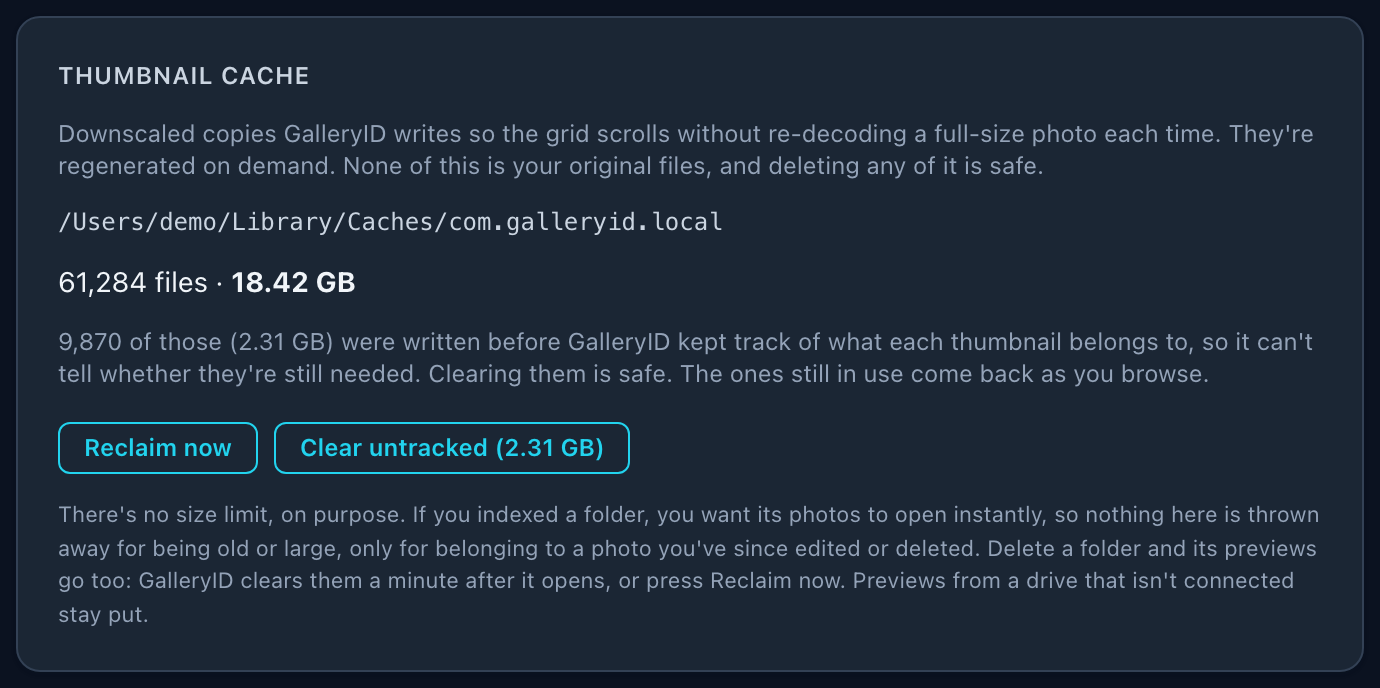
Settings, Browse and Preview, Thumbnail cache: the cache folder, how many files it holds and their size, a note about untracked previews, and the Reclaim now and Clear untracked buttons
Settings ▸ Browse & Preview ▸ Thumbnail cache shows where the previews are and how much space they take.
None of it is your photos. These are copies Desktop can make again, so clearing them is safe. A folder whose previews were cleared just opens a little slower the first time you go back to it.

There’s no size limit, on purpose. A folder you’ve browsed should open instantly the next time, so Desktop never removes the preview of a photo you still have, however big the cache gets.

Free the space

  1. 1

    Delete or move the folder

    Do it the way you always do, in Finder, File Explorer or Desktop itself.
  2. 2

    Open Desktop

    About a minute after it opens, Desktop checks its saved previews in the background and frees the ones whose photo is gone.
  3. 3

    Or press Reclaim now

    Deleted a folder while Desktop was open? Settings ▸ Browse & Preview ▸ Thumbnail cache ▸ Reclaim now runs the same check right away.
The photoIts previews
Still there, unchangedKept.
Deleted, or its folder was deleted or moved, on a drive that's connectedRemoved.
Changed by another app since its preview was madeThe old preview is removed. A new one is made the next time you view the photo.
On a drive that isn't connectedKept until the drive is back.
The message after Reclaim now: how many previews it removed, the space that freed, and how many were rewritten or deleted
Reclaim now says what it freed. Rewritten means the photo changed after its preview was made.

Drives that aren't connected

To any app, a photo on an unplugged drive looks the same as a deleted one. So Desktop keeps the previews of photos on a drive that isn’t connected, and Reclaim now says how many it skipped. Plug the drive back in and they’re used again.

The message after Reclaim now: nothing to reclaim, and how many it skipped because their drive is not connected
Previews of photos on an unplugged drive are skipped, not removed.
Give each drive its own name. Desktop tells drives apart by name, so two drives with the same name (two cards that are both EOS_DIGITAL, for example) look like one drive. With one of them plugged in, the other one’s previews can be cleared. Nothing on either drive is touched, and the previews rebuild as you browse. On Windows the drive letter does the same job, so give each drive its own letter.

Cards aren’t affected: the ingest window doesn’t save previews of the photos on a card. It’s the drives you keep photos on that need their own names.

Clear untracked

Older versions of Desktop saved previews without noting which photo each one belongs to. The panel counts those as untracked. Desktop can’t tell whether they’re still needed, so it never clears them by itself.

  1. 1

    Clear untracked

    The button shows how much space they take. It only appears when there are untracked previews.
  2. 2

    Yes, clear

    Desktop asks first. Confirm and they go, or press Cancel.
  3. 3

    Keep browsing

    The previews you still use come back as you open each folder.
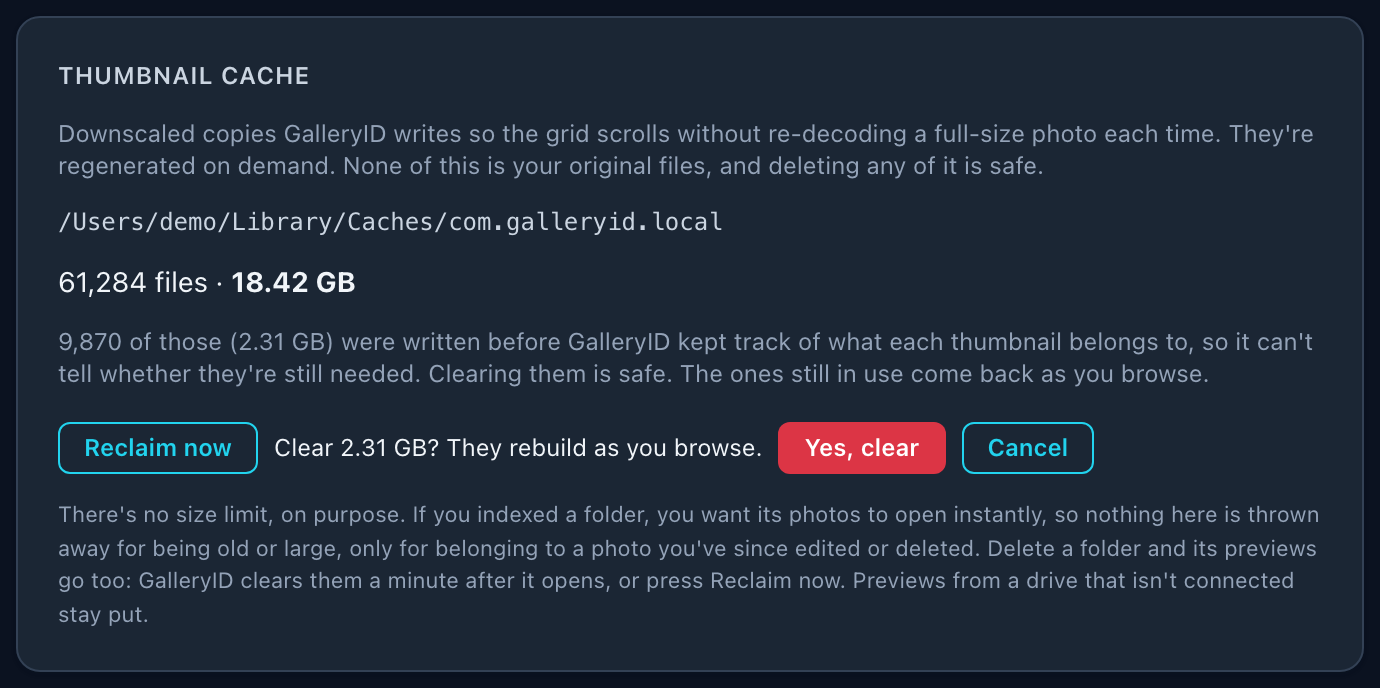
Thumbnail cache asking whether to clear the untracked previews, which rebuild as you browse, with Yes, clear and Cancel buttons
Clear untracked asks before it removes anything.

Catalog previews

The Catalog keeps its own previews, so you can browse a drive with it unplugged. They’re stored apart from the thumbnail cache and aren’t in its total. Storage & Backup… on the Catalog page shows how much they take.

To free them, use Remove… on a folder or Forget drive… on a drive. The previews of the photos that leave the Catalog go with them, and a photo that’s also cataloged somewhere else keeps its preview. Your files are never touched.

Good to know

  • •The check after launch runs once, in the background. It only reads your folders and never changes anything on your drives.
  • •Renaming a folder counts as moving it. The old previews go, and new ones are made as you browse.
  • •A folder in the Trash or the Recycle Bin counts as deleted. Put it back and its previews rebuild as you browse.

Related

Browse an unplugged drive with Catalog →Browse your photos →Back up and restore →
GalleryID

Athlete naming for sports photographers and athletic departments. GalleryID Desktop ingests, culls and captions on your own computer, and nothing is uploaded; SidelineID is Desktop on your phone at the game. GalleryID Cloud is the hosted archive you search by athlete name. The built-in Roster Library covers NCAA Division I, II and III and the major US pro leagues.

Find photos by athlete, not by filename.

iPhone and Android apps for both products →

Product

GalleryID DesktopGalleryID CloudMatchIDCaptionIDPhone appsFeaturesPricingCompare

Solutions

Sports PhotographersTeamAthletic DepartmentsColleges & UniversitiesAthletic ConferencesOrganizations

Company

Book a 30-Min DemoAboutContactPrivacyTermsDPADMCA

Resources

HelpCloud Getting StartedDesktop Getting StartedCaptioning SoftwareRoster LibraryAfter Photo Mechanic PlusBlog
© 2026 GalleryID. All rights reserved.Built by working sports photographers, on the same deadline you are.macOS, Windows and the web.

Photo Mechanic and Photo Mechanic Plus are trademarks of Camera Bits, Inc. Lightroom, Photoshop and Adobe are trademarks of Adobe Inc. Capture One is a trademark of Capture One A/S. Sideline Captions, Caption Pro, PhotoShelter, SmugMug, Zenfolio, Pixieset, Pic-Time and all other product and company names referenced on this site are trademarks of their respective owners. GalleryID is not affiliated with, sponsored by, or endorsed by any of them. Those names are used here only to identify the products being described or compared, and any comparison reflects each vendor’s published documentation at the time of writing.