Tag from your roster with one press, or let MatchID do it. Included in all plans. Start your 14-day free trial.Get Started →
GalleryID
GalleryID CloudGalleryID DesktopMatchIDCaptionID
PhotographersTeamAthletic DepartmentsColleges & UniversitiesAthletic ConferencesOrganizations
HelpComparePricingBlogAbout
Book a DemoLog In
GalleryID CloudGalleryID Desktop
Help home

Start here

How GalleryID Cloud worksUse GalleryID Cloud on your phoneUse keyboard shortcuts

Galleries and photos

Find your way around the dashboardFind a gallery in the gallery listCreate galleries for a game and send upload linksSee the season on the Calendar and assign coverageOrganize galleries with foldersCrop, straighten and adjust photos

Search and collections

Search for photos by name or words in GalleriesSearch photos across every gallerySave photos to favorites and collections

Uploading and sharing

Upload a galleryShare a gallery with a linkCollect photos with an upload linkShare a whole folder with one link

MatchID

Drop headshots into MatchIDChoose which people MatchID looks forApprove and reject MatchID matchesPull a roster from your athletics site

Names and captions by hand

Tag by typing a name, number or codeBuild a CaptionID shortcode rosterGeneral Tags

Settings, naming and metadata

Choose which fields the names write toChange how files are named on downloadSet branding, domain and org-wide defaultsAdd a custom domain for your galleries

Users and access

Invite people and set what they can seeChoose a role and what it can doGrant folder access to a whole groupSwitch between organizationsGive athletes their own login

Selling

Set up the download store with StripeTrack sales and manage buyer downloadsWhat a buyer sees when they buy a photo

Billing and your account

Change your plan and check storage usageEarn credit by referring another photographerManage your Desktop license and devicesCheck a support ticket you opened

Integrations

Deliver photos over FTP

More

TutorialsFAQContact support
Help›Search and collections›Search for photos by name or words in Galleries

Search and collections

Search for photos by name or words in Galleries

Needs the View permission on the folder
Search in Galleries1:23·Open in the help center

On a computer, the panel on the left of Galleries has two sides. Folders is the tree you browse. Search finds photos by the names on them, or by words in their captions and keywords. Pick a name and their photos open in the gallery's own grid, ready to download, send or copy.
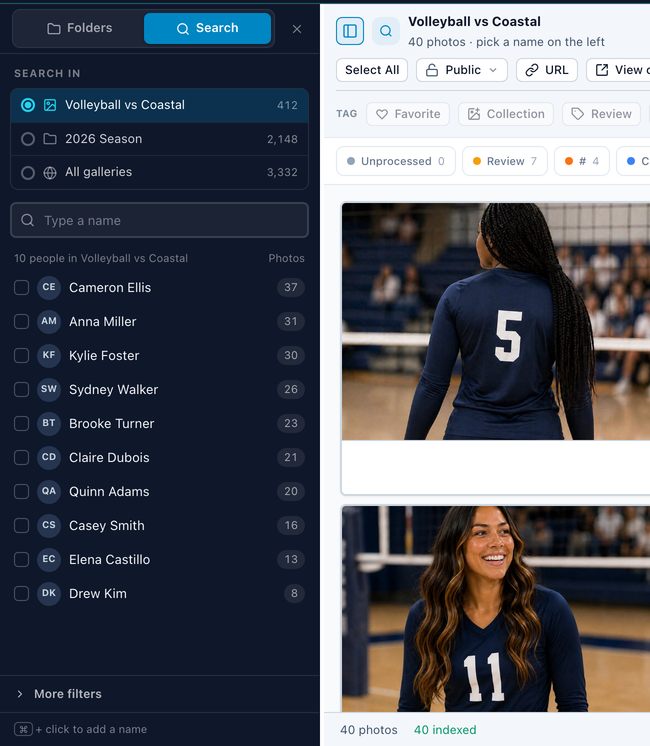
The Search side of the Galleries panel: Search in, the name box, and the people with their photo counts
Search in, the name box, and the people in that scope with their photo counts.

Open Search

  1. 1

    Open Galleries

    Go to the gallery or folder you want to search, or stay at the top to search them all.
  2. 2

    Switch the panel to Search

    The Folders | Search switch is at the top of the left panel.
  3. 3

    Pick where to look

    Search in lists the gallery that's open, then its folder, then all galleries, each with its photo count. It starts on the gallery you're in.

Pick a name

Below Search in are the people named in that scope, with how many photos each one is in. The list only counts galleries you can open. Type in the name box to narrow it.

  • •Click a name to see their photos.
  • •Hold ⌘ (Ctrl on Windows) and click a second name, or click its checkbox, for the photos with both of them.
  • •Click a picked name again to drop it, or click Clear to start over.
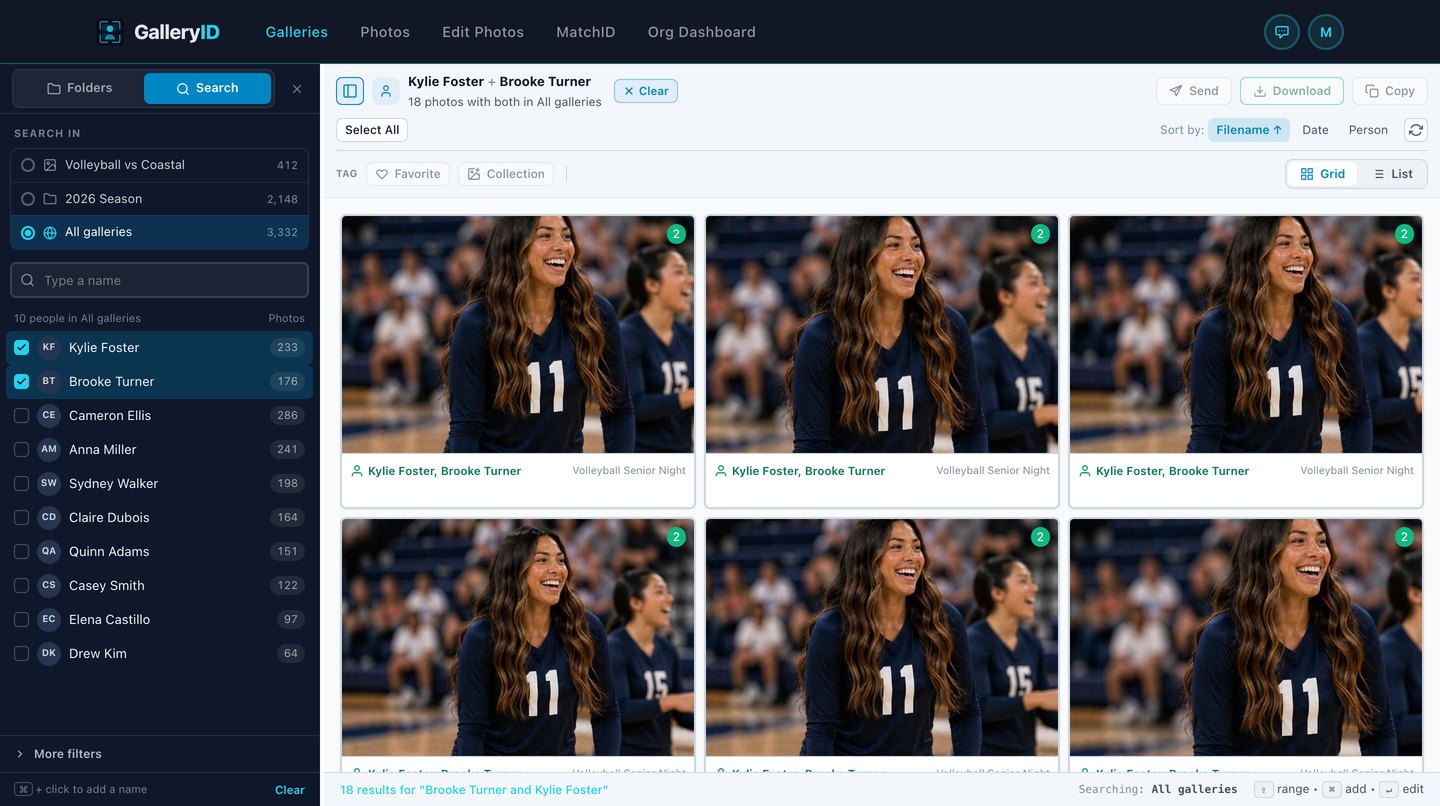
Two names picked: the photos with both of them, from all galleries
Two names picked, searching all galleries. Each card names the gallery it's in.

Search by words

Search also finds words in the photos themselves: the caption, keywords, headline, title, event, location or filename. Type a word or a phrase in the name box, like Sunset or Touchdown, then choose Search photos for at the top of the list. When no one is named that, Enter does the same.

  • •The words stay at the top of the panel until you clear them with the ×.
  • •Pick a name as well for the photos of that person with those words.
  • •More filters work with words too, so you can look for Touchdown in one season.

Narrow it down

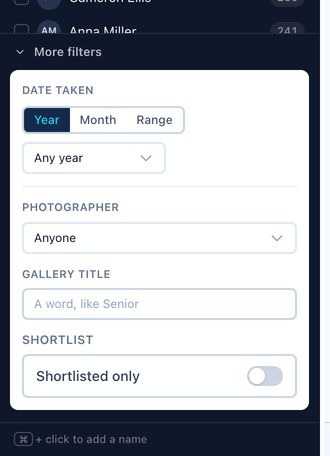
More filters, at the foot of the panel, narrows the results further.

FilterWhat it keeps
Date takenPhotos from a year, a month or a range of dates
PhotographerGalleries by one photographer
Gallery titleGalleries with a word in the title, like Senior
Shortlisted onlyOnly the photos on your shortlist
More filters: Date taken, Photographer, Gallery title and Shortlisted only
More filters.

Work with the results

The results fill the gallery's own grid and toolbar. When they come from more than one gallery, each card names the gallery it's in.

Download, Send and Copy work on a selection that spans galleries, on the photos you're allowed to use. When some come from a gallery you can't download from, the button says how many it'll take, like Download (73 of 97), and the ZIP leaves the rest out.

Send, Download (73 of 97) and Copy in the toolbar
73 of the 97 selected photos can be downloaded, so the ZIP holds those 73.

Edit and Batch work across galleries too, on the photos whose gallery lets you edit them, and Edit steps through those in the order shown. Tag People, Metadata, Delete and Upload work inside one gallery, so they're off while the results span more than one.

Back to Folders

Switch back to Folders and you're in the gallery you started from. The names stay picked, so Search opens where you left it.

Search finds the confirmed names on your photos, the same names written to the file. It's on a computer. On a phone, use the Photos page.

Related

GalleryID

Athlete naming for sports photographers and athletic departments. GalleryID Desktop ingests, culls and captions on your own computer, and nothing is uploaded; SidelineID is Desktop on your phone at the game. GalleryID Cloud is the hosted archive you search by athlete name. The built-in Roster Library covers NCAA Division I, II and III and the major US pro leagues.

Find photos by athlete, not by filename.

iPhone and Android apps for both products →

Product

GalleryID DesktopGalleryID CloudMatchIDCaptionIDPhone appsFeaturesPricingCompare

Solutions

Sports PhotographersTeamAthletic DepartmentsColleges & UniversitiesAthletic ConferencesOrganizations

Company

Book a 30-Min DemoAboutContactPrivacyTermsDPADMCA

Resources

HelpCloud Getting StartedDesktop Getting StartedCaptioning SoftwareRoster LibraryAfter Photo Mechanic PlusBlog
© 2026 GalleryID. All rights reserved.Built by working sports photographers, on the same deadline you are.macOS, Windows and the web.

Photo Mechanic and Photo Mechanic Plus are trademarks of Camera Bits, Inc. Lightroom, Photoshop and Adobe are trademarks of Adobe Inc. Capture One is a trademark of Capture One A/S. Sideline Captions, Caption Pro, PhotoShelter, SmugMug, Zenfolio, Pixieset, Pic-Time and all other product and company names referenced on this site are trademarks of their respective owners. GalleryID is not affiliated with, sponsored by, or endorsed by any of them. Those names are used here only to identify the products being described or compared, and any comparison reflects each vendor’s published documentation at the time of writing.